---
title: "Flexible Objects: structure, and how to write to them"
description: Configuring Data Objects
---
[Skip to content](https://support.spotio.com/hc/en-us/articles/11712242070807-configuring-data-objects#main-content)
English
Show submenu for translations
[](https://support.spotio.com?hsLang=en)
Open main navigation
Close main navigation
- English
Show submenu for translations
How can we help you?
- There are no suggestions because the search field is empty.
1. [SPOTIO Knowledge Base](https://support.spotio.com/?hsLang=en)
2. [Knowledge Base](https://support.spotio.com/knowledge-base?hsLang=en)
3. [Admin](https://support.spotio.com/knowledge-base?hsLang=en#admin)
September 8, 2026
# Flexible Objects: structure, and how to write to them
SPOTIO’s Flexible Objects allow you to customize your data objects, including their Names, Fields, and Stages. This can help you make your SPOTIO account more closely match your sales process, standardize verbiage across your tech stack to promote ease of integration, and provides many possibilities for data organization and tracking. This article details how to create and customize data objects.
Workflow
The Workflow section of Settings allows you to create and customize multiple objects, as well as define relationships between them, and determine a default object type when records are created.
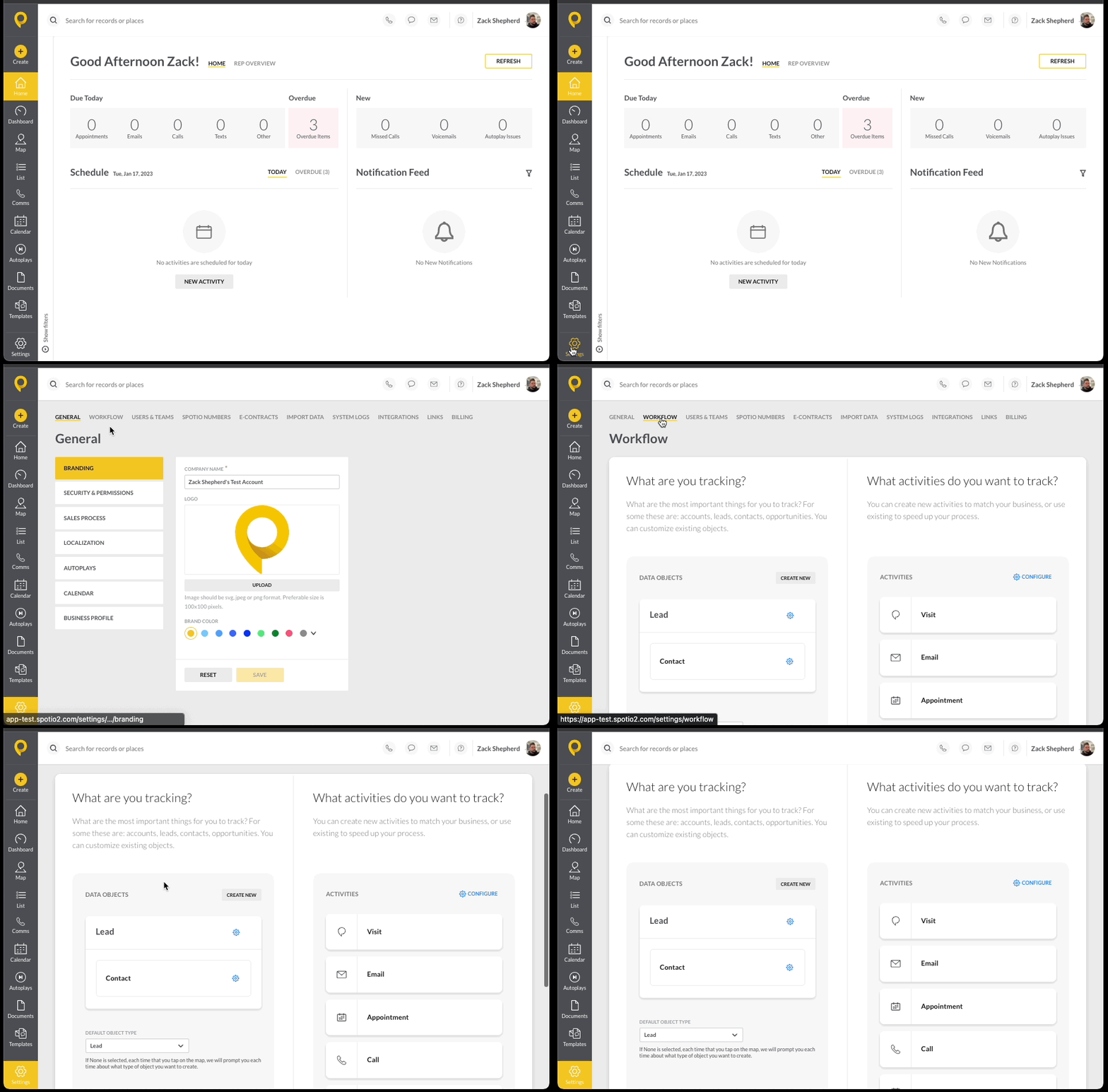
To open the Workflow page, you will need to log in to the SPOTIO Web application as an Account Admin user.
1. Click the **Settings** gear at the bottom of the page.
2. Choose **Workflow** from the options at the top.
### Configure an existing object:
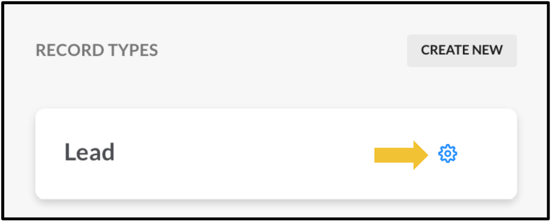
Inside of the Workflow page under *What are you tracking?*, click the blue gear icon on an object to edit the object's Fields and Stages.
On the Object Editor page, you can configure the active fields for your Data Object. You can use existing fields or create Custom Fields by dragging the tile labeled **Custom** to the list on the left of the screen.
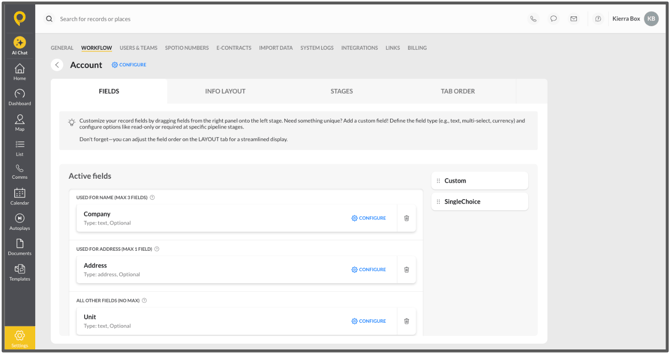
**The fields labeled Used For Name will be used for the displayed name of the record when it is viewed on the Map or in the List.** For example, a company that sells primarily to Homeowners will use the First and Last Name of the Homeowner. For B2B sales teams, the name of the Company you are selling to is also a popular choice.

**The field labeled "Used for Location and Mapping Tools" is used for an Address field**. An address field is required to display a record on the Map or make it possible to add a record to a route. This also determines if visit activities logged on the record can be verified by location.

All other fields in this area are details that you would like included in this type of record such as Email, Phone, and any Custom Fields. We will cover how to configure custom fields below.
### Create a new object:
If your account has object management turned on, you have the ability to create multiple objects for your account.
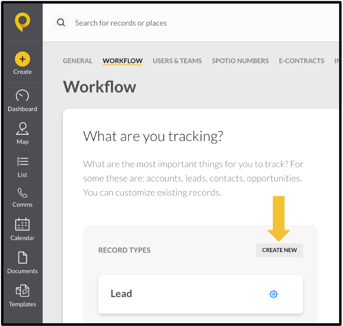
On the Workflow page, Click **Create New** to create a new custom Data Object.
When you Create a New Object, you are required to name your Object, and decide if it will be a parent or a child of an existing object.
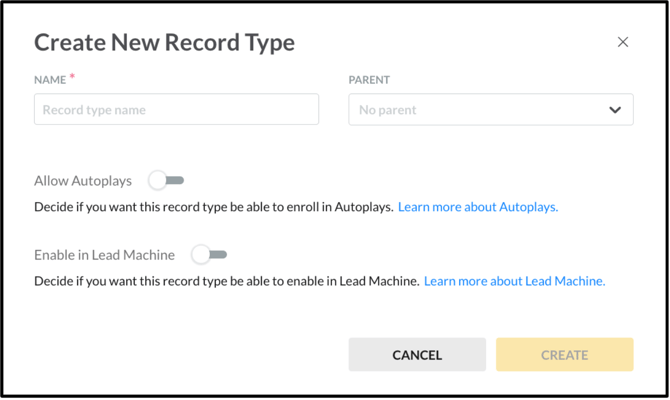
Use the *Allow Autoplays* toggle to define if an object can be enrolled into an Autoplay. *NOTE: Multiple objects can be enabled for Autoplays at once.*
Use the *Enable in Lead Machine* toggle to define if the object will be able to be added as a record from Lead Machine. *NOTE: Only ONE object can be enabled for Lead Machine at a time.*
If your account does not have autoplays or lead machine, you will have a blue box that appears for these toggles stating to please contact us to enable each feature. You can still create a new record type regardless.
### Editing Data Objects:
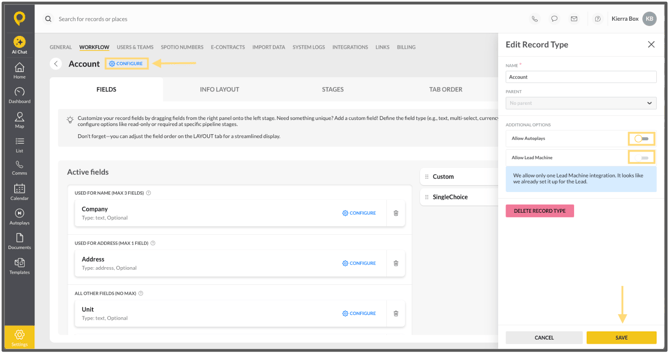
You can edit the name, parent/child relationship, and allow Autoplays and Lead Machine for any Data Object by clicking the **Configure** icon next to the object name at the top of the screen. The *Edit Record Type* panel will appear on the right to make configurations. Hit **Save** when complete.
Once a custom field is created, *Input Type* cannot be configured.
If you have created a new object or you are interested in learning more, you can check out our [Web App: Creating Custom Fields](https://support.spotio.com/hc/en-us/articles/360009997973-Web-App-Creating-Custom-Fields?hsLang=en) knowledge base article.
### Configuring Single Choice and Multi Choice Fields
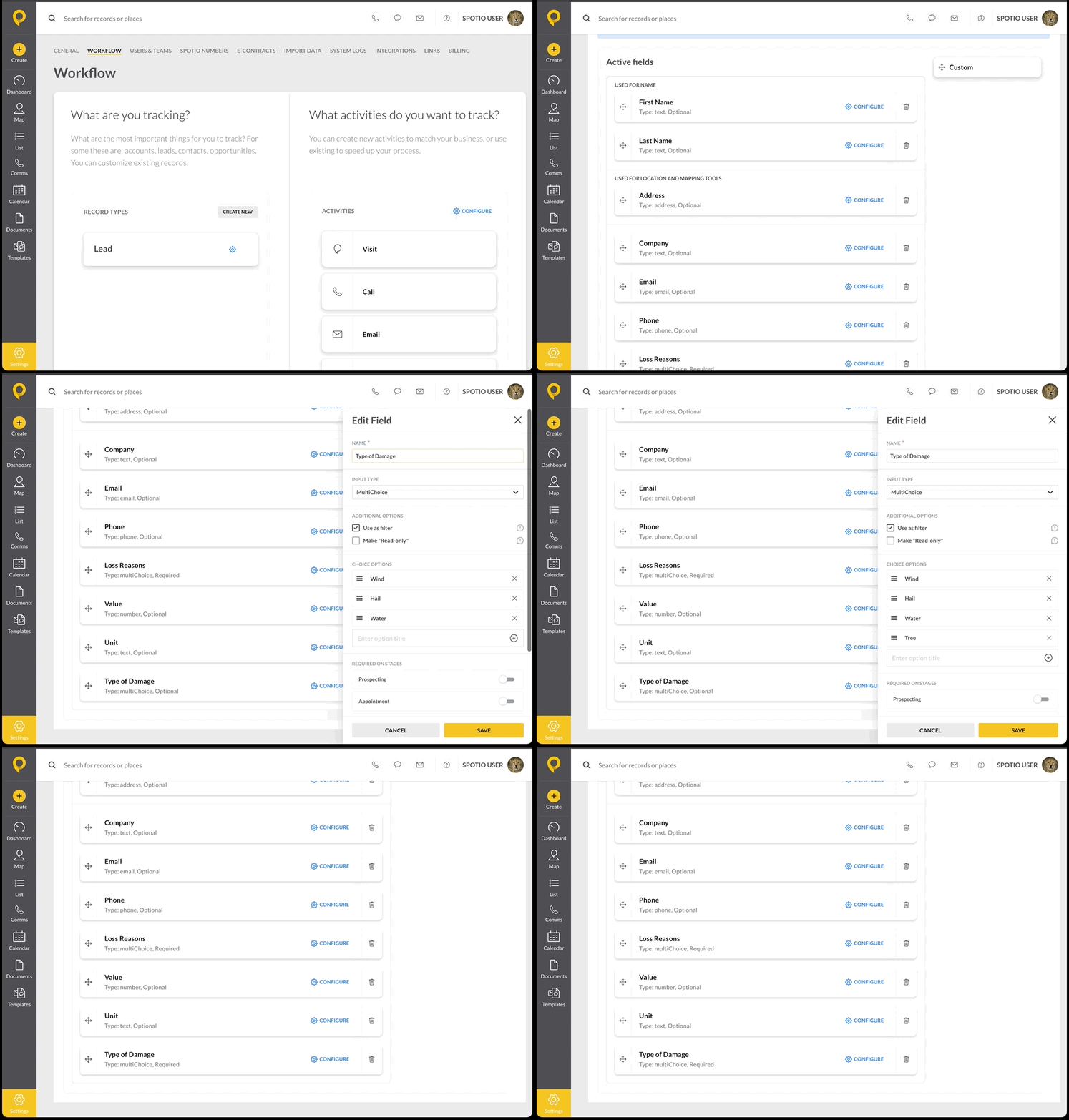
If you choose a SingleChoice or MultiChoice field, you can configure the field by:
- modifying the title of the field.
- checking or unchecking the boxes under *Additional Options*.
- inputting different options under *Choice Options*. Add in additional options at any time by entering a title and hitting the *plus* icon or *Enter* on your keyboard.
- remove any options by hitting the X on the option.
- use the 3 lines to drag the tiles in the desired order.
- requiring the field on a stage or stages by toggling on the switch for the appropriate stage(s).
Be sure to hit **Save** to confirm and complete choices.
### Configuring Lead Machine Fields
If you have enabled Lead Machine for your company, you can drag and drop any field to display that data point in the Record.
For example, if you would like your team to see the Home Market Value of Records added from Lead Machine, you can drag the Home Market Value tile into the *Active Fields* section.
This also allows you to colorize records by the selected field.
- [Getting started](https://support.spotio.com/getting-started?hsLang=en)
- [Troubleshooting](https://support.spotio.com/troubleshooting?hsLang=en)
- [Integrations](https://support.spotio.com/integrations?hsLang=en)
- [Knowledge Base](https://support.spotio.com/knowledge-base?hsLang=en#main-content)
- [Admin](https://support.spotio.com/knowledge-base?hsLang=en#admin)
- [Sales Rep](https://support.spotio.com/knowledge-base?hsLang=en#sales-rep)
- [Getting Started](https://support.spotio.com/knowledge-base?hsLang=en#getting-started)
- [FAQ](https://support.spotio.com/knowledge-base?hsLang=en#faq)
- [SPOTIO Español](https://support.spotio.com/knowledge-base?hsLang=en#spotio-espa%C3%B1ol)
- [SPOTIO: Troubleshooting](https://support.spotio.com/knowledge-base?hsLang=en#spotio-troubleshooting)
- [Manager](https://support.spotio.com/knowledge-base?hsLang=en#manager)
- [Getting Started: Manager](https://support.spotio.com/knowledge-base?hsLang=en#getting-started-manager)
- [Getting Started: Admin](https://support.spotio.com/knowledge-base?hsLang=en#getting-started-admin)
- [Getting Started: Sales Rep](https://support.spotio.com/knowledge-base?hsLang=en#getting-started-sales-rep)
- [Giving SPOTIO Reviews](https://support.spotio.com/knowledge-base?hsLang=en#giving-spotio-reviews)
- [Release Notes](https://support.spotio.com/release-notes?hsLang=en#main-content)
- [2025 Releases](https://support.spotio.com/release-notes?hsLang=en#2025-releases)
- [2026 Releases](https://support.spotio.com/release-notes?hsLang=en#2026-releases)
- [SPOTIO University](https://support.spotio.com/spotio-university?hsLang=en#main-content)
- [SPOTIO U: On Demand](https://support.spotio.com/spotio-university?hsLang=en#spotio-u-on-demand)
- [Live Training Sessions](https://support.spotio.com/spotio-university?hsLang=en#live-training-sessions)
- [Billing](https://support.spotio.com/billing?hsLang=en)
- [Webinars: On Demand](https://support.spotio.com/webinars-on-demand?hsLang=en#main-content)
- [Feature Spotlight](https://support.spotio.com/webinars-on-demand?hsLang=en#feature-spotlight)
- [Strategy & Best Practices](https://support.spotio.com/webinars-on-demand?hsLang=en#strategy-best-practices)
- [Quick Start Guides](https://support.spotio.com/quick-start-guides?hsLang=en#main-content)
- [Quick Start Videos: Web App Setup Guides](https://support.spotio.com/quick-start-guides?hsLang=en#quick-start-videos-web-app-setup-guides)
- [Quick Start Videos: Mobile App Navigation](https://support.spotio.com/quick-start-guides?hsLang=en#quick-start-videos-mobile-app-navigation)
- [Quick Start Videos: Web App Navigation](https://support.spotio.com/quick-start-guides?hsLang=en#quick-start-videos-web-app-navigation)
[mailto:support@spotio.com](mailto:support@spotio.com)
Copyright © 2026, SPOTIO