---
title: "Map Intelligence: Using Custom Colorization"
description: "Map Intelligence: Using Custom Colorization"
---
[Skip to content](https://support.spotio.com/hc/en-us/articles/13325620722071-map-intelligence-using-custom-colorization#main-content)
English
Show submenu for translations
[](https://support.spotio.com?hsLang=en)
Open main navigation
Close main navigation
- English
Show submenu for translations
How can we help you?
- There are no suggestions because the search field is empty.
1. [SPOTIO Knowledge Base](https://support.spotio.com/?hsLang=en)
2. [Knowledge Base](https://support.spotio.com/knowledge-base?hsLang=en)
3. [Admin](https://support.spotio.com/knowledge-base?hsLang=en#admin)
May 21, 2026
# Map Intelligence: Using Custom Colorization
SPOTIO’s Custom Colorization allows you to set a default colorization for your SPOTIO account, as well as customize specific “Days since Last Activity”, “Activity Count”, and "Custom Fields" colorization and ranges. This unique feature allows for quick and easy geographic visualization of several different data points in SPOTIO on both the web and mobile map view.
### Why add Custom Colorization?
Adding custom colorization allows you to be strategic with the data and information SPOTIO provides. For example, making your own customizable filters based on "activity levels" helps to prioritize records that need to be engaged or those that have been re-engaged too often. It also allows the Admin the ability to set the default colorization view for all users.
### Configuring Custom Colorization
It is important to note that these settings can only be configured through the web app by an Account Admin.
To add Custom Colorization options and ranges**:**
1. Login on the web app.
2. Click **Settings** in the bottom left.
3. Under "General", click on **Filters/Colorize Pins**.
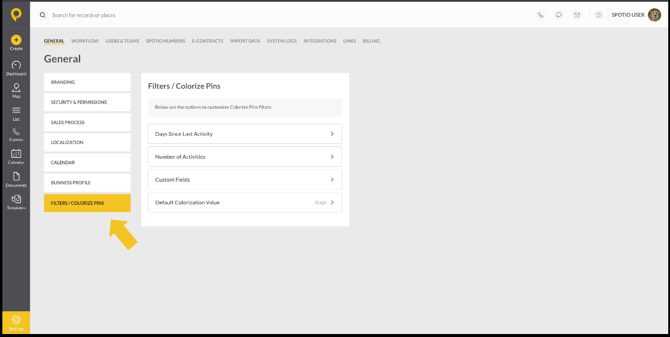
On this menu, there are 4 settings options to control Colorization. The configurations made in this menu will be visible for all users in the account.
The 3 settings menus are:
1. **Days Since Last Activity** - Allows you to create/customize specific colorization ranges for all activity types in your account.
2. **Number of Activities** - Allows you to create/customize specific activity count ranges for all activity types in your account.
3. **Custom Fields** - Allows you to create/customize specific currency or number ranges for "Currency" and "Number" custom fields.
4. **Default Colorization Value** - Allows you to select which Colorization option you want to be the default for all users in your account.
### Customizable “Days Since Last Activity”
With “Days Since Last Activity”, you are able to set custom colorization options based on ANY activity in your account (including custom activities).
These custom colorization options allow you to add as many custom date ranges as you want, as well as set a custom name and color choice for each option.
To set up custom "Days Since Last Activity":
1. Select **Settings**.
2. Under *General*, select **Filters/ Colorize Pins**.
3. Click on **Days Since Last Activity**.
4. Click **Add New**.
5. From the drop down box, choose the *Activity Type*.
6. Enter in the first Label needed for No days.
7. Click **Add New Range**.
8. Enter in the next *Label* and *Range* and select a color.
9. Repeat then **Save**.
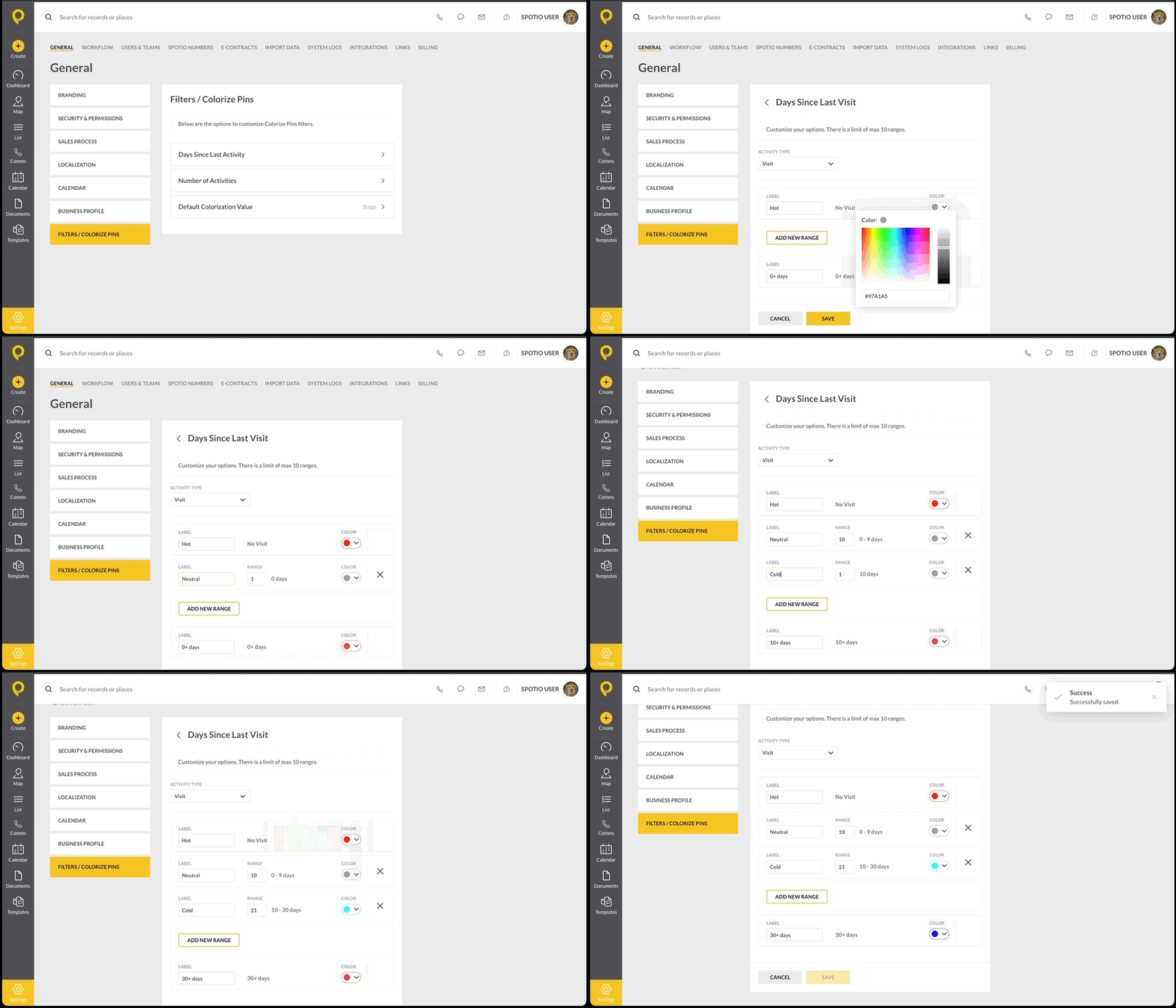
Once a “Days Since Last Activity” option has been created by an Admin on the web, it will then be usable by all users on the account, as well as a selectable option for default colorization.
### Customizable “Number of Activities”
With “Number of Activities”, you are able to set custom colorization options based on the total number of ANY activity logged to an object in your account (including custom activities).
These custom colorization options allow you to add as many custom count ranges as you want, as well as set a custom name and color choice for each option.
To set up custom "Number of Activities":
1. Select **Settings**.
2. Under General, select **Filters/ Colorize Pins**.
3. Click on **Number of Activities**.
4. Click **Add New**.
5. From the drop down box, choose the *Activity Type*.
6. Enter in the first Label needed for No activities.
7. Click **Add New Range**.
8. Enter in the next *Label* and *Range* and select a color.
9. Repeat then **Save**.
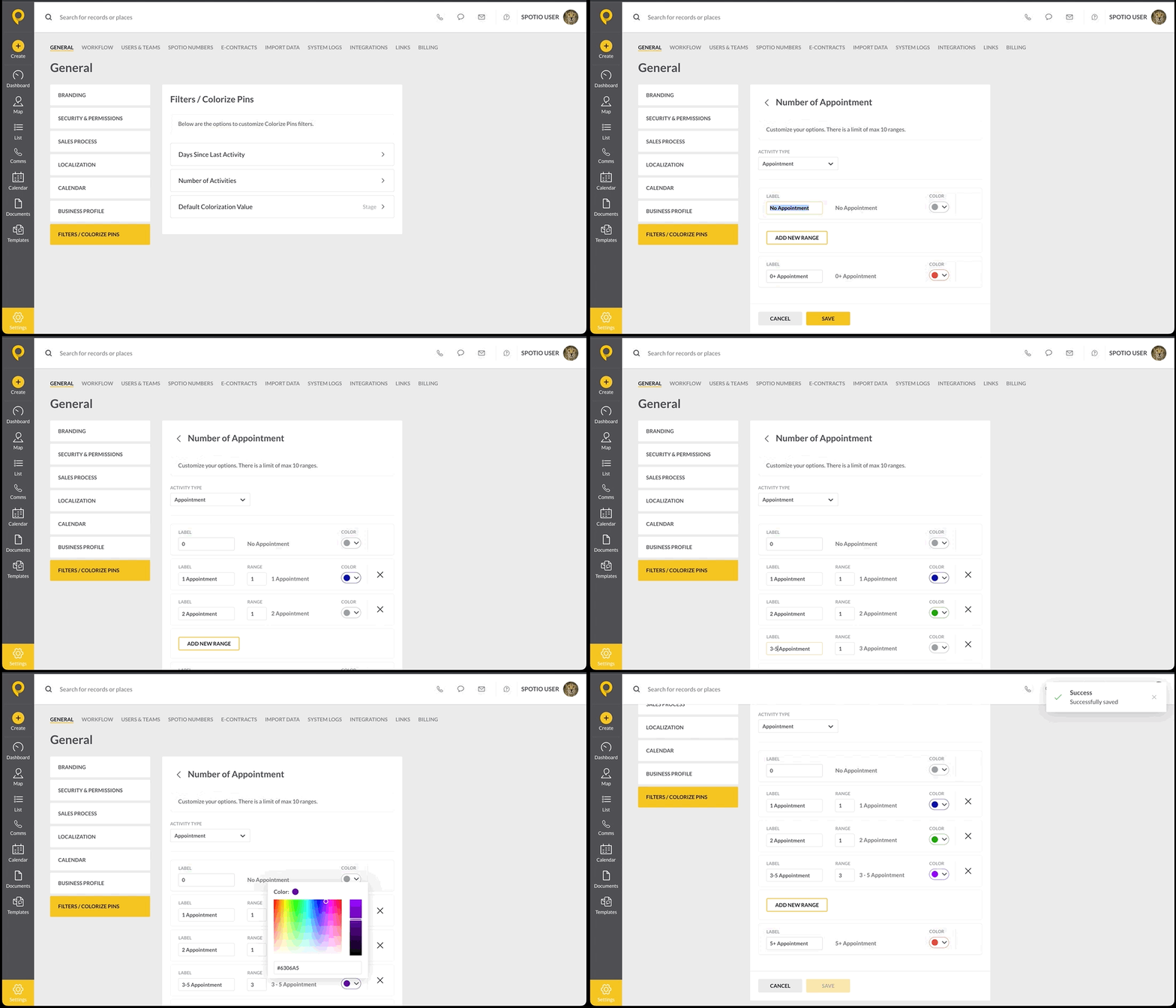
Once a “Number of Activities” option has been created on the web, it is then usable by all users on the account, as well as a selectable option for default colorization.
### Custom Fields
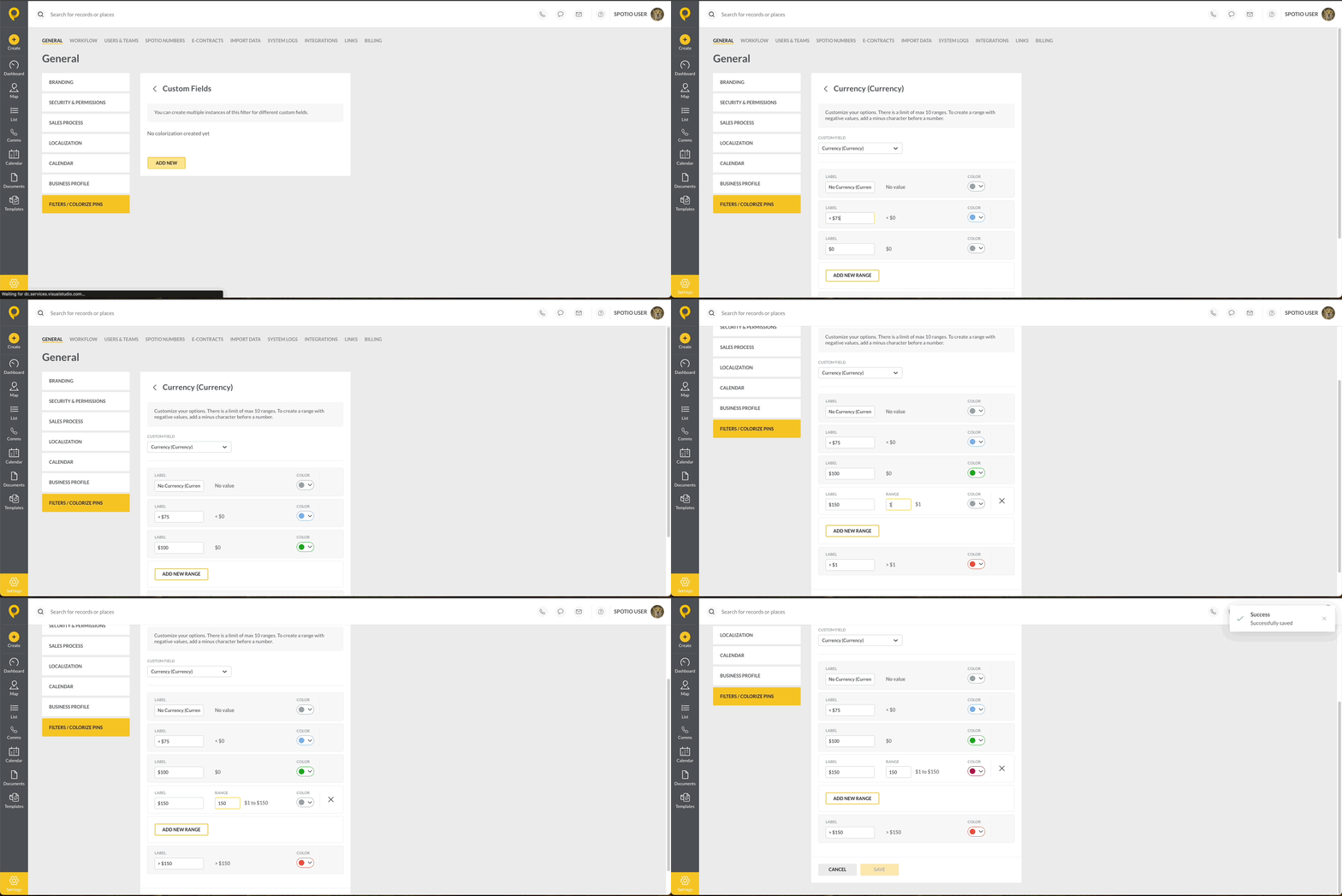
You are able to select a “Custom Fields” option from the *General* settings section of the SPOTIO Web app.
To set up custom "Custom Fields":
1. Click on **Settings**.
2. Under General, select **Filters/ Colorize Pins**.
3. Select **Custom Fields**.
4. Click **Add New**.
5. From the drop down box, choose the *Custom Field,* either *Currency* or *Number*.
6. Enter in the first Label needed for No *Currency* or *Number*.
7. Click **Add New Range**.
8. Enter in the next *Label* and *Range* and select a color.
9. Repeat then **Save**.
### Default Colorization Value
You are able to select a “Default Colorization” option from the *General* settings section of the SPOTIO Web app.
To set up custom "Default Colorization Value":
1. Click on **Settings**.
2. Under General, select **Filters/ Colorize Pins**.
3. Select **Default Colorization Value**.
4. Choose the default value.
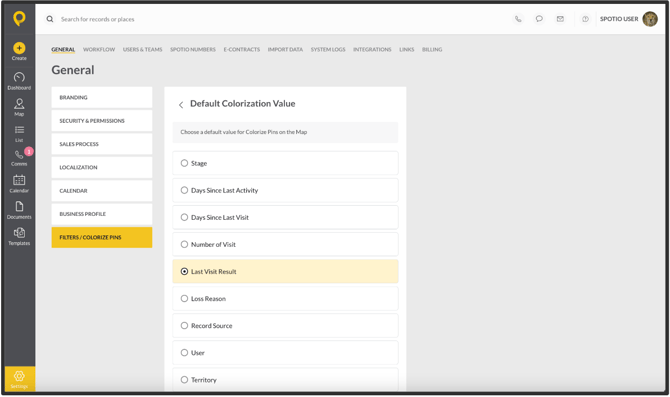
Once this default option is selected, it will apply for all users on the account for both web and mobile.
You will have the ability to change the colorization within the app, as well as the ability to save any colorization views in combination with specific filtering options by using a “My Filter”. The default colorization value is simply what the colorization will be displayed as when a user first enters the map view of the app without any filters applied, or clears out any existing filters.
Most Common Use Cases
- **Total Visits View** - we all know how important it is get a certain number of contacts in order to move a lead down the funnel. This view will allow reps to see records colorized by the custom visits range so they can ensure they are always hitting their contacts per lead targets.
- **Account Management Revisits** - this allows your Account Managers to easily visualize their customer base by the time since that visit that they care about most. They will be able to prioritize their visits effectively and easily identify customers that may be at risk.
- **"Not Now but Later" Customer Visual** - we have all had visits that have resulted in a "We aren't ready yet but come back in a few weeks" response. Using [My Filters](https://support.spotio.com/hc/en-us/articles/5693707392919-map-intelligence-my-filters?hsLang=en), combine your specific disposition result with the new custom days since last visit colorization and you can now get powerful insight into when to go back to those customers who asked you to drop back by!
### FAQs
**Can I have unlimited options when it comes to ranges?**
No. There is a max limit of 10 ranges.
**Will the previous colorization options still exist in SPOTIO?**
Yes! In addition to the custom colorization options you create, there will be built in options to choose from as well.
**What will be the default option for record colorization if not chosen?**
"Stages" will be the chosen default for record colorization.
**How wide can the range be for "Days since Last Activity"?**
The ranges can be set at 1 day to years allowing you to see the records that have had no engagement over a large period of time.
- [Getting started](https://support.spotio.com/getting-started?hsLang=en)
- [Troubleshooting](https://support.spotio.com/troubleshooting?hsLang=en)
- [Integrations](https://support.spotio.com/integrations?hsLang=en)
- [Knowledge Base](https://support.spotio.com/knowledge-base?hsLang=en#main-content)
- [Admin](https://support.spotio.com/knowledge-base?hsLang=en#admin)
- [Sales Rep](https://support.spotio.com/knowledge-base?hsLang=en#sales-rep)
- [Getting Started](https://support.spotio.com/knowledge-base?hsLang=en#getting-started)
- [FAQ](https://support.spotio.com/knowledge-base?hsLang=en#faq)
- [SPOTIO Español](https://support.spotio.com/knowledge-base?hsLang=en#spotio-espa%C3%B1ol)
- [SPOTIO: Troubleshooting](https://support.spotio.com/knowledge-base?hsLang=en#spotio-troubleshooting)
- [Manager](https://support.spotio.com/knowledge-base?hsLang=en#manager)
- [Getting Started: Manager](https://support.spotio.com/knowledge-base?hsLang=en#getting-started-manager)
- [Getting Started: Admin](https://support.spotio.com/knowledge-base?hsLang=en#getting-started-admin)
- [Getting Started: Sales Rep](https://support.spotio.com/knowledge-base?hsLang=en#getting-started-sales-rep)
- [Giving SPOTIO Reviews](https://support.spotio.com/knowledge-base?hsLang=en#giving-spotio-reviews)
- [Release Notes](https://support.spotio.com/release-notes?hsLang=en#main-content)
- [2025 Releases](https://support.spotio.com/release-notes?hsLang=en#2025-releases)
- [2026 Releases](https://support.spotio.com/release-notes?hsLang=en#2026-releases)
- [SPOTIO University](https://support.spotio.com/spotio-university?hsLang=en#main-content)
- [SPOTIO U: On Demand](https://support.spotio.com/spotio-university?hsLang=en#spotio-u-on-demand)
- [Live Training Sessions](https://support.spotio.com/spotio-university?hsLang=en#live-training-sessions)
- [Billing](https://support.spotio.com/billing?hsLang=en)
- [Webinars: On Demand](https://support.spotio.com/webinars-on-demand?hsLang=en#main-content)
- [Feature Spotlight](https://support.spotio.com/webinars-on-demand?hsLang=en#feature-spotlight)
- [Strategy & Best Practices](https://support.spotio.com/webinars-on-demand?hsLang=en#strategy-best-practices)
- [Quick Start Guides](https://support.spotio.com/quick-start-guides?hsLang=en#main-content)
- [Quick Start Videos: Web App Setup Guides](https://support.spotio.com/quick-start-guides?hsLang=en#quick-start-videos-web-app-setup-guides)
- [Quick Start Videos: Mobile App Navigation](https://support.spotio.com/quick-start-guides?hsLang=en#quick-start-videos-mobile-app-navigation)
- [Quick Start Videos: Web App Navigation](https://support.spotio.com/quick-start-guides?hsLang=en#quick-start-videos-web-app-navigation)
[mailto:support@spotio.com](mailto:support@spotio.com)
Copyright © 2026, SPOTIO