
For: Managers and admins building target lists · Where: Web app only · Requires: Lead Machine enabled for your Account · Last reviewed: 10 September 2026
Lead Machine provides access to public and some non-public information as allocated by the provider. This can include neighborhood information, household salaries, and property types. Having this information offers a huge advantage since you are able to focus on areas where your target audience is most likely to reside.
Also called: homeowner data, lead gen, property data, prospect list building, buying leads.
Before you start
- Lead Machine is a paid add-on, billed per user. If you don't see it, either your account doesn't have it or your seat isn't licensed for it — check with your CSM or reach out to support@spotio.com. Access is also controlled by role.
- Web app only. The Lead Machine tool is accessible on the Web App. However, records you add through the Lead Machine tool will be visible on the Web and Mobile app.
- 10,000 records maximum per add. Add only what your reps can actually visit in the period — see the tip below.
- The data refreshes monthly, so a list you pulled six weeks ago is a month stale.
How to add records with Lead Machine
- Log in to the SPOTIO web app.
- Click the map icon on the left sidebar.
- Select Lead Machine from the right side panel.
- Draw an area on the map by clicking and connecting the dots.
- Work through the criteria that best match your company's ideal customer profile.
- Click Add Leads.
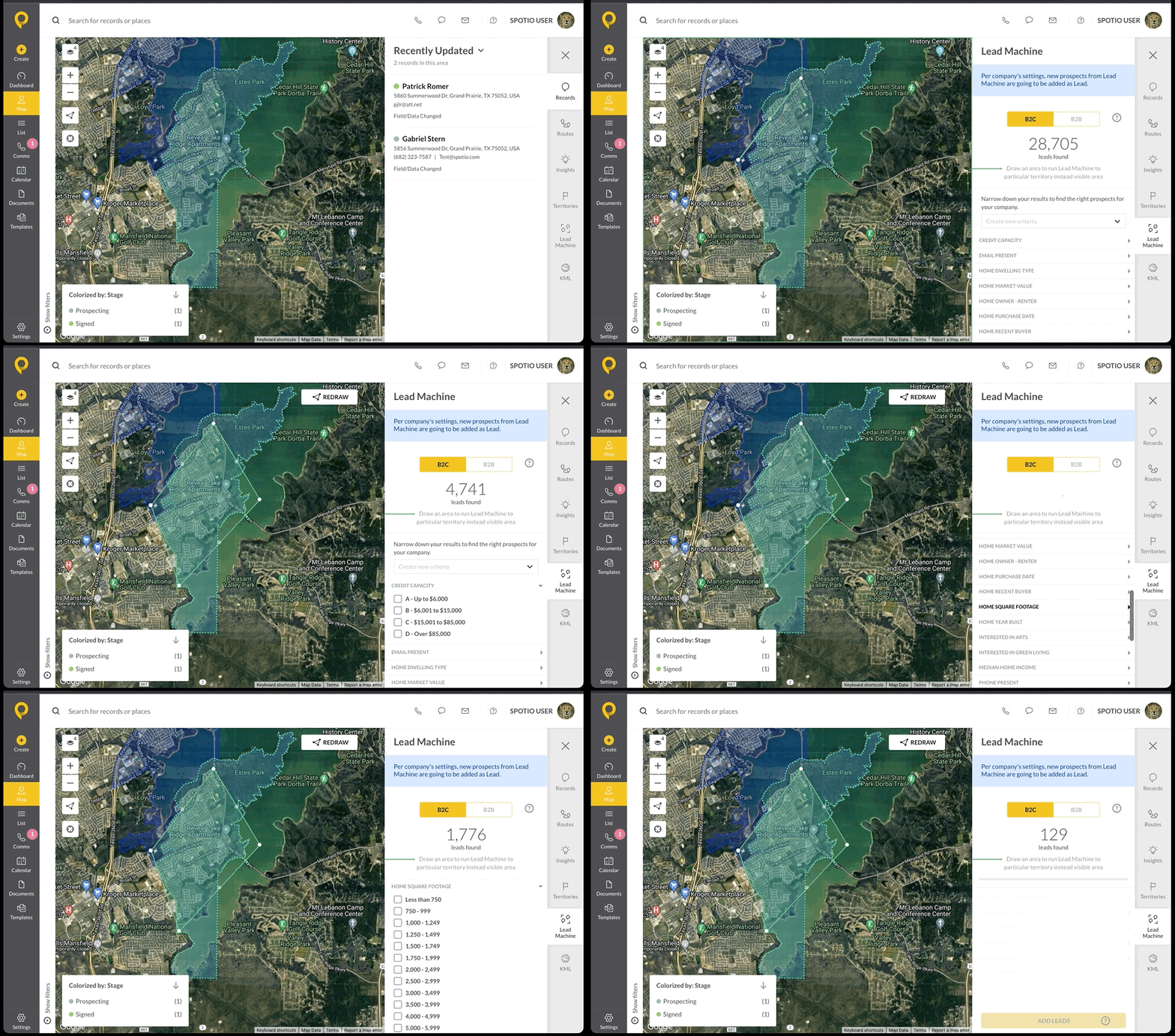
Records appear on both the web and mobile apps once added.
Retargeting an area you've already pulled? Only new information is added to existing records. Nothing is overwritten.
Tip: Only add records your reps can visit in a particular time period. This keeps the data current and helps you avoid hitting lead limits.
The data points you can filter on
Fifteen criteria, all filterable together:
|
Credit Capacity |
Home Recent Buyer |
Median Home Income |
|
Email Present |
Home Square Footage |
Phone Present |
|
Home Dwelling Type |
Home Year Built |
Resident Age |
|
Home Market Value |
Interested in Arts |
Vehicle Owned |
|
Home Owner - Renter |
Interested in Green Living |
|
|
Home Purchase Date |
Saving a criteria filter to reuse
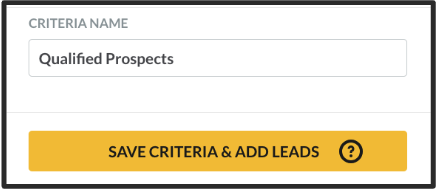
- Under Criteria Name, type a title.
- The yellow box below changes to Save Criteria & Add Leads — click it.
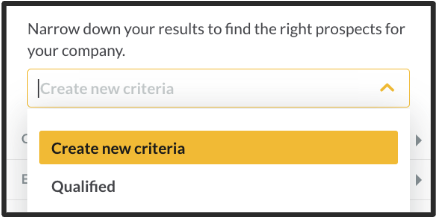
- Next time you draw an area, pick the saved set from the dropdown to apply the same filters.
Making the data visible to your reps
Lead Machine data only shows up for reps if you activate the fields:
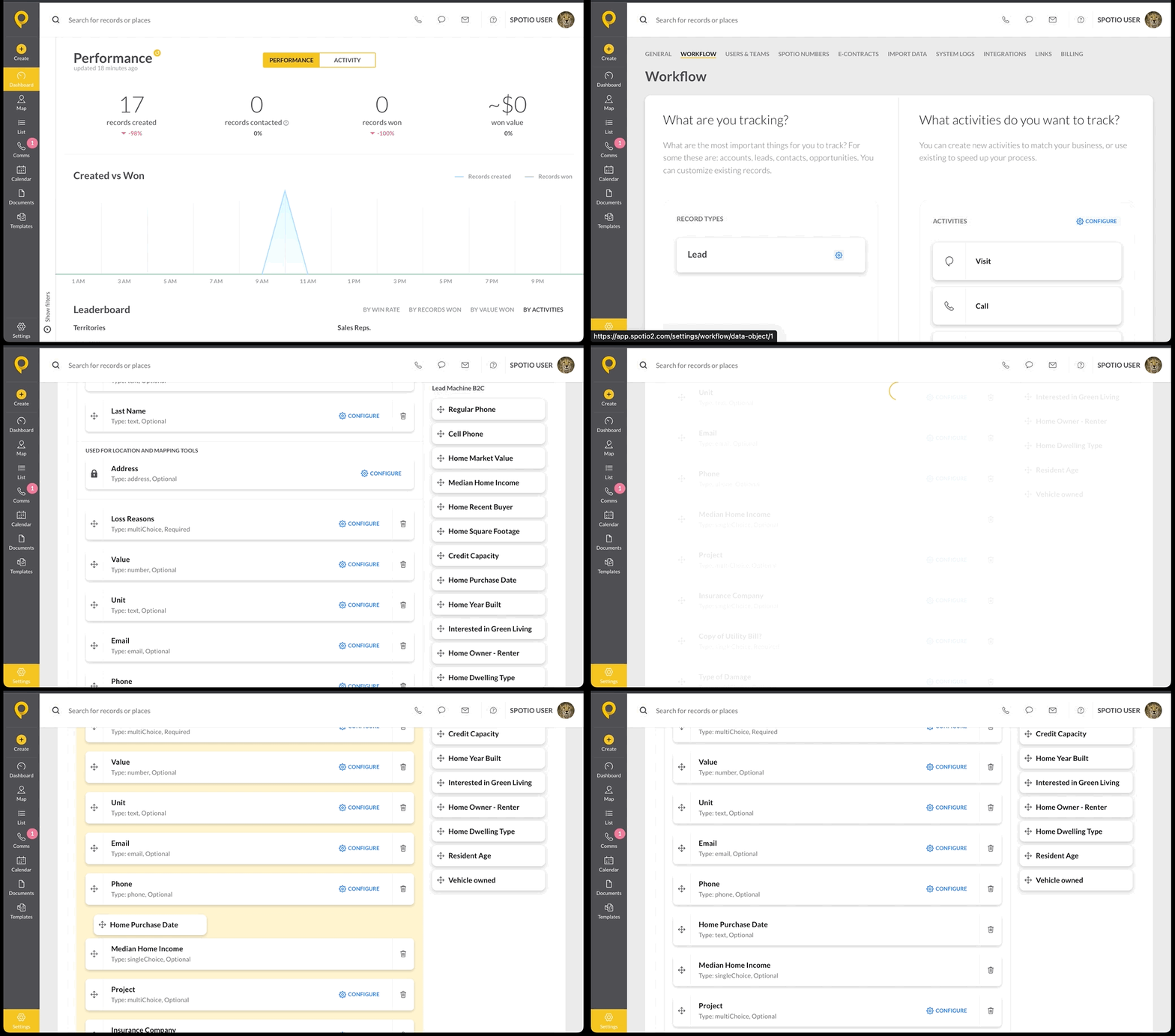
- Go to the custom field section of the Workflow.
- Drag the Lead Machine category tiles under Active fields.
Once active, the data displays on the mobile app and becomes available for filtering and colorization in the filter panel on both web and mobile.
Watch it done
FAQs
How often is this data updated?
Monthly.
How many Lead Machine leads can I add at a time?
Up to 10,000. Add only as many as your reps can work, so the data stays current and you don't hit your lead limit.
Why can't I find Lead Machine?
Two reasons: it's web-app only, and it's a paid add-on licensed per user. Your role also has to have it enabled.
Does retargeting an area overwrite my existing records?
No. Only new information is added.
Want to learn more? Check out the SPOTIO University On Demand Lead Machine Training.