---
title: Sending E-Contracts
description: Sending E-Contracts
---
[Skip to content](https://support.spotio.com/hc/en-us/articles/19202657383831-sending-e-contracts#main-content)
English
Show submenu for translations
[](https://support.spotio.com?hsLang=en)
Open main navigation
Close main navigation
- English
Show submenu for translations
How can we help you?
- There are no suggestions because the search field is empty.
1. [SPOTIO Knowledge Base](https://support.spotio.com/?hsLang=en)
2. [Knowledge Base](https://support.spotio.com/knowledge-base?hsLang=en)
3. [Sales Rep](https://support.spotio.com/knowledge-base?hsLang=en#sales-rep)
May 20, 2026
# Sending E-Contracts
Sending E-contracts is a swift and secure way to capture digital signatures seamlessly for all parties involved. These legally binding electronic agreements can be completed on both the web and/or mobile app, by one or 2 signers.
### Verifying Your Email Address
If you haven’t already, the first step you will need to do is verify your email address. This only needs to be completed once and can be done on both the web and/or mobile app. Click on the Get Verification Code button to have a 4 digit code sent to your email. Once confirmed, you are then ready to send E-contracts.
### Sending E-Contracts
E-Contracts can be sent electronically on both the web and mobile app.
### On the web:
To send an E-Contract on the web app:
1. Access the record. (You can use the search tool or click the record on the map view).
2. Click **E-Contracts** on the right of the panel.
3. Select the E-Contract.
4. Click on the **Send Signature Request By Email** button.
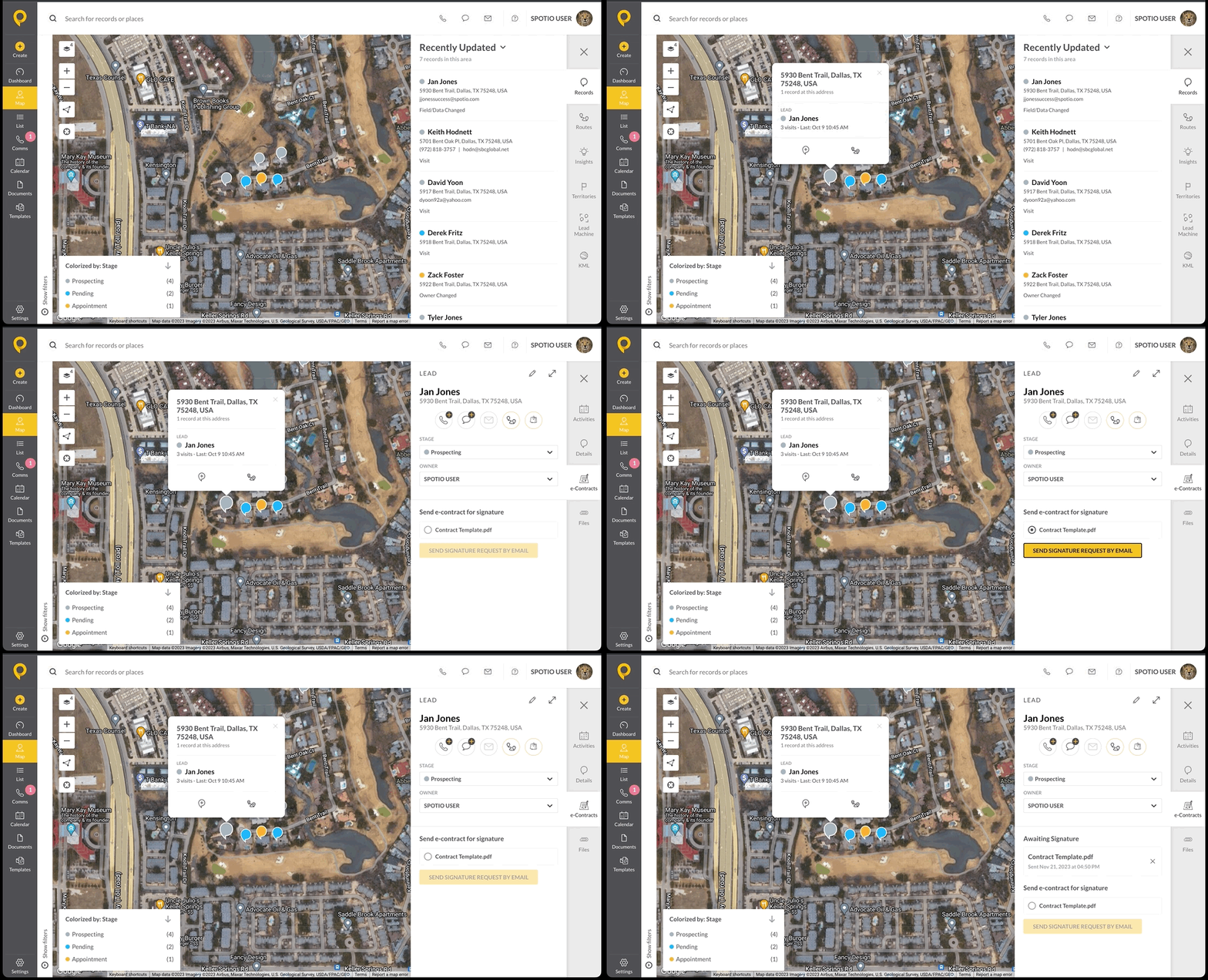
Once the contract has been sent, it will appear as Awaiting Signature. When all parties have signed, the status will then appear as Signed Contracts.
***Tip:*** You can also download any completed contracts inside of the record as well.
### On the mobile:
To send an E-Contract on the mobile app:
1. Click on the record.
2. Tap in the gray Lead box.
3. Hit the **+** sign at the bottom.
4. Select **Sign Document**.
5. Select the template to send.
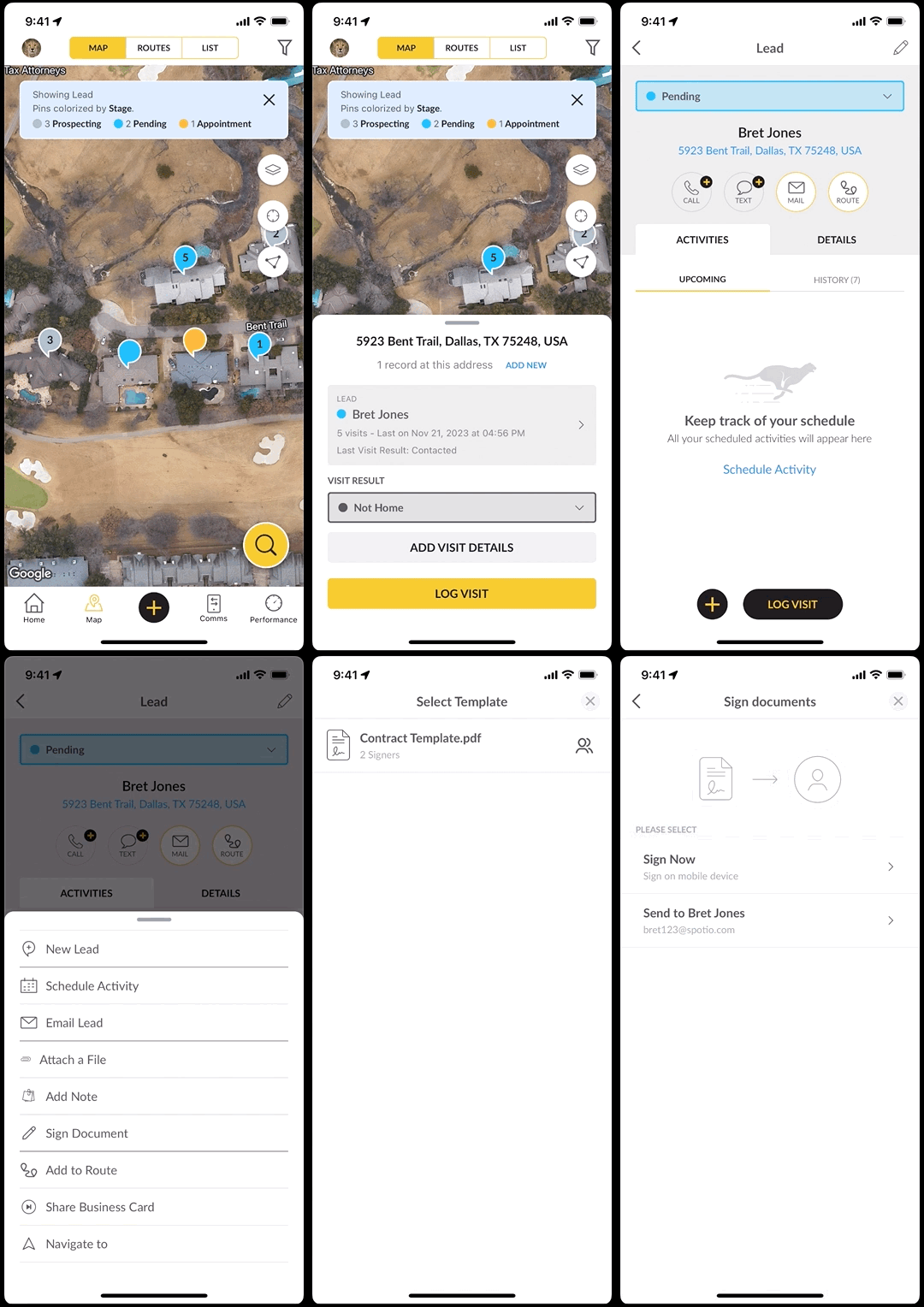
Regardless of whether you are capturing 1 signature or a 2 signer document, you will have the option to Sign Now or Send by email.
- **Sign now** - capture a signature in the field on the device.
- **Send to** - Email to customer.
When hitting the sign now, it will pull up the template created. If there is information that was set to be pre-populated, you will see that appear in the fields of the template. Once required fields are filled out and necessary signatures are signed, you can tap Continue. All parties signing must hit the I agree button to proceed and finalize the contract.
When choosing to have the document sent via the Send to option on the mobile, it will have you check the recipient’s email address before sending. Once sent, it will take you back to the Select Template page and close out if needed.
Once all signatures are received and the document has been completed, emails will be sent confirming the document has been successfully signed. These completed documents will live within the record’s details.
**In order for a Signed Now contract to be legally binding both parties need to receive a signed copy via email after it is signed. So basically we need their email to send a receipt to after the document is signed now.**
Interested in learning more? Check out the [SPOTIO U: E-Contracts Walk-Through](https://support.spotio.com/hc/en-us/articles/19128061996439-SPOTIO-U-E-Contracts-Walk-Through?hsLang=en) video.
### FAQs
**Where are the email contracts coming from?**
The contract will be sent via email ([hellosign@spotio.com](mailto:hellosign@spotio.com)) from SPOTIO E-Signature for the recipient. A final copy will come from Dropbox Sign for all parties.
**Where can I view completed contracts on the mobile app?**
Completed contracts will be stored with the record’s Detail under Files.
- [Getting started](https://support.spotio.com/getting-started?hsLang=en)
- [Troubleshooting](https://support.spotio.com/troubleshooting?hsLang=en)
- [Integrations](https://support.spotio.com/integrations?hsLang=en)
- [Knowledge Base](https://support.spotio.com/knowledge-base?hsLang=en#main-content)
- [Admin](https://support.spotio.com/knowledge-base?hsLang=en#admin)
- [Sales Rep](https://support.spotio.com/knowledge-base?hsLang=en#sales-rep)
- [Getting Started](https://support.spotio.com/knowledge-base?hsLang=en#getting-started)
- [FAQ](https://support.spotio.com/knowledge-base?hsLang=en#faq)
- [SPOTIO Español](https://support.spotio.com/knowledge-base?hsLang=en#spotio-espa%C3%B1ol)
- [SPOTIO: Troubleshooting](https://support.spotio.com/knowledge-base?hsLang=en#spotio-troubleshooting)
- [Manager](https://support.spotio.com/knowledge-base?hsLang=en#manager)
- [Getting Started: Manager](https://support.spotio.com/knowledge-base?hsLang=en#getting-started-manager)
- [Getting Started: Admin](https://support.spotio.com/knowledge-base?hsLang=en#getting-started-admin)
- [Getting Started: Sales Rep](https://support.spotio.com/knowledge-base?hsLang=en#getting-started-sales-rep)
- [Giving SPOTIO Reviews](https://support.spotio.com/knowledge-base?hsLang=en#giving-spotio-reviews)
- [Release Notes](https://support.spotio.com/release-notes?hsLang=en#main-content)
- [2025 Releases](https://support.spotio.com/release-notes?hsLang=en#2025-releases)
- [2026 Releases](https://support.spotio.com/release-notes?hsLang=en#2026-releases)
- [SPOTIO University](https://support.spotio.com/spotio-university?hsLang=en#main-content)
- [SPOTIO U: On Demand](https://support.spotio.com/spotio-university?hsLang=en#spotio-u-on-demand)
- [Live Training Sessions](https://support.spotio.com/spotio-university?hsLang=en#live-training-sessions)
- [Billing](https://support.spotio.com/billing?hsLang=en)
- [Webinars: On Demand](https://support.spotio.com/webinars-on-demand?hsLang=en#main-content)
- [Feature Spotlight](https://support.spotio.com/webinars-on-demand?hsLang=en#feature-spotlight)
- [Strategy & Best Practices](https://support.spotio.com/webinars-on-demand?hsLang=en#strategy-best-practices)
- [Quick Start Guides](https://support.spotio.com/quick-start-guides?hsLang=en#main-content)
- [Quick Start Videos: Web App Setup Guides](https://support.spotio.com/quick-start-guides?hsLang=en#quick-start-videos-web-app-setup-guides)
- [Quick Start Videos: Mobile App Navigation](https://support.spotio.com/quick-start-guides?hsLang=en#quick-start-videos-mobile-app-navigation)
- [Quick Start Videos: Web App Navigation](https://support.spotio.com/quick-start-guides?hsLang=en#quick-start-videos-web-app-navigation)
[mailto:support@spotio.com](mailto:support@spotio.com)
Copyright © 2026, SPOTIO