---
title: How to Configure Info Layout and Tab Order
description: How to Configure Info Layout and Tab Order
---
[Skip to content](https://support.spotio.com/hc/en-us/articles/31101054416919-how-to-configure-info-layout-and-tab-order#main-content)
English
Show submenu for translations
[](https://support.spotio.com?hsLang=en)
Open main navigation
Close main navigation
- English
Show submenu for translations
How can we help you?
- There are no suggestions because the search field is empty.
1. [SPOTIO Knowledge Base](https://support.spotio.com/?hsLang=en)
2. [Knowledge Base](https://support.spotio.com/knowledge-base?hsLang=en)
3. [Admin](https://support.spotio.com/knowledge-base?hsLang=en#admin)
May 21, 2026
# How to Configure Info Layout and Tab Order
## Step-by-step guide to configuring info layout and tab order in SPOTIO.
SPOTIO's Layouts & Tabs customization feature gives admins powerful control over how record details are displayed and navigated across Web and Mobile apps. Previously limited to a single "Info" section, records can now be organized into custom sections with expandable views, flexible column layouts, and prioritized tab order — making data easier to find, manage, and act on. Custom Layout and Tab Order significantly improves how users interact with record data by keeping layouts organized, prioritizing what's most important, and simplifying navigation.
#### How to Update Info Layout
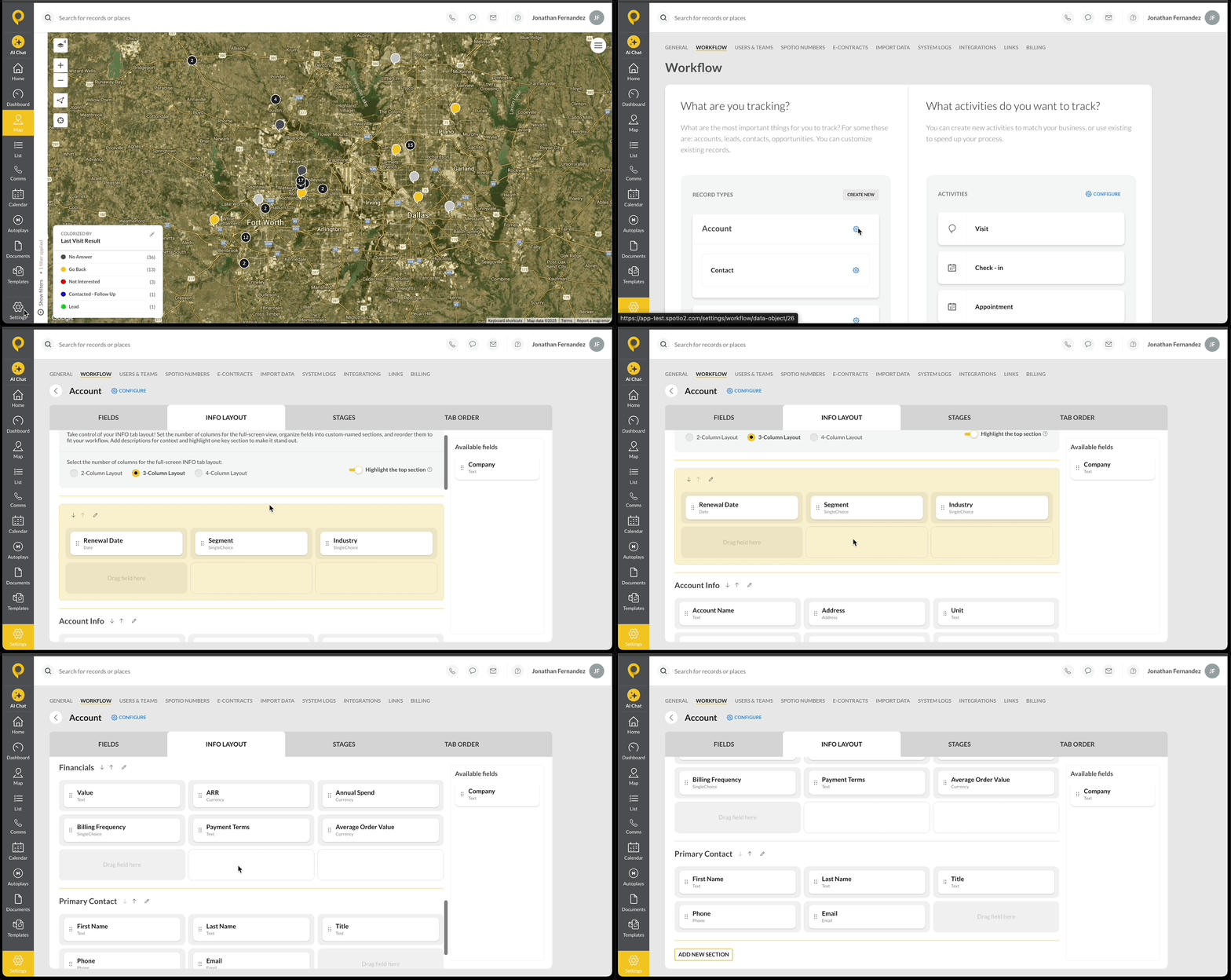
A user with the Account Admin role is able to update layout configurations within account Settings.
1. Click on the **Settings** gear icon in the bottom left of the Web app.
2. Select **Workflow**.
3. Within the *What are your tracking?* section, select the gear icon beside the record type you would like to update.
4. Select the **Info Layout** tab.
5. Select a **2-Column**, **3-Column**, or **4-Column** layout.
6. Move important record info fields to the top highlighted section.
7. Select the **ADD NEW SECTION** button to create a new section to separate and organize additional record info fields.
#### How to Update Tab Order
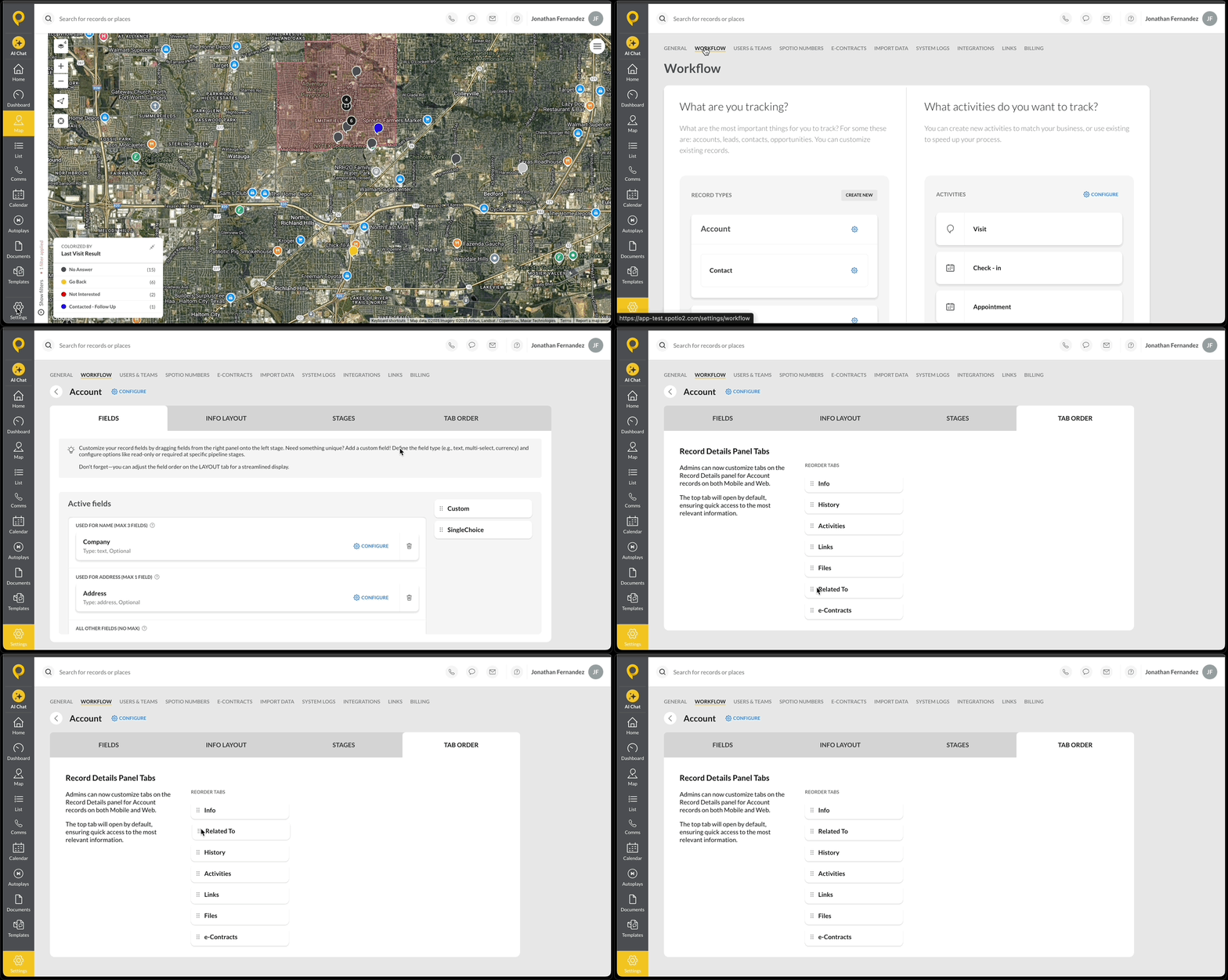
Account Admins can now customize tabs on the Record Details panel for records on both the Mobile app and Web. The top tab will open by default, ensuring quick access to the most relevant information.
1. Click on the **Settings** gear icon in the bottom left of the Web app.
2. Select **Workflow**.
3. Within the *What are your tracking?* section, select the gear icon beside the record type you would like to update.
4. Select the **Tab Order** tab.
5. Reorder the record tabs to your preference.
- [Getting started](https://support.spotio.com/getting-started?hsLang=en)
- [Troubleshooting](https://support.spotio.com/troubleshooting?hsLang=en)
- [Integrations](https://support.spotio.com/integrations?hsLang=en)
- [Knowledge Base](https://support.spotio.com/knowledge-base?hsLang=en#main-content)
- [Admin](https://support.spotio.com/knowledge-base?hsLang=en#admin)
- [Sales Rep](https://support.spotio.com/knowledge-base?hsLang=en#sales-rep)
- [Getting Started](https://support.spotio.com/knowledge-base?hsLang=en#getting-started)
- [FAQ](https://support.spotio.com/knowledge-base?hsLang=en#faq)
- [SPOTIO Español](https://support.spotio.com/knowledge-base?hsLang=en#spotio-espa%C3%B1ol)
- [SPOTIO: Troubleshooting](https://support.spotio.com/knowledge-base?hsLang=en#spotio-troubleshooting)
- [Manager](https://support.spotio.com/knowledge-base?hsLang=en#manager)
- [Getting Started: Manager](https://support.spotio.com/knowledge-base?hsLang=en#getting-started-manager)
- [Getting Started: Admin](https://support.spotio.com/knowledge-base?hsLang=en#getting-started-admin)
- [Getting Started: Sales Rep](https://support.spotio.com/knowledge-base?hsLang=en#getting-started-sales-rep)
- [Giving SPOTIO Reviews](https://support.spotio.com/knowledge-base?hsLang=en#giving-spotio-reviews)
- [Release Notes](https://support.spotio.com/release-notes?hsLang=en#main-content)
- [2025 Releases](https://support.spotio.com/release-notes?hsLang=en#2025-releases)
- [2026 Releases](https://support.spotio.com/release-notes?hsLang=en#2026-releases)
- [SPOTIO University](https://support.spotio.com/spotio-university?hsLang=en#main-content)
- [SPOTIO U: On Demand](https://support.spotio.com/spotio-university?hsLang=en#spotio-u-on-demand)
- [Live Training Sessions](https://support.spotio.com/spotio-university?hsLang=en#live-training-sessions)
- [Billing](https://support.spotio.com/billing?hsLang=en)
- [Webinars: On Demand](https://support.spotio.com/webinars-on-demand?hsLang=en#main-content)
- [Feature Spotlight](https://support.spotio.com/webinars-on-demand?hsLang=en#feature-spotlight)
- [Strategy & Best Practices](https://support.spotio.com/webinars-on-demand?hsLang=en#strategy-best-practices)
- [Quick Start Guides](https://support.spotio.com/quick-start-guides?hsLang=en#main-content)
- [Quick Start Videos: Web App Setup Guides](https://support.spotio.com/quick-start-guides?hsLang=en#quick-start-videos-web-app-setup-guides)
- [Quick Start Videos: Mobile App Navigation](https://support.spotio.com/quick-start-guides?hsLang=en#quick-start-videos-mobile-app-navigation)
- [Quick Start Videos: Web App Navigation](https://support.spotio.com/quick-start-guides?hsLang=en#quick-start-videos-web-app-navigation)
[mailto:support@spotio.com](mailto:support@spotio.com)
Copyright © 2026, SPOTIO