---
title: "Acculynx Integration AppConnections Best Practice: Data Mapping"
description: "Acculynx Integration AppConnections Best Practice: Data Mapping"
---
[Skip to content](https://support.spotio.com/hc/en-us/articles/32716915272983-acculynx-integration-appconnections-best-practice-data-mapping#main-content)
English
Show submenu for translations
[](https://support.spotio.com?hsLang=en)
Open main navigation
Close main navigation
- English
Show submenu for translations
How can we help you?
- There are no suggestions because the search field is empty.
1. [SPOTIO Knowledge Base](https://support.spotio.com/?hsLang=en)
2. [Integrations](https://support.spotio.com/integrations?hsLang=en)
August 4, 2026
# Acculynx Integration AppConnections Best Practice: Data Mapping
Once you're logged in as the **Acculynx Admin**, follow the steps below to complete your SPOTIO integration setup using the **Acculynx Integration AppConnections**:
### Set Up Your Trigger
In the **AppConnections** section of Acculynx, configure your **SPOTIO Trigger**. This determines when and how data will sync between Acculynx and SPOTIO.
### Acculynx Integration Connection
Once you are logged in as the Acculynx Admin:
**Setting Up your Trigger:**
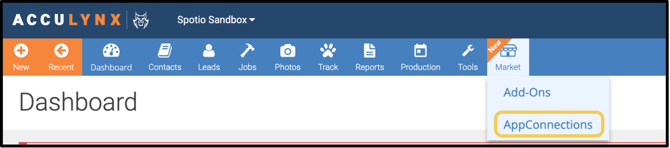
1. Click on **Marketplace** in the top toolbar of your screen.
2. Select **AppConnections** from the drop-down menu.
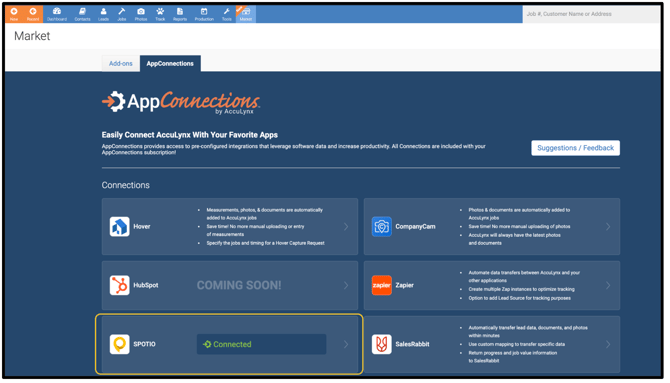
3. On the menu, scroll to the section labeled **Connections.** Once you are in this section, select the **SPOTIO** connection labeled with the SPOTIO icon.
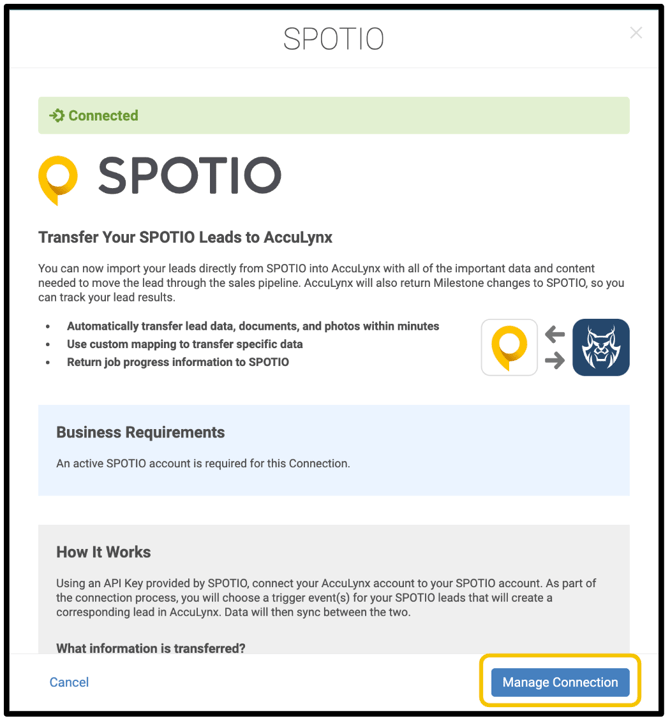
4. **SPOTIO** connection pop-out will appear.
5. Click on the blue **Manage Connections** button.
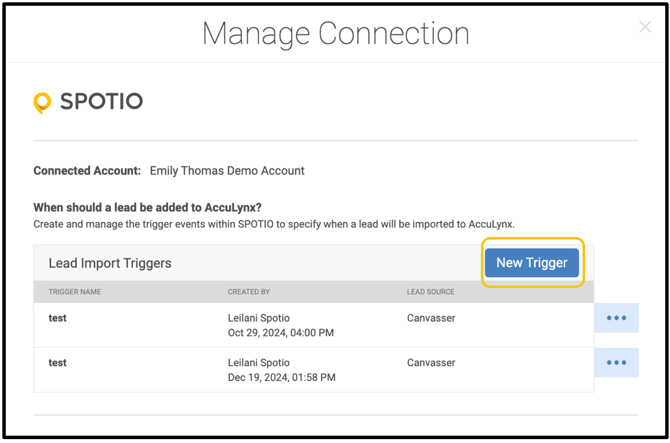
6. **Manage Connections** pop-out will appear, select the blue **New Trigger** button.
7. **Trigger** pop-ou will appear, fill in the trigger name, select team or sales reps, and then select a record type.
8. This will generate further trigger actions to map and select.
9. Select **Trigger Action**: choose from **Stage** or **Last Visit Result**, then select the stage or the visit result that would be the trigger.
10. Select **Lead Source**
11. Select the blue **Save** button
### **Map Your Data Fields**
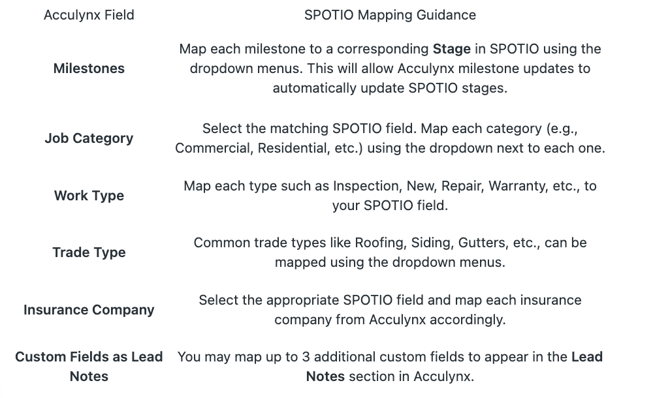
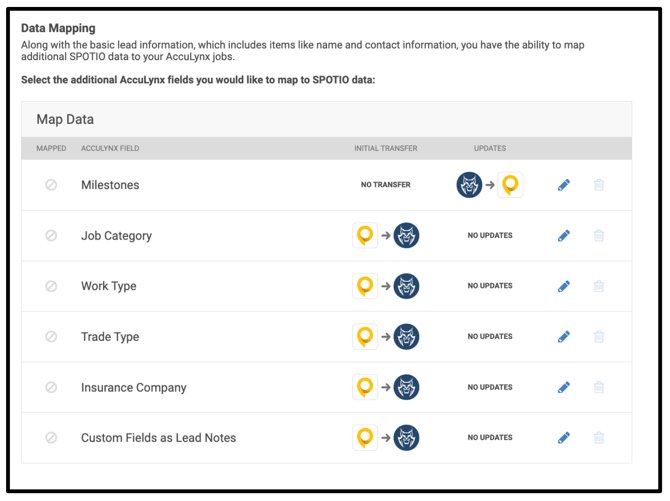
After setting up your trigger, you’ll be redirected to the **Manage Connections** pop-out where you can begin mapping your data fields. You’ll be able to map the following Acculynx fields to SPOTIO fields:
To **edit or update** any field, simply click the blue pencil icon next to it.
You will be directed back to the **Manage Connections** pop-out, once you have set up your trigger you will then need to map your data fields. You can map your Acculynx Milestones, Job Category, Work Type, Trade Type, Insurance Company, and Custom Field as Lead Notes fields.
To edit or update any of these fields you would click the blue pencil icon on each field.
- **Milestones:** milestones can be mapped to stages within your SPOTIO account, this will allow for milestone updates to update stages within SPOTIO. On the milestones page, you will use the drop-down menu next to each milestone to map.
- **Job Category:** Select the field within SPOTIO you are mapping this to. Then map the fields like commercial, property management, residential, and any custom fields you have by using the drop-down menu next to each category.
- **Work Type:** Select the field within SPOTIO you are mapping this to. Then map the fields like inspection, insurance, new, repair, service, warranty, and any custom fields you have by using the drop-down menu next to each category.
- **Trade Type:** Select the field within SPOTIO you are mapping this to. Then map the fields like gutters, roofing, siding, and any custom fields you have by using the drop-down menu next to each category.
- **Insurance Company:** Select the field within SPOTIO you are mapping this to. Then map the insurance companies to the ones listed in the SPOTIO field you selected by using the drop-down menu next to each category.
- **Custom Fields as Lead Notes:** you are able to map three other custom fields to the lead note in Acculynx. You can map these fields by using the drop-down menu next to each section.
### Field Mapping Details
**Pro Tip:** *Before mapping, make sure your SPOTIO account has custom **single-choice fields** created for fields you plan to map.* This ensures clean, one-to-one mapping and a smooth integration experience.
**Important:** This integration is managed entirely **within Acculynx**, not from the SPOTIO side.
FAQs
**How will the data pushed into Acculynx come over?**
Using Acculynx AppConnections integration with SPOTIO, all the data that is pushed will push over as a Lead.
**Why are my notes from SPOTIO not showing in Acculynx?**
Acculynx AppConnections give you three custom fields you can sync from SPOTIO into your Acculynx Lead, you will find it under "Custom Fields as Lead Notes"
- [Getting started](https://support.spotio.com/getting-started?hsLang=en)
- [Troubleshooting](https://support.spotio.com/troubleshooting?hsLang=en)
- [Integrations](https://support.spotio.com/integrations?hsLang=en)
- [Knowledge Base](https://support.spotio.com/knowledge-base?hsLang=en#main-content)
- [Admin](https://support.spotio.com/knowledge-base?hsLang=en#admin)
- [Sales Rep](https://support.spotio.com/knowledge-base?hsLang=en#sales-rep)
- [Getting Started](https://support.spotio.com/knowledge-base?hsLang=en#getting-started)
- [FAQ](https://support.spotio.com/knowledge-base?hsLang=en#faq)
- [SPOTIO Español](https://support.spotio.com/knowledge-base?hsLang=en#spotio-espa%C3%B1ol)
- [SPOTIO: Troubleshooting](https://support.spotio.com/knowledge-base?hsLang=en#spotio-troubleshooting)
- [Manager](https://support.spotio.com/knowledge-base?hsLang=en#manager)
- [Getting Started: Manager](https://support.spotio.com/knowledge-base?hsLang=en#getting-started-manager)
- [Getting Started: Admin](https://support.spotio.com/knowledge-base?hsLang=en#getting-started-admin)
- [Getting Started: Sales Rep](https://support.spotio.com/knowledge-base?hsLang=en#getting-started-sales-rep)
- [Giving SPOTIO Reviews](https://support.spotio.com/knowledge-base?hsLang=en#giving-spotio-reviews)
- [Release Notes](https://support.spotio.com/release-notes?hsLang=en#main-content)
- [2025 Releases](https://support.spotio.com/release-notes?hsLang=en#2025-releases)
- [2026 Releases](https://support.spotio.com/release-notes?hsLang=en#2026-releases)
- [SPOTIO University](https://support.spotio.com/spotio-university?hsLang=en#main-content)
- [SPOTIO U: On Demand](https://support.spotio.com/spotio-university?hsLang=en#spotio-u-on-demand)
- [Live Training Sessions](https://support.spotio.com/spotio-university?hsLang=en#live-training-sessions)
- [Billing](https://support.spotio.com/billing?hsLang=en)
- [Webinars: On Demand](https://support.spotio.com/webinars-on-demand?hsLang=en#main-content)
- [Feature Spotlight](https://support.spotio.com/webinars-on-demand?hsLang=en#feature-spotlight)
- [Strategy & Best Practices](https://support.spotio.com/webinars-on-demand?hsLang=en#strategy-best-practices)
- [Quick Start Guides](https://support.spotio.com/quick-start-guides?hsLang=en#main-content)
- [Quick Start Videos: Web App Setup Guides](https://support.spotio.com/quick-start-guides?hsLang=en#quick-start-videos-web-app-setup-guides)
- [Quick Start Videos: Mobile App Navigation](https://support.spotio.com/quick-start-guides?hsLang=en#quick-start-videos-mobile-app-navigation)
- [Quick Start Videos: Web App Navigation](https://support.spotio.com/quick-start-guides?hsLang=en#quick-start-videos-web-app-navigation)
[mailto:support@spotio.com](mailto:support@spotio.com)
Copyright © 2026, SPOTIO