---
title: "Web App: Creating Custom Fields"
description: Learn how Admins create and edit custom fields in the SPOTIO web app, choose an input type, use fields as filters, and require fields on pipeline stages.
---
[Skip to content](https://support.spotio.com/hc/en-us/articles/360009997973-web-app-creating-custom-fields#main-content)
English
Show submenu for translations
[](https://support.spotio.com?hsLang=en)
Open main navigation
Close main navigation
- English
Show submenu for translations
How can we help you?
- There are no suggestions because the search field is empty.
1. [SPOTIO Knowledge Base](https://support.spotio.com/?hsLang=en)
2. [Knowledge Base](https://support.spotio.com/knowledge-base?hsLang=en)
3. [Admin](https://support.spotio.com/knowledge-base?hsLang=en#admin)
September 25, 2026
# Web App: Creating Custom Fields
## Add fields to your records to capture the information your team needs, and choose how each field is filled in, filtered, and required
***For:** Admins · **Where:** Web app · **Plan:** All Plans*
---
Admins can add custom fields to records in the SPOTIO web app under **Settings** \> **Workflow**. Choose an input type for each field, and optionally make it read-only, use it as a filter, or require it on certain pipeline stages.
As your team works with prospects and customers, there's often information you need to collect and keep with each record. Custom fields let you store that information in the record's details.
#### Before you start
- **Only Admins can create and edit custom fields.**
- **You can't change a field's input type after it's saved.** Choose carefully. If you need a different type, create a new field.
### Creating a Custom Field
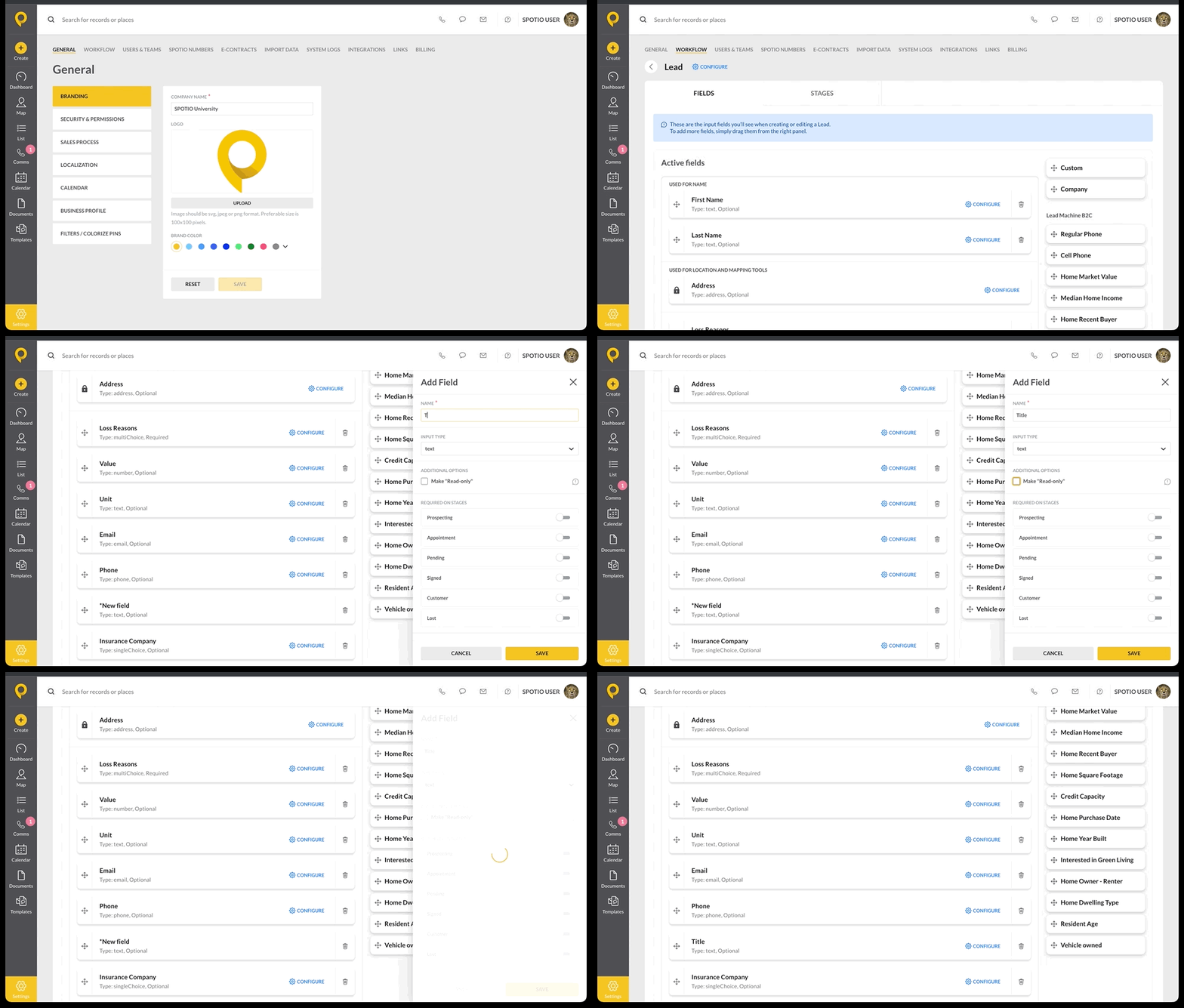
1. Login to the SPOTIO web app.
2. Click the **Settings** icon on the bottom left.
3. Select **Workflow**.
4. Under *What are you tracking*, click the blue gear.
5. Drag the custom tile from the left under the Active Fields.
6. Add a field **Name**.
7. Choose the input type from the drop-down menu.
8. Make additional selections as needed.
9. Hit **Save**.
### Input Types
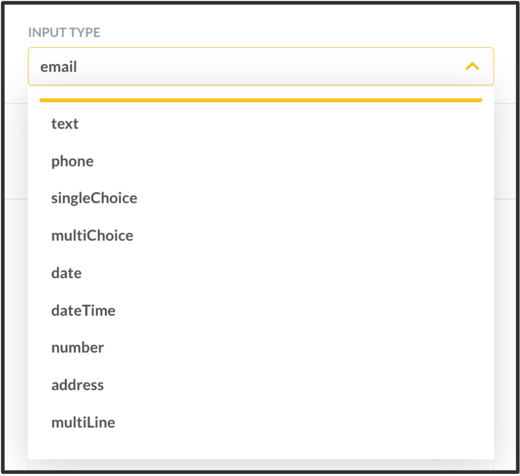
Under Input Type, there is a drop-down with 12 options to choose from for how you want your field formatted when entered.
Here are the available types of inputs for Custom Fields in SPOTIO:
- **Email** - An email address field
- **Text** - A blank text field
- **Phone** - A phone text field
- **SingleChoice** - A pick list field that allows a single option to be selected
- **MultiChoice** - A pick list field that allows multiple options to be selected
- **Date** - A date slider that allows you to select MM/DD/YYYY
- **DateTime** - A Date/Time Slider that allows you to select MM/DD/YYYY AND Time 00:00 AM/PM
- **Number** - A number value field
- **Address** - An address field
- **Multi-Line** - A blank text field with a higher character limit then Text
- **Currency** - A number field based on the account's chosen currency
- **Attachment** - A field that allows you to upload an attachment/file
All inputs do have the option to select **Read Only**, preventing any editing to the data. While most are standard, there are 4 that provide additional options: Single Choice, Multi Choice, Number, and Date.
- **Single Choice** allows you to list as many choice options as you want, but only one can be selected.
- **Multi Choice** allows you to list as many choice options as you want and choose as many of those options as you would like.
- **Text** allows you to input any text value and search by those options.
- **Date** allows you to input any date value and search by those options.
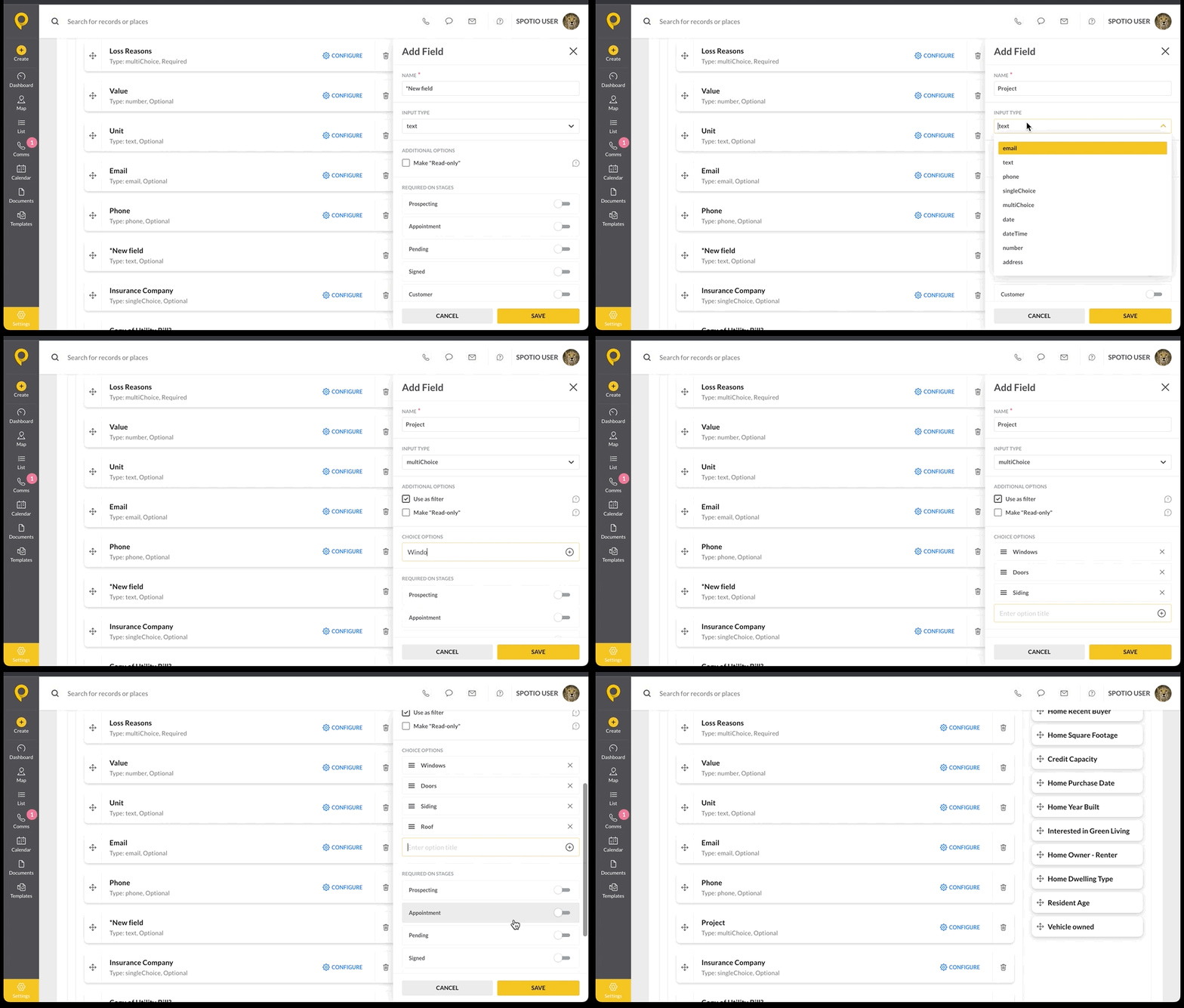
These four custom fields allow you to use as a filter, allowing you to filter records on the map and pipeline for both the web and mobile app. However, Single Choice is the only input that opens up the option to show in the activity feed.
**Tip:** Single Choice and Multi Choice also allow users to colorize their records based on the custom field choice options.
### Additional Options for Custom Fields
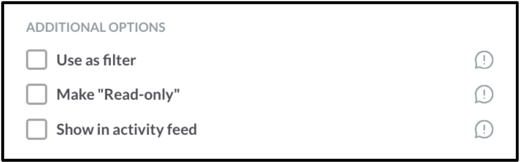
- **Make "Read-only"** - This option is available on all Custom Fields. It will prevent users from modifying the values in this field and can be used with integrations to other applications for values that users need to reference in SPOTIO without allowing them to edit the value present.
- **Use as a Filter** - This will allow users to filter records by this field on the map, list, and pipeline, on web and mobile. Available on SingleChoice, MultiChoice, Text, and Date fields. Filterable custom fields appear under **More Fields** in the Filters panel.
- **Show in Activity Feed** - This will allow you to see the historical selection of values in this field in the Activity Feed. This option is only available on SingleChoice fields.
### Requiring on Stages
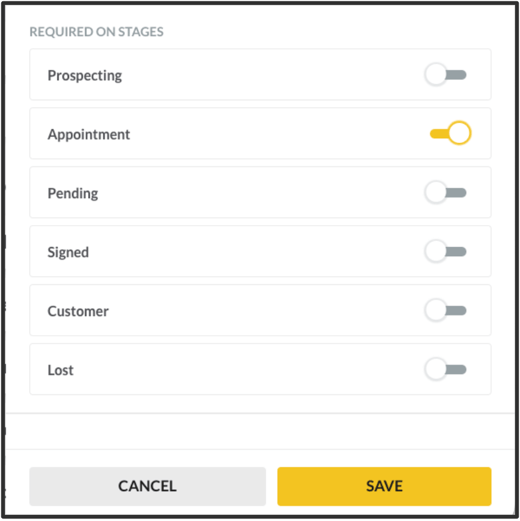
You can require a field on certain pipeline stages, so the information is filled in before a record moves to that stage. Before clicking **Save**, turn on the stage or stages where the field should be required.
### Editing Custom Fields
Click **Configure** on the field's tile. You can rename the field, add or remove choice options, and turn required stages on or off. You can't change the input type. Click **Save** when you're done.
#### FAQs
**Can custom field data transfer over to my CRM?**
In most cases, yes. However, it does depend on the setup and the CRM. It is best to reach out to our support team via chat or email [support@spotio.com](mailto:support@spotio.com) for more information.
**Am I able to reorganize the custom fields?**
You are able to reorganize the custom fields by clicking the six dots on the left side of the custom field name. Drag and hold, then move to where you would like to place that field. We do recommend using First and Last Name and/or Company in the **Used for Name** section. You can organize your sections of Fields and Information more by going to the [Info Layout](https://support.spotio.com/hc/en-us/articles/31101054416919-how-to-configure-info-layout-and-tab-order?hsLang=en) tab.
- [Getting started](https://support.spotio.com/getting-started?hsLang=en)
- [Troubleshooting](https://support.spotio.com/troubleshooting?hsLang=en)
- [Integrations](https://support.spotio.com/integrations?hsLang=en)
- [Knowledge Base](https://support.spotio.com/knowledge-base?hsLang=en#main-content)
- [Admin](https://support.spotio.com/knowledge-base?hsLang=en#admin)
- [Sales Rep](https://support.spotio.com/knowledge-base?hsLang=en#sales-rep)
- [Getting Started](https://support.spotio.com/knowledge-base?hsLang=en#getting-started)
- [FAQ](https://support.spotio.com/knowledge-base?hsLang=en#faq)
- [SPOTIO Español](https://support.spotio.com/knowledge-base?hsLang=en#spotio-espa%C3%B1ol)
- [SPOTIO: Troubleshooting](https://support.spotio.com/knowledge-base?hsLang=en#spotio-troubleshooting)
- [Manager](https://support.spotio.com/knowledge-base?hsLang=en#manager)
- [Getting Started: Manager](https://support.spotio.com/knowledge-base?hsLang=en#getting-started-manager)
- [Getting Started: Admin](https://support.spotio.com/knowledge-base?hsLang=en#getting-started-admin)
- [Getting Started: Sales Rep](https://support.spotio.com/knowledge-base?hsLang=en#getting-started-sales-rep)
- [Giving SPOTIO Reviews](https://support.spotio.com/knowledge-base?hsLang=en#giving-spotio-reviews)
- [Release Notes](https://support.spotio.com/release-notes?hsLang=en#main-content)
- [2025 Releases](https://support.spotio.com/release-notes?hsLang=en#2025-releases)
- [2026 Releases](https://support.spotio.com/release-notes?hsLang=en#2026-releases)
- [SPOTIO University](https://support.spotio.com/spotio-university?hsLang=en#main-content)
- [SPOTIO U: On Demand](https://support.spotio.com/spotio-university?hsLang=en#spotio-u-on-demand)
- [Live Training Sessions](https://support.spotio.com/spotio-university?hsLang=en#live-training-sessions)
- [Billing](https://support.spotio.com/billing?hsLang=en)
- [Webinars: On Demand](https://support.spotio.com/webinars-on-demand?hsLang=en#main-content)
- [Feature Spotlight](https://support.spotio.com/webinars-on-demand?hsLang=en#feature-spotlight)
- [Strategy & Best Practices](https://support.spotio.com/webinars-on-demand?hsLang=en#strategy-best-practices)
- [Quick Start Guides](https://support.spotio.com/quick-start-guides?hsLang=en#main-content)
- [Quick Start Videos: Web App Setup Guides](https://support.spotio.com/quick-start-guides?hsLang=en#quick-start-videos-web-app-setup-guides)
- [Quick Start Videos: Mobile App Navigation](https://support.spotio.com/quick-start-guides?hsLang=en#quick-start-videos-mobile-app-navigation)
- [Quick Start Videos: Web App Navigation](https://support.spotio.com/quick-start-guides?hsLang=en#quick-start-videos-web-app-navigation)
[mailto:support@spotio.com](mailto:support@spotio.com)
Copyright © 2026, SPOTIO