---
title: How to Record Your Screen - iPhone & Android Devices
description: How to Record Your Screen - iPhone & Android Devices
---
[Skip to content](https://support.spotio.com/hc/en-us/articles/360017421294-how-to-record-your-screen-iphone-android-devices#main-content)
English
Show submenu for translations
[](https://support.spotio.com?hsLang=en)
Open main navigation
Close main navigation
- English
Show submenu for translations
How can we help you?
- There are no suggestions because the search field is empty.
1. [SPOTIO Knowledge Base](https://support.spotio.com/?hsLang=en)
2. [Knowledge Base](https://support.spotio.com/knowledge-base?hsLang=en)
3. [Sales Rep](https://support.spotio.com/knowledge-base?hsLang=en#sales-rep)
May 20, 2026
# How to Record Your Screen - iPhone & Android Devices
From time to time, you may need to contact our Support team for help with an issue. It helps the Support team find a resolution when they can see what you're talking about--especially if we are learning about a problem for the first time. We may ask you to send in screenshots or a recording of your screen as you encounter the problem inside your mobile app.
#### How to Take a Screenshot
### On your iPhone
On an iPhone X or later:
- Press and release the **Side** button on the right side and the **Volume Up** button on the left side.
- Once captured, release the buttons.
A thumbnail of your screenshot appears in the lower-left corner of your iPhone. You can tap the thumbnail to view the photo or swipe left to dismiss the photo. Screenshots are automatically saved. You can find your screenshots by accessing **Photos** then **Albums** and **Screenshots**.
### On your iPad
- Press the **top** button and **volume up** button at the same time.
- Once captured, release the buttons.
If you have an iPad with a home button, you will press the top button and home button at the same time and quickly release to capture the screenshot.
### On your Android
On an Android 11 and up:
- Hit the **Power** and **Volume down** button at the same time.
- Once captured, release the buttons.
There are hundreds of different Android phone devices out there. You can do a Google search for your specific device "How to take a screenshot on my \[type of device\]" to assist if using an older device.
#### How to Record the Screen
### On Your iPhone
The first step to recording your screen is allowing your phone to add the screen recording button to your control panel. To complete this step, go to your phone's **Settings** \> **Control Center**. Under **More Controls**, hit the green plus sign for **Screen Recording**.
Once your screen recording button has been added to the Control Center, you are ready to proceed. To record your mobile screen:
1. Swipe from the top right of your phone.
2. Tap the **record** button.
3. To stop the recording, hit the **red status** button or icon in the top left.
4. Hit **Stop** to confirm and complete recording.
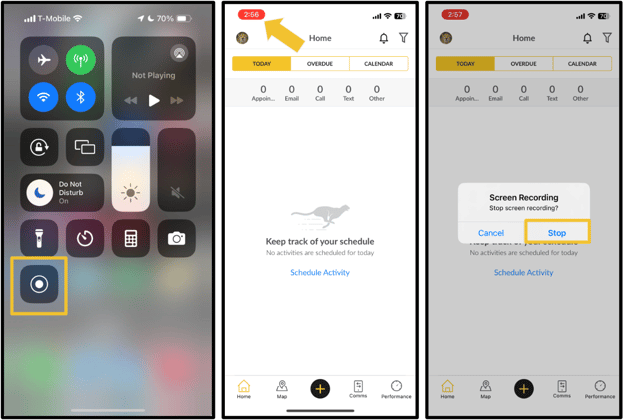
You will follow the same steps above for recording on an iPad.
### On Your Android
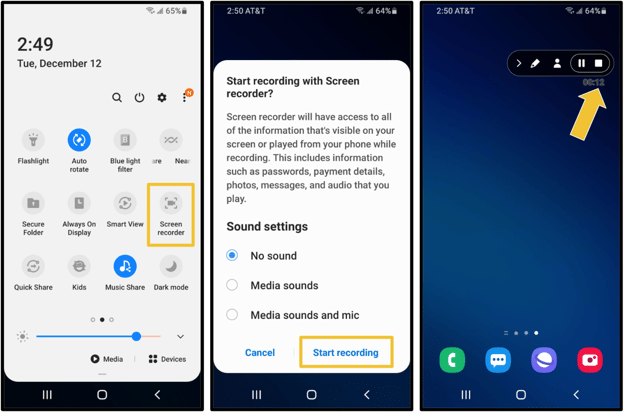
To record your screen:
1. Swipe down from the top of your screen to access **Quick Settings**.
2. Tap **Screen Recorder.**
3. Confirm whether you want to record audio.
4. Hit **Start Recording**.
5. Hit the **stop** button in the top right widget to end.
#### Sharing photos and recordings with Support
To share your photos or videos with SPOTIO Support regardless of whether you are using an Apple or Android device, you can easily do so within the app.
On the mobile:
1. Click on the **Profile** in the top left.
2. Select **Chat with Support**.
3. When connecting with an agent, click the **paper clip** icon in the bottom left.
4. Select where you are wanting to retrieve the photo from (**Camera**, **Photo library**, **Document**).
5. Select the photo to be automatically sent.
On the web:
1. Click on the **question mark** bubble at the top.
2. Select **Live Chat**.
3. Click the **Attach file** icon in the bottom right of the chat box.
4. Choose the photo to be automatically sent.
- [Getting started](https://support.spotio.com/getting-started?hsLang=en)
- [Troubleshooting](https://support.spotio.com/troubleshooting?hsLang=en)
- [Integrations](https://support.spotio.com/integrations?hsLang=en)
- [Knowledge Base](https://support.spotio.com/knowledge-base?hsLang=en#main-content)
- [Admin](https://support.spotio.com/knowledge-base?hsLang=en#admin)
- [Sales Rep](https://support.spotio.com/knowledge-base?hsLang=en#sales-rep)
- [Getting Started](https://support.spotio.com/knowledge-base?hsLang=en#getting-started)
- [FAQ](https://support.spotio.com/knowledge-base?hsLang=en#faq)
- [SPOTIO Español](https://support.spotio.com/knowledge-base?hsLang=en#spotio-espa%C3%B1ol)
- [SPOTIO: Troubleshooting](https://support.spotio.com/knowledge-base?hsLang=en#spotio-troubleshooting)
- [Manager](https://support.spotio.com/knowledge-base?hsLang=en#manager)
- [Getting Started: Manager](https://support.spotio.com/knowledge-base?hsLang=en#getting-started-manager)
- [Getting Started: Admin](https://support.spotio.com/knowledge-base?hsLang=en#getting-started-admin)
- [Getting Started: Sales Rep](https://support.spotio.com/knowledge-base?hsLang=en#getting-started-sales-rep)
- [Giving SPOTIO Reviews](https://support.spotio.com/knowledge-base?hsLang=en#giving-spotio-reviews)
- [Release Notes](https://support.spotio.com/release-notes?hsLang=en#main-content)
- [2025 Releases](https://support.spotio.com/release-notes?hsLang=en#2025-releases)
- [2026 Releases](https://support.spotio.com/release-notes?hsLang=en#2026-releases)
- [SPOTIO University](https://support.spotio.com/spotio-university?hsLang=en#main-content)
- [SPOTIO U: On Demand](https://support.spotio.com/spotio-university?hsLang=en#spotio-u-on-demand)
- [Live Training Sessions](https://support.spotio.com/spotio-university?hsLang=en#live-training-sessions)
- [Billing](https://support.spotio.com/billing?hsLang=en)
- [Webinars: On Demand](https://support.spotio.com/webinars-on-demand?hsLang=en#main-content)
- [Feature Spotlight](https://support.spotio.com/webinars-on-demand?hsLang=en#feature-spotlight)
- [Strategy & Best Practices](https://support.spotio.com/webinars-on-demand?hsLang=en#strategy-best-practices)
- [Quick Start Guides](https://support.spotio.com/quick-start-guides?hsLang=en#main-content)
- [Quick Start Videos: Web App Setup Guides](https://support.spotio.com/quick-start-guides?hsLang=en#quick-start-videos-web-app-setup-guides)
- [Quick Start Videos: Mobile App Navigation](https://support.spotio.com/quick-start-guides?hsLang=en#quick-start-videos-mobile-app-navigation)
- [Quick Start Videos: Web App Navigation](https://support.spotio.com/quick-start-guides?hsLang=en#quick-start-videos-web-app-navigation)
[mailto:support@spotio.com](mailto:support@spotio.com)
Copyright © 2026, SPOTIO