---
title: Add an Activity/Appointment on Mobile
description: Add an Activity/Appointment on Mobile
---
[Skip to content](https://support.spotio.com/hc/en-us/articles/360033722434-add-an-activity-appointment-on-mobile#main-content)
English
Show submenu for translations
[](https://support.spotio.com?hsLang=en)
Open main navigation
Close main navigation
- English
Show submenu for translations
How can we help you?
- There are no suggestions because the search field is empty.
1. [SPOTIO Knowledge Base](https://support.spotio.com/?hsLang=en)
2. [Knowledge Base](https://support.spotio.com/knowledge-base?hsLang=en)
3. [Sales Rep](https://support.spotio.com/knowledge-base?hsLang=en#sales-rep)
May 20, 2026
# Add an Activity/Appointment on Mobile
Adding an Activity or Appointment has never been easier to do from a Record. You’ll be able to add your Appointment straight from the Record Preview screen without having to go into the Record itself, which will save you much-needed time.
### How to add an Activity from the Plus Sign option
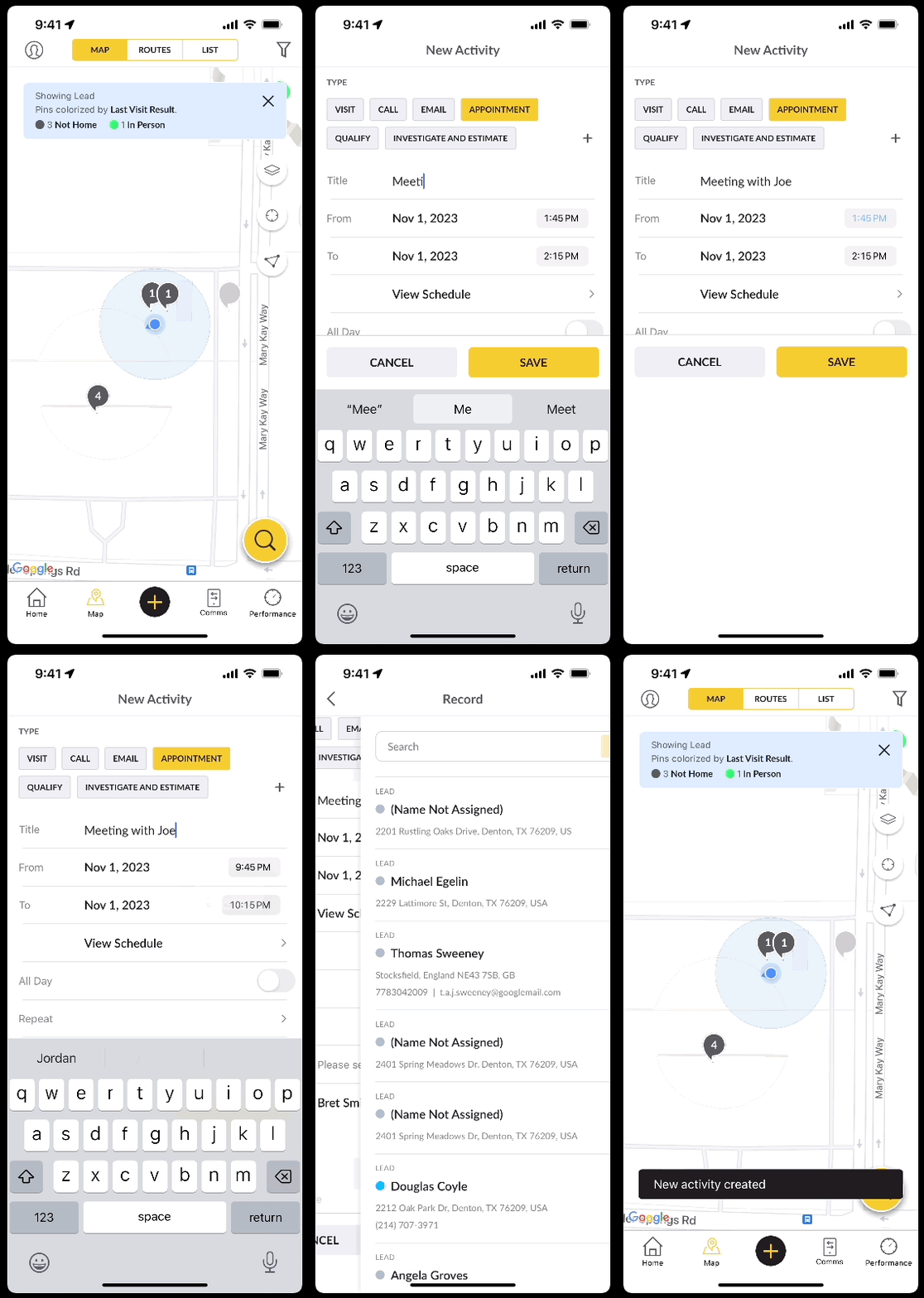
From many screens, in the app, you are able to use the plus sign to create appointments. You can follow the steps below:
1. Click the *Plus Sign* Icon at the bottom of the screen.
2. Choose **Schedule Activity** from the available options.
3. Once clicked, you will be taken to a screen to enter all the information needed. Please be sure to enter a title or it will not let you save the activity.
4. Click **Save** and you will have the appointment scheduled.
### How to add an Activity from the Calendar
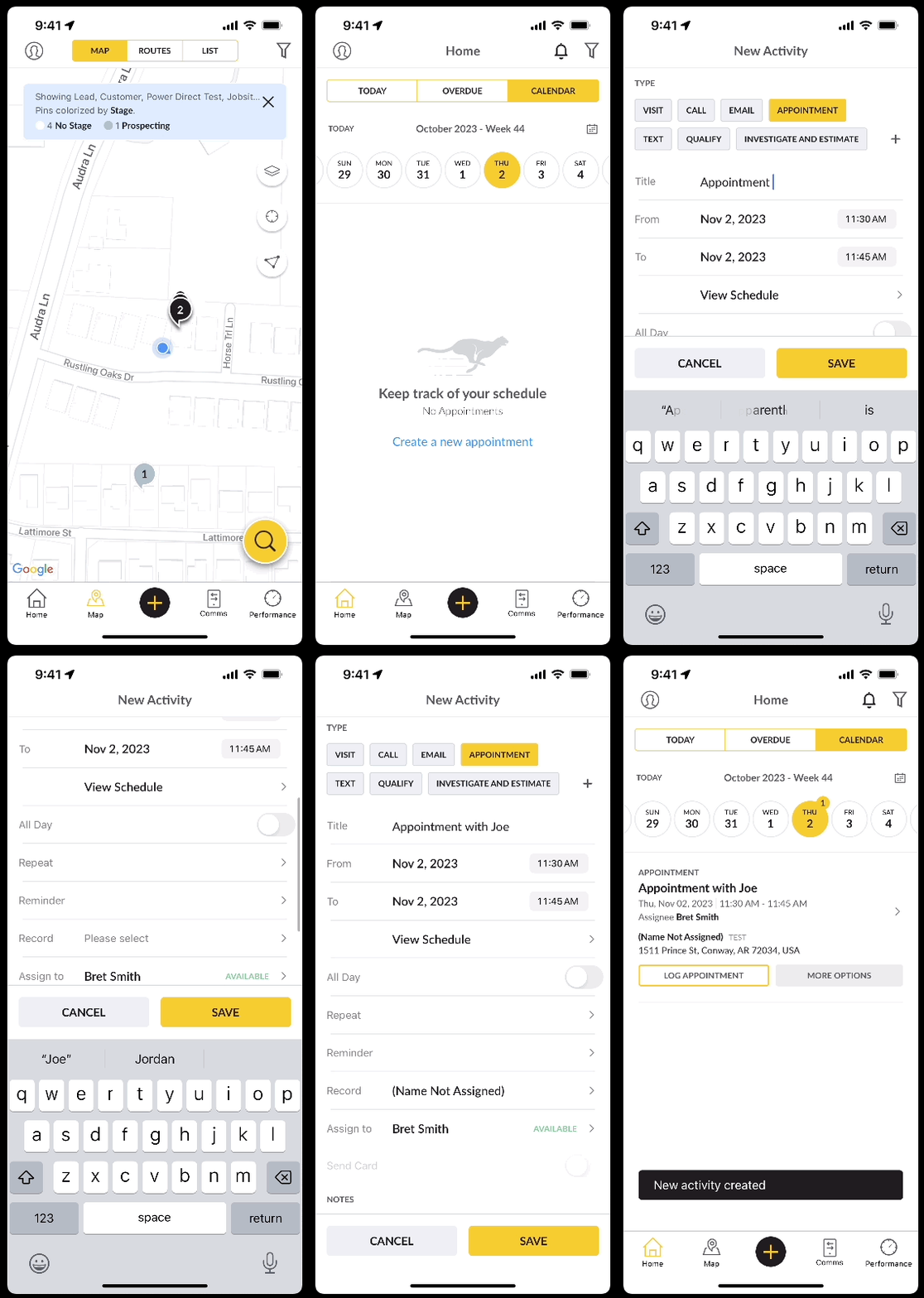
Below are the steps on how to quickly add an activity from the calendar view.
1. Click the **Home** button and you will see three tabs: Today, Overdue, and Calendar.
2. Click **Calendar** and you will be shown the calendar for today. If the day has appointments already scheduled you will follow the same steps above by using the plus sign option. If the day is clear you will see a message that states **Create a new appointment**.
3. You will then enter the information needed. Please be sure to enter a title or it will not let you save the activity.
4. Click **Save** and you will have the appointment scheduled.
### How to add an Activity While Logging a Visit Result
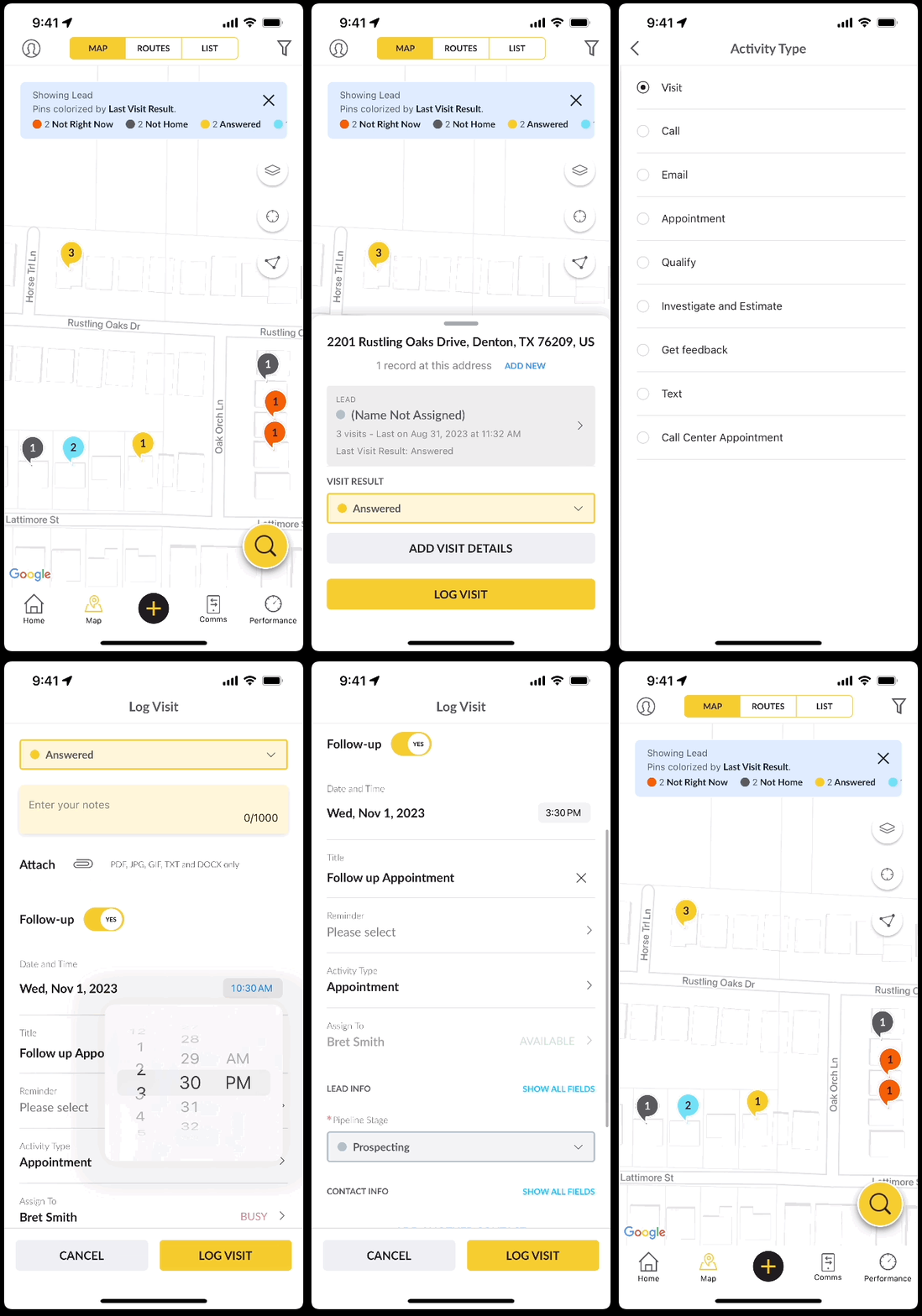
Below are the steps on how to quickly add an activity while logging a Visit Result.
1. Click the Record you want to log a Visit Result for.
2. Choose your Visit Result and Click **Add Visit Details**.
3. Toggle on *Follow-Up* to **Yes**.
4. Choose your Date/Time, Activity Type, Title if you want to change it, assign the activity accordingly. Finish adding any additional visit details if needed.
5. Hit **Log Visit** at the bottom right to save.
### FAQs
**Can I sync appointments from my work/personal calendar?**
Yes, you can sync your calendar with Google Calendar. Please[click here](https://support.spotio.com/hc/en-us/articles/8108577621911-Email-and-Calendar-Integration?hsLang=en) to learn how to sync your Google Calendar with SPOTIO.
**Can I assign an appointment to another user?**
Yes, you can assign an appointment to another user when creating the appointment by clicking “Assign To” and selecting their name. They will receive an email of the new appointment.
**Is my Manager able to see what appointments I scheduled if I schedule them to another team member?**
Yes, you can create a report to show this information. Go to "My Reports" in the Dashboard section of the Web. From there, drag your "Category" to the table builder and select "Activity created by". When "Activity Created By" is set in the Category for the report, activity metrics are shown by user who created activities. These metrics tiles can be filtered to specific activities like Appointments. For More details on created metrics for appointment setters, please see our guide on[My Reports.](https://support.spotio.com/hc/en-us/articles/13000973155223-My-Reports-How-to-Create-a-Setter-Closer-Report?hsLang=en)
- [Getting started](https://support.spotio.com/getting-started?hsLang=en)
- [Troubleshooting](https://support.spotio.com/troubleshooting?hsLang=en)
- [Integrations](https://support.spotio.com/integrations?hsLang=en)
- [Knowledge Base](https://support.spotio.com/knowledge-base?hsLang=en#main-content)
- [Admin](https://support.spotio.com/knowledge-base?hsLang=en#admin)
- [Sales Rep](https://support.spotio.com/knowledge-base?hsLang=en#sales-rep)
- [Getting Started](https://support.spotio.com/knowledge-base?hsLang=en#getting-started)
- [FAQ](https://support.spotio.com/knowledge-base?hsLang=en#faq)
- [SPOTIO Español](https://support.spotio.com/knowledge-base?hsLang=en#spotio-espa%C3%B1ol)
- [SPOTIO: Troubleshooting](https://support.spotio.com/knowledge-base?hsLang=en#spotio-troubleshooting)
- [Manager](https://support.spotio.com/knowledge-base?hsLang=en#manager)
- [Getting Started: Manager](https://support.spotio.com/knowledge-base?hsLang=en#getting-started-manager)
- [Getting Started: Admin](https://support.spotio.com/knowledge-base?hsLang=en#getting-started-admin)
- [Getting Started: Sales Rep](https://support.spotio.com/knowledge-base?hsLang=en#getting-started-sales-rep)
- [Giving SPOTIO Reviews](https://support.spotio.com/knowledge-base?hsLang=en#giving-spotio-reviews)
- [Release Notes](https://support.spotio.com/release-notes?hsLang=en#main-content)
- [2025 Releases](https://support.spotio.com/release-notes?hsLang=en#2025-releases)
- [2026 Releases](https://support.spotio.com/release-notes?hsLang=en#2026-releases)
- [SPOTIO University](https://support.spotio.com/spotio-university?hsLang=en#main-content)
- [SPOTIO U: On Demand](https://support.spotio.com/spotio-university?hsLang=en#spotio-u-on-demand)
- [Live Training Sessions](https://support.spotio.com/spotio-university?hsLang=en#live-training-sessions)
- [Billing](https://support.spotio.com/billing?hsLang=en)
- [Webinars: On Demand](https://support.spotio.com/webinars-on-demand?hsLang=en#main-content)
- [Feature Spotlight](https://support.spotio.com/webinars-on-demand?hsLang=en#feature-spotlight)
- [Strategy & Best Practices](https://support.spotio.com/webinars-on-demand?hsLang=en#strategy-best-practices)
- [Quick Start Guides](https://support.spotio.com/quick-start-guides?hsLang=en#main-content)
- [Quick Start Videos: Web App Setup Guides](https://support.spotio.com/quick-start-guides?hsLang=en#quick-start-videos-web-app-setup-guides)
- [Quick Start Videos: Mobile App Navigation](https://support.spotio.com/quick-start-guides?hsLang=en#quick-start-videos-mobile-app-navigation)
- [Quick Start Videos: Web App Navigation](https://support.spotio.com/quick-start-guides?hsLang=en#quick-start-videos-web-app-navigation)
[mailto:support@spotio.com](mailto:support@spotio.com)
Copyright © 2026, SPOTIO