
For: Sales Reps and any role that logs visits · Where: Mobile app and Web app · Plan: All plans
How to log a Visit with Visit Results - Mobile
You’ll want to select a result that best fits the scenario you are in. This could vary based on your account from Not Home, Contacted, Follow Up, Appointment Set to a variety of other selections.
To log visit results:
- Log in to the mobile app.
- Click on the Map icon at the bottom.
- Tap on the roof or existing Record of the home/building, and you will see a visit pop-up screen.
- Here, you can:
- Log a visit immediately with the default result on your account by clicking Log Visit.
- Click on the visit result drop-down and select a different visit result, then log immediately by clicking Log Visit.
-
- Choose a result and add additional details before logging by clicking Add Visit Details.
Whichever option you choose, be sure to hit Log Visit to save.
Logging a Visit without Details
The quickest way to log a visit is to select the record, choose the visit result, and tap the Log Visit button to complete.
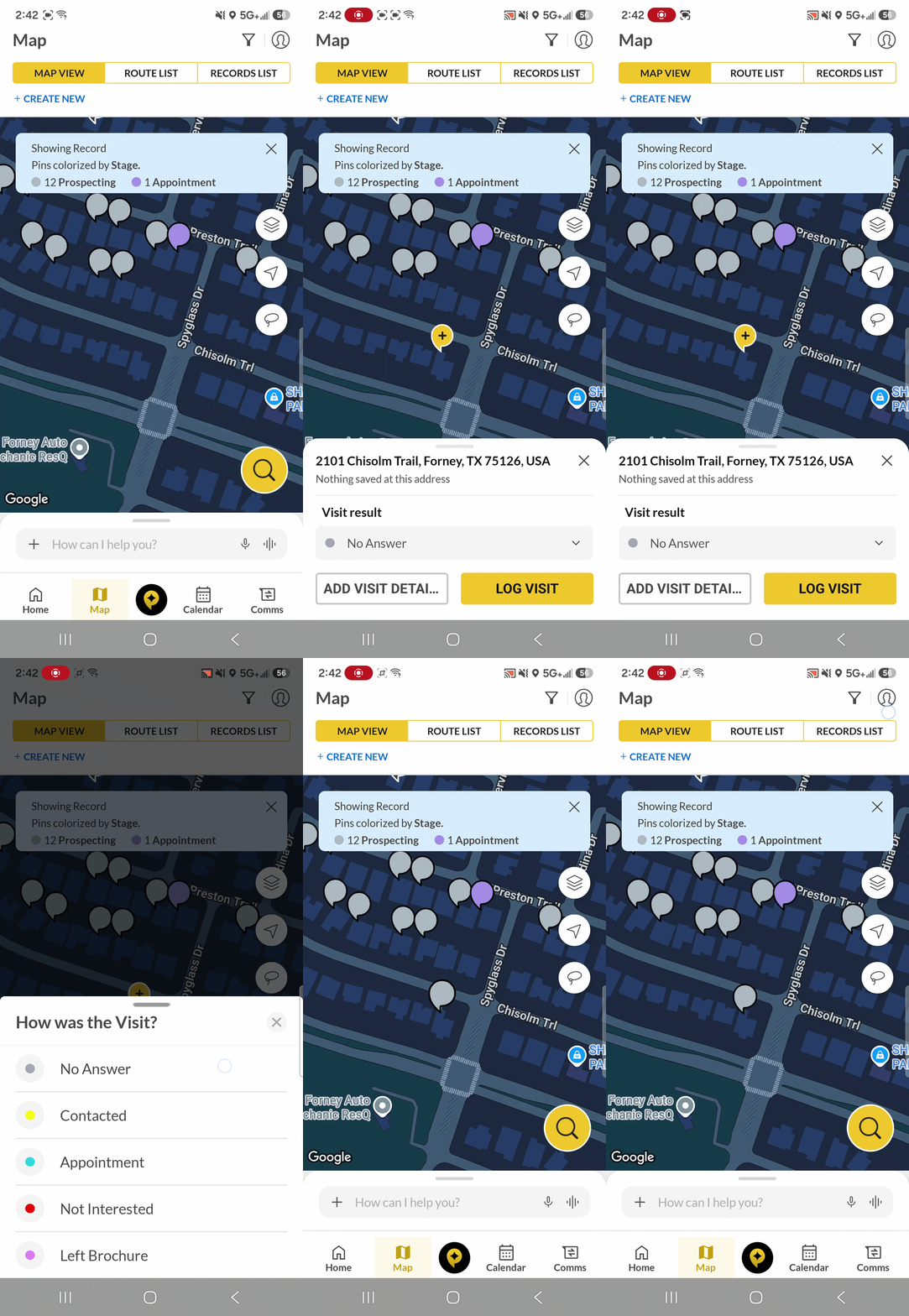
Logging a Visit with Details
To log a visit with details, hit the Add Visit Details button. This will take you to the Log Visit screen to add and/or update any information needed. Remember to hit the yellow Log Visit button at the bottom to save.
.gif?width=267&height=577&name=Gif%20Logging%20Visit%20with%20details%20(final).gif)
How to log a Visit with Visit Results - Web
You have the ability to log activity on the web app, including the ability to log visit results.
To log a visit on the web app:
- Log in to the web app.
- Click on the Map icon on the left gray sidebar.
- Select the record via search or tap to create a new one.
- Tap the Log button.
- Choose the appropriate visit result from the drop down menu.
- Hit Log Visit to save.
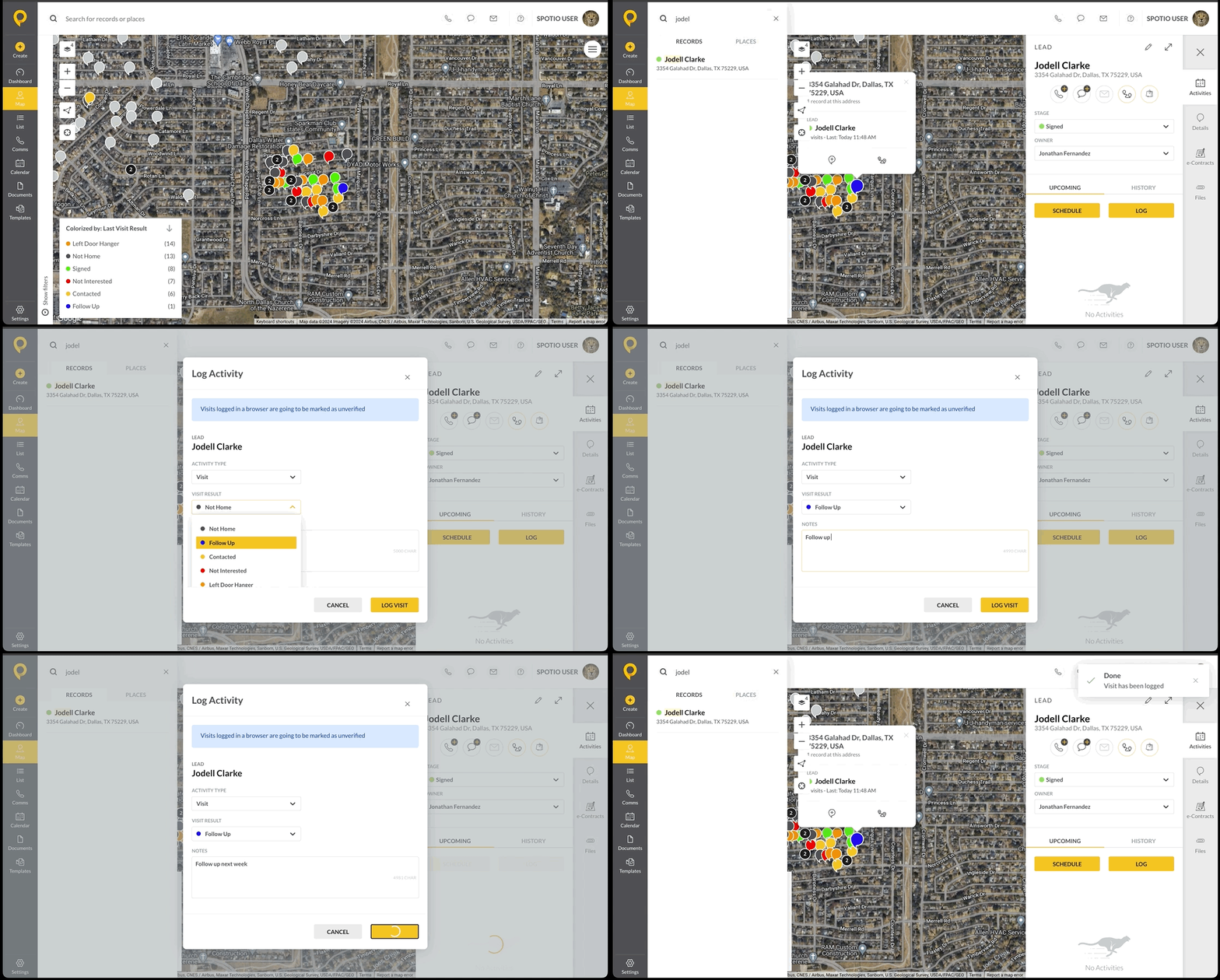
You can add additional details or schedule activities by using the icons to the right for the record.
Tip: Visits logged on the web will be considered unverified. If you are doing an actual visit, this action should be completed on the mobile app to properly display location verification.
 Ask DASH on the Web or Mobile app to: "log a visit on 4200 Main Street, mark it as not home."
FAQs
Does logging the first visit add the record to the Map/address?
Yes, logging the first visit will both log your visit and create a record at that address on the map.
Can I change my Visit Result after I logged my visit?
No, you cannot edit a Visit Result on a record after you have logged the visit. You would have to go through the same process of logging a new visit.
What if the visit result I need is not there?
Visit results are managed by your Account Admin, reach out to them and request for the result to be added.