---
title: "Web App: Adding Visit Results"
description: "Web App: Adding Visit Results"
---
[Skip to content](https://support.spotio.com/hc/en-us/articles/360034827093-web-app-adding-visit-results#main-content)
English
Show submenu for translations
[](https://support.spotio.com?hsLang=en)
Open main navigation
Close main navigation
- English
Show submenu for translations
How can we help you?
- There are no suggestions because the search field is empty.
1. [SPOTIO Knowledge Base](https://support.spotio.com/?hsLang=en)
2. [Knowledge Base](https://support.spotio.com/knowledge-base?hsLang=en)
3. [Admin](https://support.spotio.com/knowledge-base?hsLang=en#admin)
May 21, 2026
# Web App: Adding Visit Results
For your reps out in the field, having visibility into what took place during the last visit is important. Visit results show at a quick glance the interaction, or missed attempt, when visiting prospects and/or customers.
### How to add Visit Results
Admins are able to add custom visit results on the web.
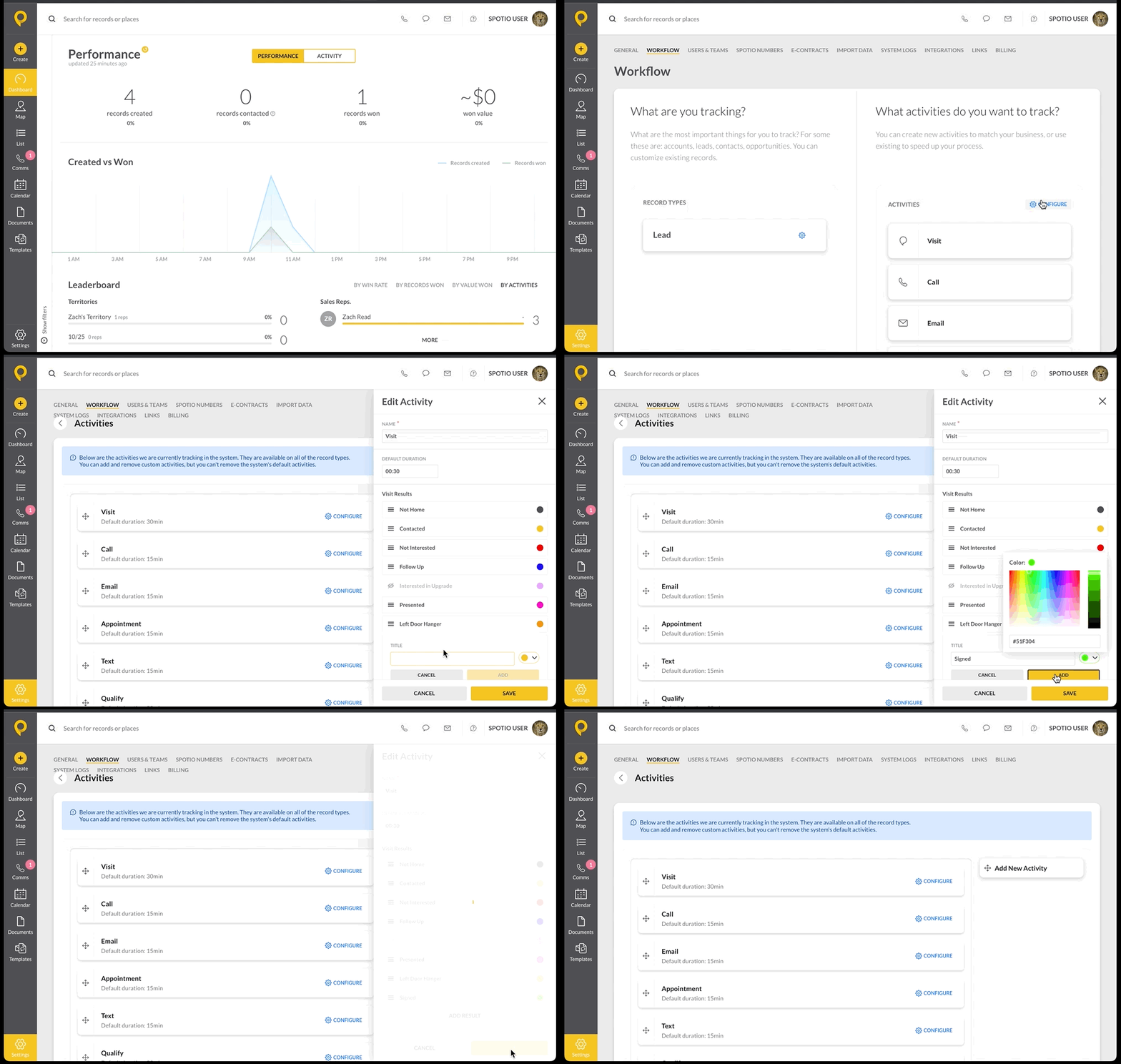
To add visit results:
1. Login to the web app.
2. Click on the **Settings** gear on the bottom left.
3. Tap on **Workflow**.
4. Under What activities do you want to track, click the blue **Configure** gear.
5. On the Visit tab, click the blue **Configure** gear.
6. Click **Add Result** in the right Edit activity panel.
7. Enter a title name and choose a color.
8. Hit **Add**.
9. Tap **Save**.
***Tip:*** Always keep your most common visit result at the top of the list. This makes for fast logging on the mobile app when out in the field.
### Editing an Existing Visit Result
Once Visit Results have been created, you are able to modify those results.
To edit an existing visit result:
1. Login to the web app.
2. Click the **Settings** gear at the bottom left.
3. Tap on **Workflow**.
4. Under What activities are you tracking, click the blue **Configure** button.
5. On the Visit tab, click the blue **Configure** gear.
6. In the Edit activity panel, click on the result and modify.
7. Hit **Confirm**.
8. Tap **Save**.
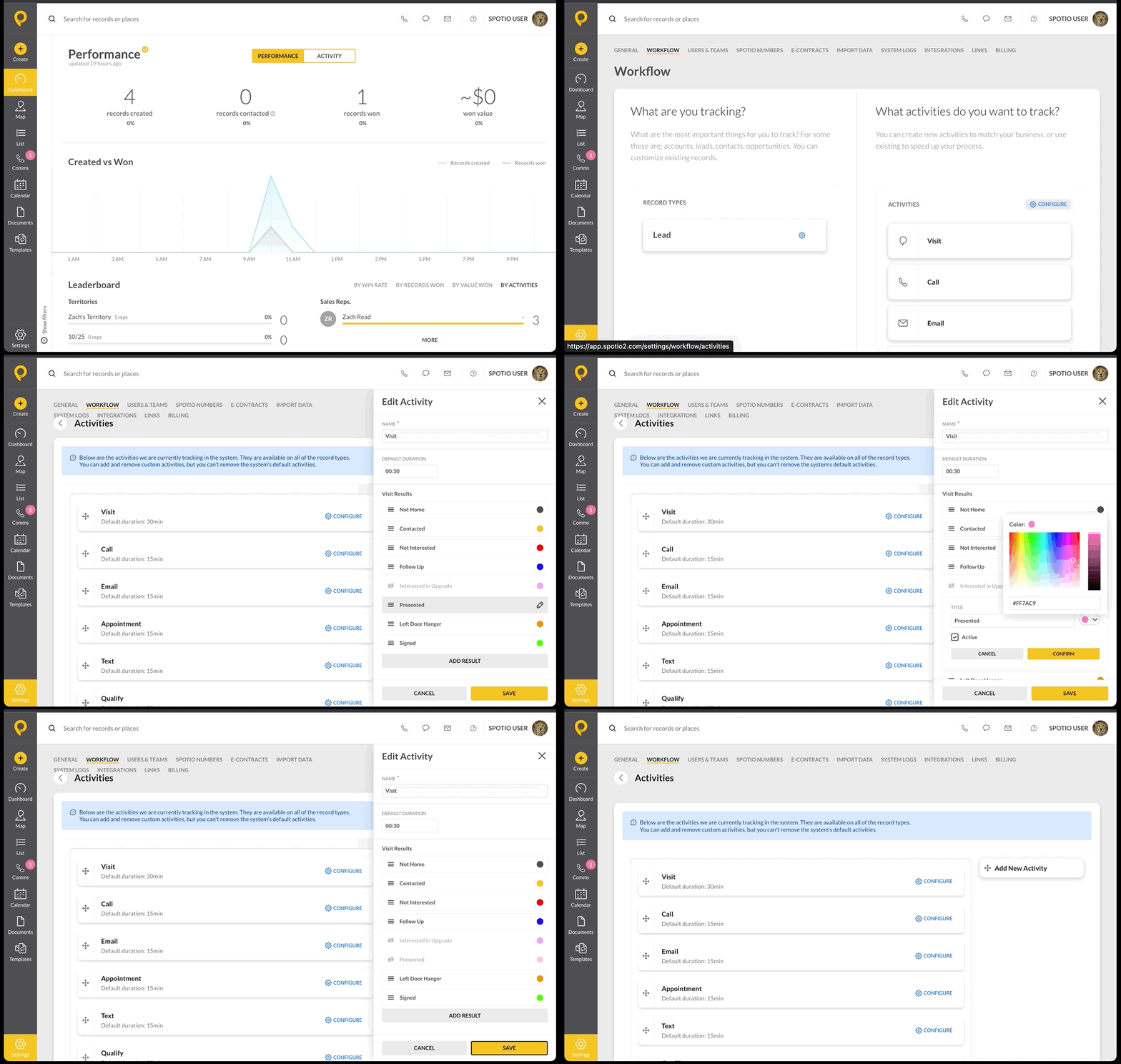
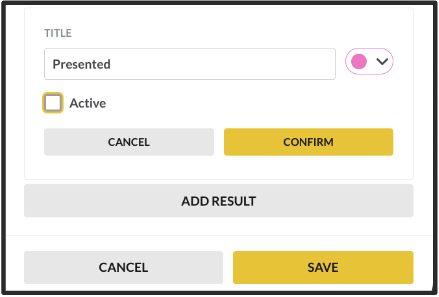
When editing existing visit results, you have the option to rename, change the record color, as well as make the result inactive. Making the visit result inactive, will make that option no longer available to choose. However, the result will still exist since it is tied to previous record activity. The result can be reactivated at any time by an Admin by clicking the *Active* checkbox, confirming, and saving.
### FAQs
**What if I rename a visit result?**
Renaming a visit result will reflect in the history of records with that previous result. For example, if you change a Go Back visit result to Follow Up, all previous activities marked as Go Back will now show as Follow Up.
**As a sales rep, can I modify visit results?**
No. Only Admins are able to adjust visit results.
- [Getting started](https://support.spotio.com/getting-started?hsLang=en)
- [Troubleshooting](https://support.spotio.com/troubleshooting?hsLang=en)
- [Integrations](https://support.spotio.com/integrations?hsLang=en)
- [Knowledge Base](https://support.spotio.com/knowledge-base?hsLang=en#main-content)
- [Admin](https://support.spotio.com/knowledge-base?hsLang=en#admin)
- [Sales Rep](https://support.spotio.com/knowledge-base?hsLang=en#sales-rep)
- [Getting Started](https://support.spotio.com/knowledge-base?hsLang=en#getting-started)
- [FAQ](https://support.spotio.com/knowledge-base?hsLang=en#faq)
- [SPOTIO Español](https://support.spotio.com/knowledge-base?hsLang=en#spotio-espa%C3%B1ol)
- [SPOTIO: Troubleshooting](https://support.spotio.com/knowledge-base?hsLang=en#spotio-troubleshooting)
- [Manager](https://support.spotio.com/knowledge-base?hsLang=en#manager)
- [Getting Started: Manager](https://support.spotio.com/knowledge-base?hsLang=en#getting-started-manager)
- [Getting Started: Admin](https://support.spotio.com/knowledge-base?hsLang=en#getting-started-admin)
- [Getting Started: Sales Rep](https://support.spotio.com/knowledge-base?hsLang=en#getting-started-sales-rep)
- [Giving SPOTIO Reviews](https://support.spotio.com/knowledge-base?hsLang=en#giving-spotio-reviews)
- [Release Notes](https://support.spotio.com/release-notes?hsLang=en#main-content)
- [2025 Releases](https://support.spotio.com/release-notes?hsLang=en#2025-releases)
- [2026 Releases](https://support.spotio.com/release-notes?hsLang=en#2026-releases)
- [SPOTIO University](https://support.spotio.com/spotio-university?hsLang=en#main-content)
- [SPOTIO U: On Demand](https://support.spotio.com/spotio-university?hsLang=en#spotio-u-on-demand)
- [Live Training Sessions](https://support.spotio.com/spotio-university?hsLang=en#live-training-sessions)
- [Billing](https://support.spotio.com/billing?hsLang=en)
- [DASH](https://support.spotio.com/dash?hsLang=en)
- [Webinars: On Demand](https://support.spotio.com/webinars-on-demand?hsLang=en#main-content)
- [Feature Spotlight](https://support.spotio.com/webinars-on-demand?hsLang=en#feature-spotlight)
- [Strategy & Best Practices](https://support.spotio.com/webinars-on-demand?hsLang=en#strategy-best-practices)
- [Quick Start Guides](https://support.spotio.com/quick-start-guides?hsLang=en#main-content)
- [Quick Start Videos: Web App Setup Guides](https://support.spotio.com/quick-start-guides?hsLang=en#quick-start-videos-web-app-setup-guides)
- [Quick Start Videos: Mobile App Navigation](https://support.spotio.com/quick-start-guides?hsLang=en#quick-start-videos-mobile-app-navigation)
- [Quick Start Videos: Web App Navigation](https://support.spotio.com/quick-start-guides?hsLang=en#quick-start-videos-web-app-navigation)
[mailto:support@spotio.com](mailto:support@spotio.com)
Copyright © 2026, SPOTIO