---
title: Making and Receiving calls with SPOTIO
description: Making and Receiving calls with SPOTIO
---
[Skip to content](https://support.spotio.com/hc/en-us/articles/360049406994-making-and-receiving-calls-with-spotio#main-content)
English
Show submenu for translations
[](https://support.spotio.com?hsLang=en)
Open main navigation
Close main navigation
- English
Show submenu for translations
How can we help you?
- There are no suggestions because the search field is empty.
1. [SPOTIO Knowledge Base](https://support.spotio.com/?hsLang=en)
2. [Knowledge Base](https://support.spotio.com/knowledge-base?hsLang=en)
3. [Sales Rep](https://support.spotio.com/knowledge-base?hsLang=en#sales-rep)
May 20, 2026
# Making and Receiving calls with SPOTIO
One of the cornerstones for the SPOTIO Multi Channel Communication feature is the ability to make and receive calls connected to a record in SPOTIO. We’ll show you how to make and receive calls on the web and mobile app, in addition to where you can add notes to those calls.
### Making Calls on the SPOTIO App - Mobile
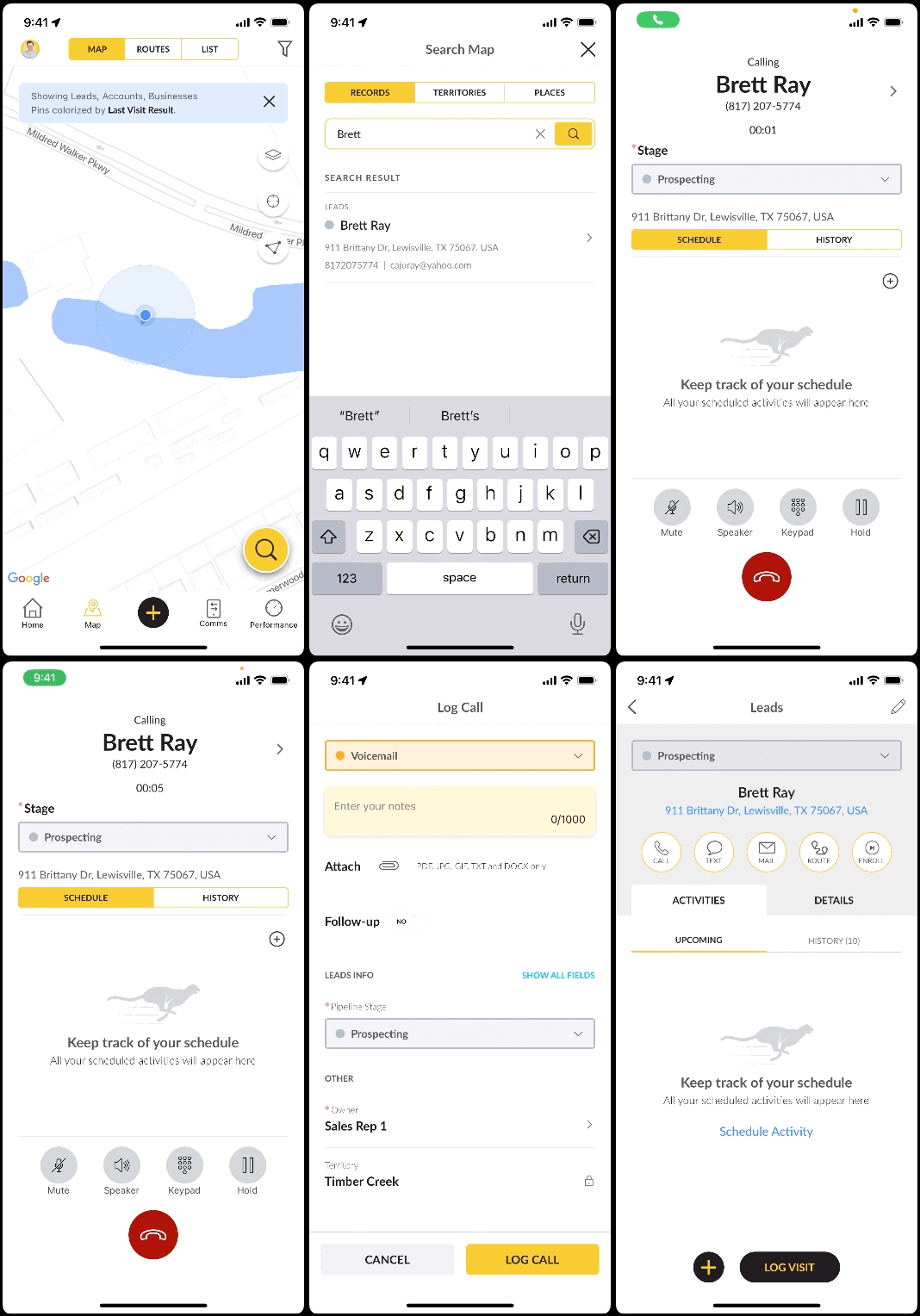
You’re ready to go out into the field and want to call on some accounts, right? We make it extremely easy for you to do that within SPOTIO. You can just dial out to your account and the activity will be logged so your manager can see all of the hard work you’re putting in!
To make calls on the SPOTIO mobile app:
1. Select the record you’d like to make a call to from your schedule, map or list views.
2. Click the **Call** icon.
3. Once the call is complete, you will be popped back into the record where you can add a Call Result and any notes about the call.
4. Click **Log Call** to complete.
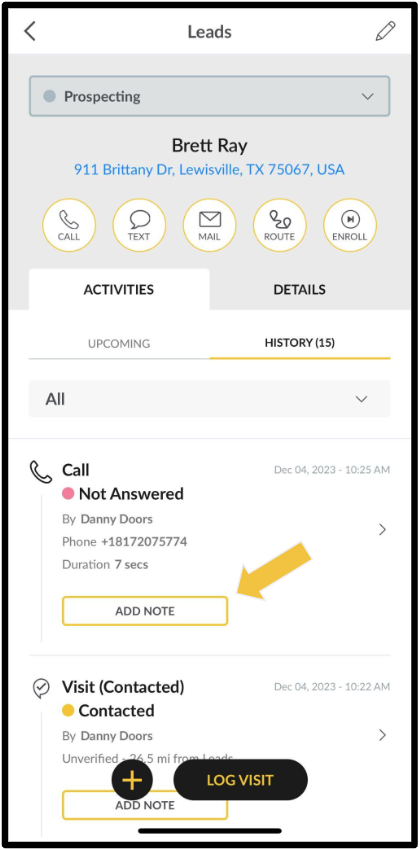
The completed call will be viewable in the **History** tab of the record, along with any notes for that call. You can always go into the **History** tab and add notes to a previous call if forgotten. Simply hit the **Add** **Note** button for the appropriate call. Enter in your notes and then click **Save** to complete.
### Making Calls on the SPOTIO App - Web
From the web app, you are able to make and receive calls with your SPOTIO phone. Be sure to allow SPOTIO permission to your microphone when using.
To make calls on the SPOTIO mobile app:
1. Select the *phone* icon from the top.
2. Search the record you are wanting to call.
3. Hit **Call**.
4. Once the call is complete, select the Call Result and add notes (if needed).
5. Click **Log Call** to save.
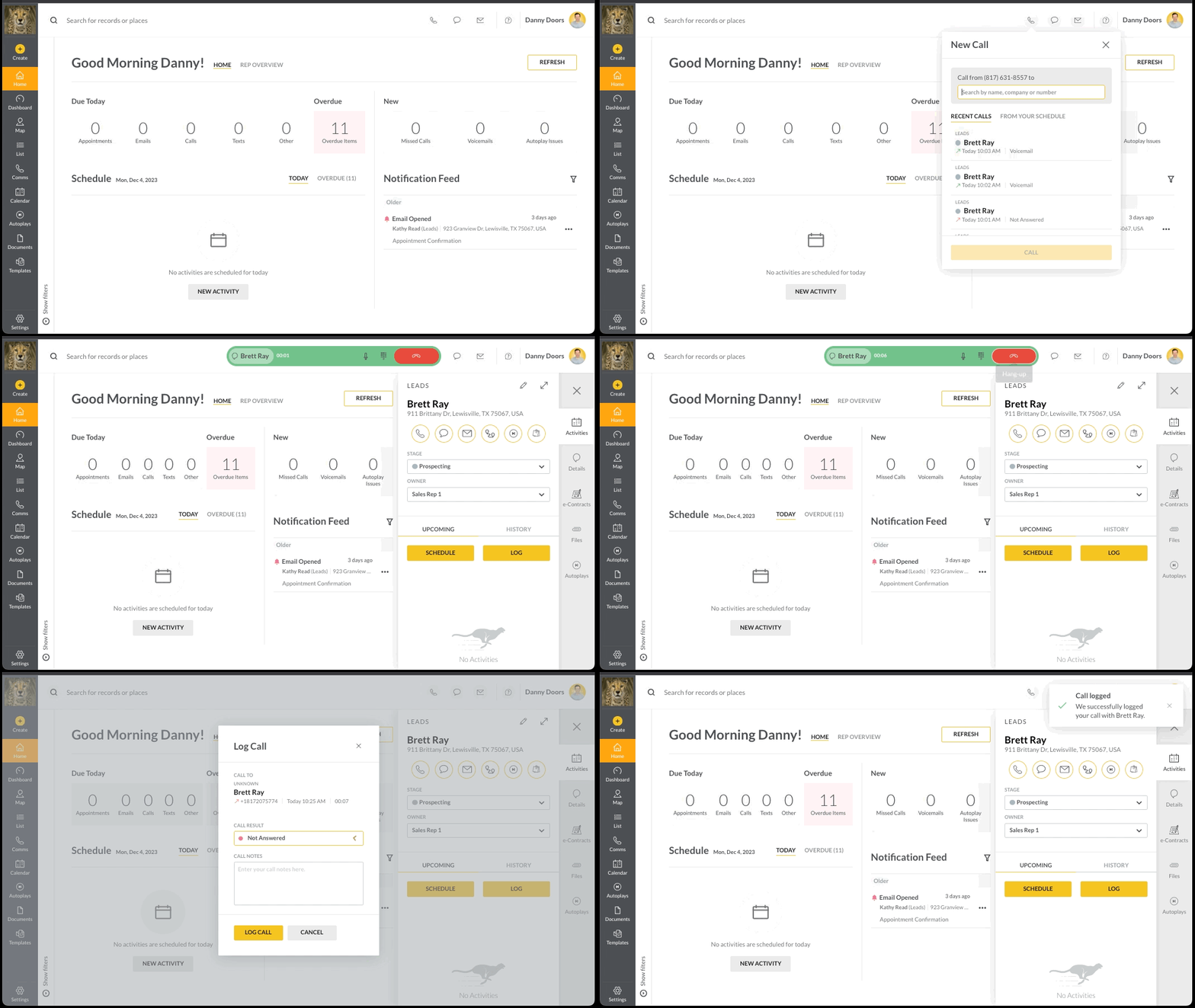
***Tip:*** Check the *Open Record Info Panel* when making a call. This gives you quick access to the record details, allowing you to see previous conversations, important field data, and more.
Receiving Calls on the SPOTIO App - Mobile
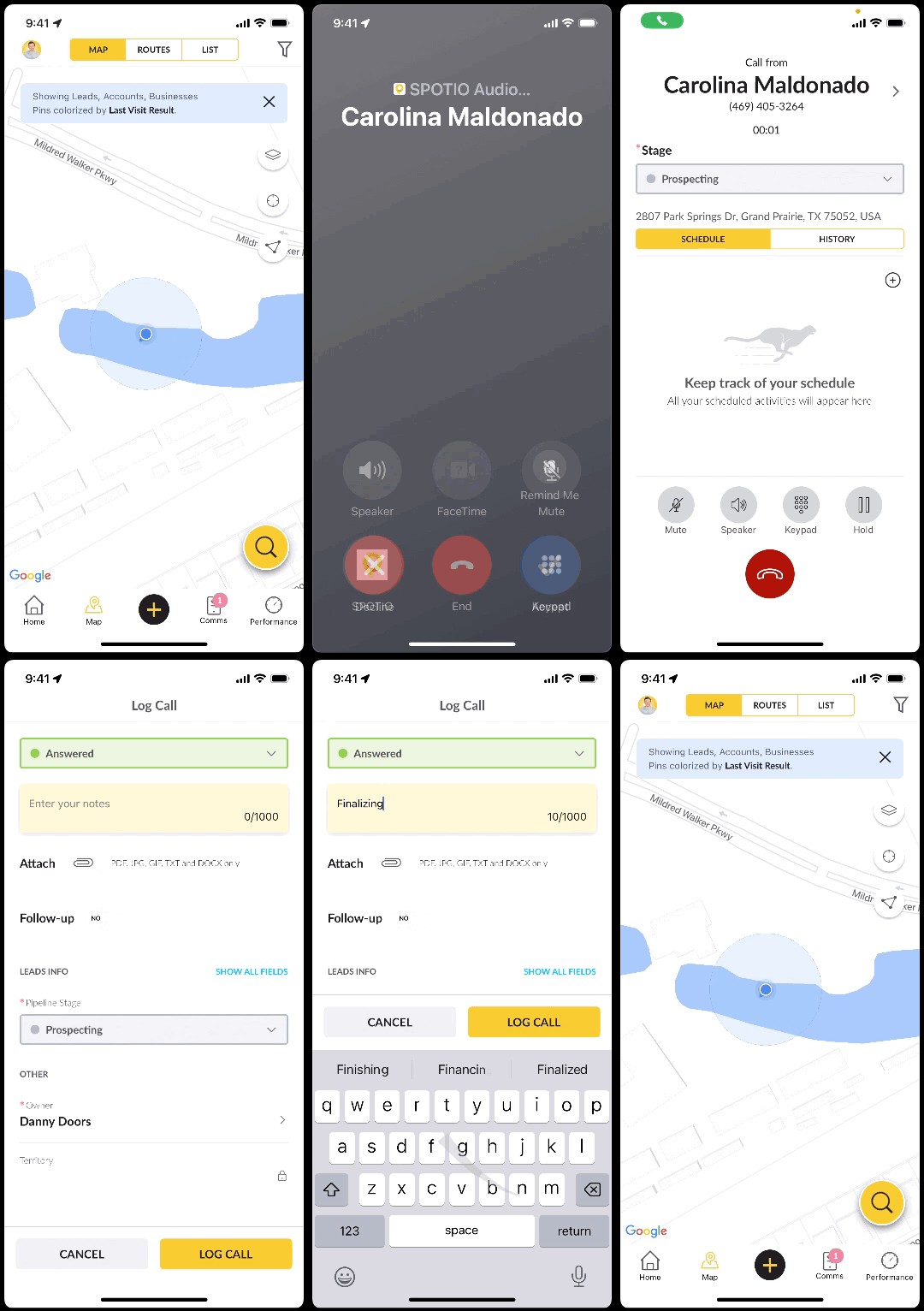
When receiving an inbound call on the mobile:
1. Click the blue *check* icon in the bottom right to accept or the red *X* icon to decline.
2. When the call is completed, select the Call Result and add any notes or adjustments as needed.
3. Click **Log Call** to save.
### Receiving Calls on the SPOTIO App - Web
When receiving an inbound call on the web:
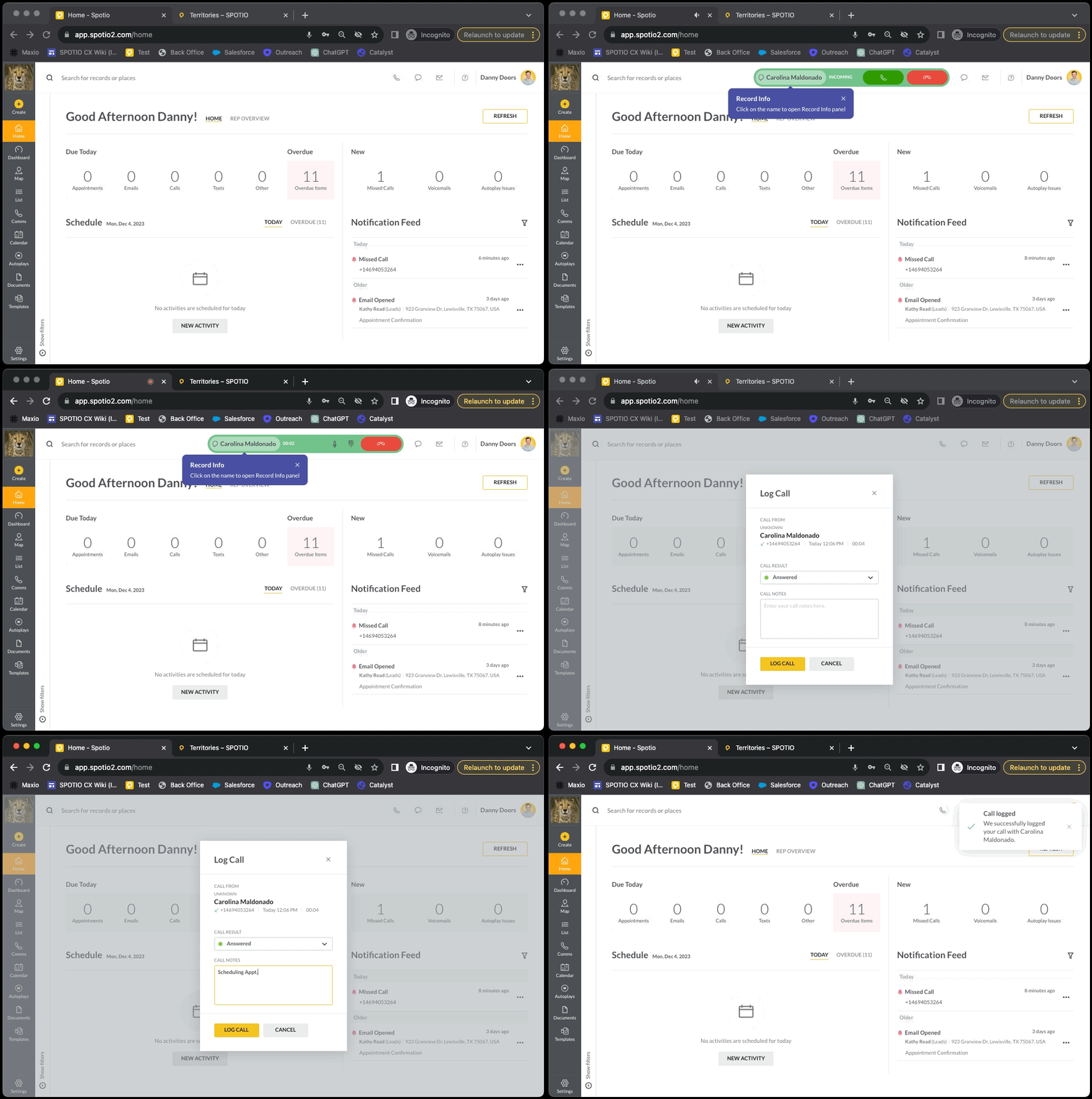
1. Hit the *green phone icon* to Accept the call or red phone icon to Decline.
2. When the call is complete, select the **Call Result** and add **Call Notes**.
3. Hit **Log Call** to save.
If the incoming number is not affiliated with an existing record in your database, you will have the option to add as a new record. Hit **Create Record** and fill out the necessary information before hitting **Save.**
**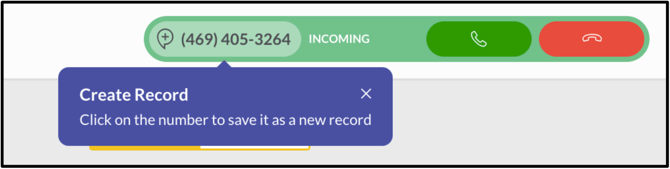**
You can also save incoming numbers on the mobile to create new records as needed. Hit the icon with the plus sign inside just below the contact number. You can also add the inbound number to an existing contact.
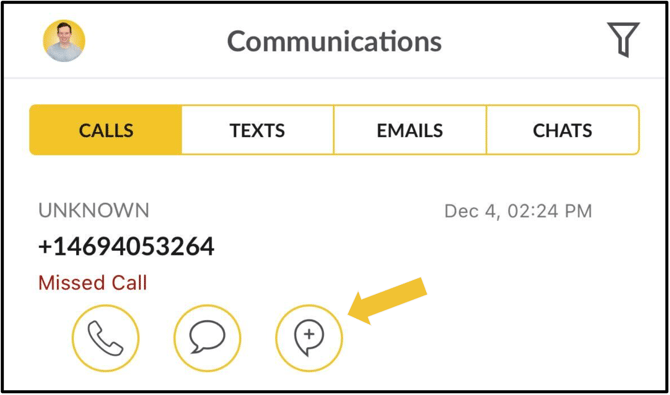
View your missed calls in the **Comms** section on both the web and mobile app. There will be a pink bubble indicating you have a new missed call and/or voicemail. You can listen to the recordings and call back the numbers, as well as add unknown numbers to create new records as well.
- [Getting started](https://support.spotio.com/getting-started?hsLang=en)
- [Troubleshooting](https://support.spotio.com/troubleshooting?hsLang=en)
- [Integrations](https://support.spotio.com/integrations?hsLang=en)
- [Knowledge Base](https://support.spotio.com/knowledge-base?hsLang=en#main-content)
- [Admin](https://support.spotio.com/knowledge-base?hsLang=en#admin)
- [Sales Rep](https://support.spotio.com/knowledge-base?hsLang=en#sales-rep)
- [Getting Started](https://support.spotio.com/knowledge-base?hsLang=en#getting-started)
- [FAQ](https://support.spotio.com/knowledge-base?hsLang=en#faq)
- [SPOTIO Español](https://support.spotio.com/knowledge-base?hsLang=en#spotio-espa%C3%B1ol)
- [SPOTIO: Troubleshooting](https://support.spotio.com/knowledge-base?hsLang=en#spotio-troubleshooting)
- [Manager](https://support.spotio.com/knowledge-base?hsLang=en#manager)
- [Getting Started: Manager](https://support.spotio.com/knowledge-base?hsLang=en#getting-started-manager)
- [Getting Started: Admin](https://support.spotio.com/knowledge-base?hsLang=en#getting-started-admin)
- [Getting Started: Sales Rep](https://support.spotio.com/knowledge-base?hsLang=en#getting-started-sales-rep)
- [Giving SPOTIO Reviews](https://support.spotio.com/knowledge-base?hsLang=en#giving-spotio-reviews)
- [Release Notes](https://support.spotio.com/release-notes?hsLang=en#main-content)
- [2025 Releases](https://support.spotio.com/release-notes?hsLang=en#2025-releases)
- [2026 Releases](https://support.spotio.com/release-notes?hsLang=en#2026-releases)
- [SPOTIO University](https://support.spotio.com/spotio-university?hsLang=en#main-content)
- [SPOTIO U: On Demand](https://support.spotio.com/spotio-university?hsLang=en#spotio-u-on-demand)
- [Live Training Sessions](https://support.spotio.com/spotio-university?hsLang=en#live-training-sessions)
- [Billing](https://support.spotio.com/billing?hsLang=en)
- [Webinars: On Demand](https://support.spotio.com/webinars-on-demand?hsLang=en#main-content)
- [Feature Spotlight](https://support.spotio.com/webinars-on-demand?hsLang=en#feature-spotlight)
- [Strategy & Best Practices](https://support.spotio.com/webinars-on-demand?hsLang=en#strategy-best-practices)
- [Quick Start Guides](https://support.spotio.com/quick-start-guides?hsLang=en#main-content)
- [Quick Start Videos: Web App Setup Guides](https://support.spotio.com/quick-start-guides?hsLang=en#quick-start-videos-web-app-setup-guides)
- [Quick Start Videos: Mobile App Navigation](https://support.spotio.com/quick-start-guides?hsLang=en#quick-start-videos-mobile-app-navigation)
- [Quick Start Videos: Web App Navigation](https://support.spotio.com/quick-start-guides?hsLang=en#quick-start-videos-web-app-navigation)
[mailto:support@spotio.com](mailto:support@spotio.com)
Copyright © 2026, SPOTIO