---
title: How to Create Digital Business Cards
description: How to Create Digital Business Cards
---
[Skip to content](https://support.spotio.com/hc/en-us/articles/4413846190487-how-to-create-digital-business-cards#main-content)
English
Show submenu for translations
[](https://support.spotio.com?hsLang=en)
Open main navigation
Close main navigation
- English
Show submenu for translations
How can we help you?
- There are no suggestions because the search field is empty.
1. [SPOTIO Knowledge Base](https://support.spotio.com/?hsLang=en)
2. [Knowledge Base](https://support.spotio.com/knowledge-base?hsLang=en)
3. [Sales Rep](https://support.spotio.com/knowledge-base?hsLang=en#sales-rep)
May 20, 2026
# How to Create Digital Business Cards
Digital Business Cards is a tool that gives reps the ability to electronically share their business contact information with prospects and customers in real-time. These virtual cards eliminate the need for outdated paper cards, allowing for customizations all from the mobile app.
### How to Set Up a Digital Business Card
Digital Business Cards can be created and customized through the SPOTIO mobile app.
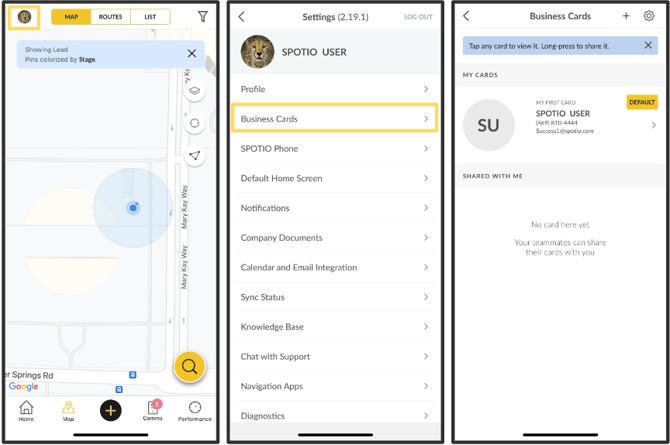
To access Digital Business Cards:
1. Login to the SPOTIO mobile app.
2. Click on the Profile silhouette in the top left corner.
3. Tap on **Business Cards**.
### Default Setup
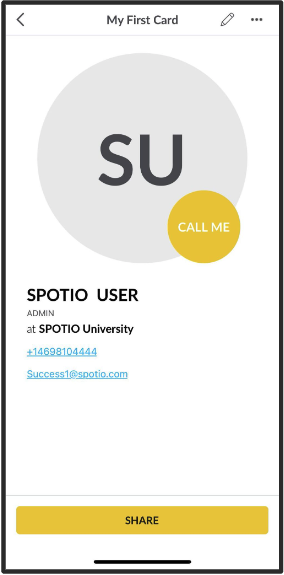
Upon rep creation, reps will have a default digital business card automatically set up in their SPOTIO account. It will include:
- First + Last Name
- Title/ Role
- Company Name
- Phone Number
- Email Address
***Pro Tip:*** Create additional business cards to share contact information for other contacts/departments in your business. Need to share the contact information for your Billing Department, or your Customer Service department? Great opportunity to create a Digital Business card for both, so that your customers can easily have access to these important departments!
### To create a new card
Users are able to create new and additional cards based on their business needs.
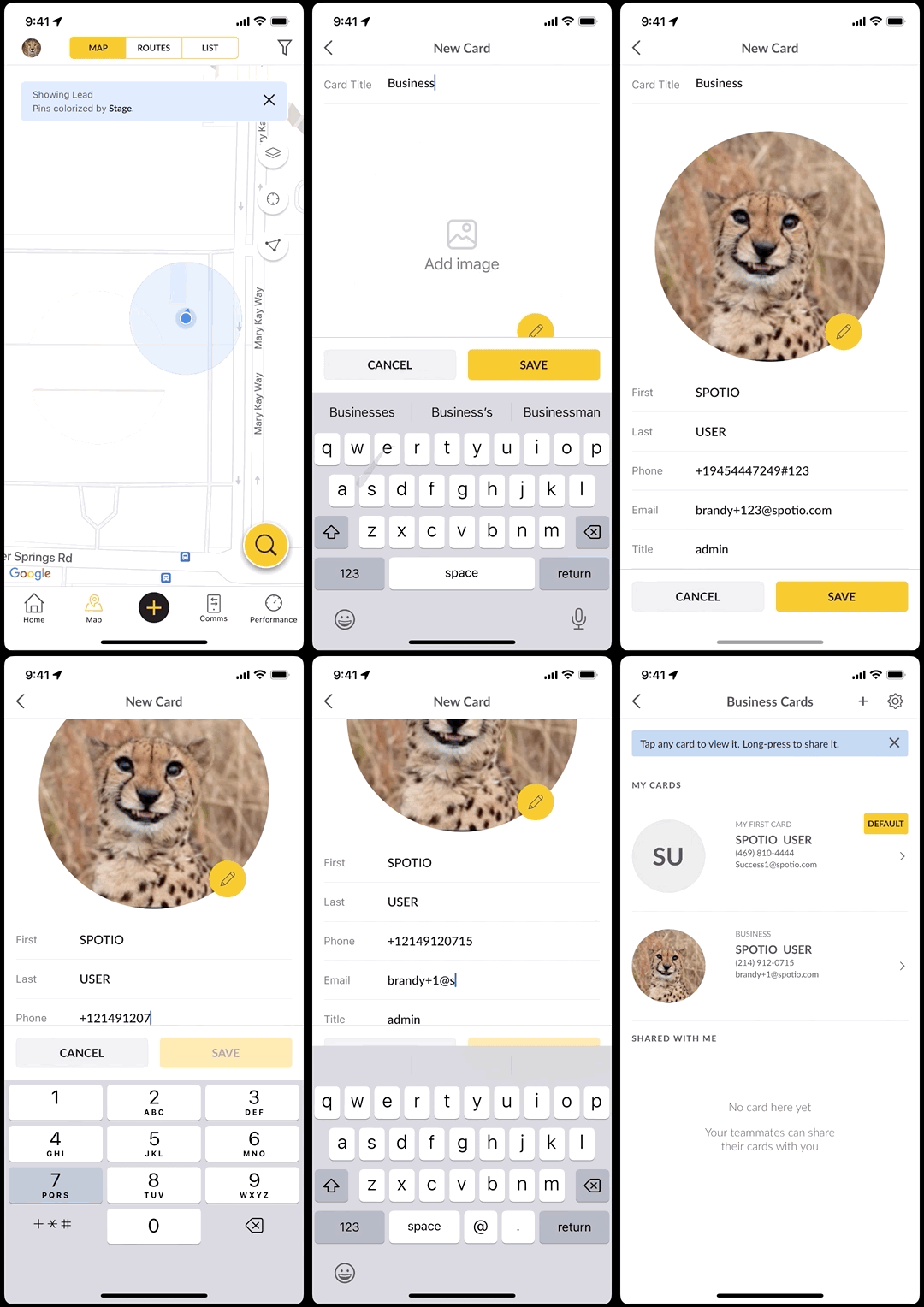
To create a new card:
1. Log into the SPOTIO mobile app.
2. Click the Profile icon at the top left of the mobile app.
3. Select **Business Cards**.
4. Click the “+” sign at the top right of the screen.
5. Fill out as many fields as you’d like: First name, Last name, Phone, Email, Title, Headline. You can also click the pencil icon next to the “Add Image” graphic to add an image to your card. (*Please note: You must fill out, at a minimum, a phone number or an email address in order to save your card*)
6. Click **Save**.
***Tip:*** Enhance this sharing experience by including a personalized message when you share a Digital Business Card with a customer.
### To edit a Digital Business Card
You have the ability to modify existing business cards as needed, to ensure your information is kept up to date.
To edit an existing Digital Business Card:
1. Login to the SPOTIO mobile app.
2. Click on the Profile silhouette in the top left corner.
3. Tap on **Business Cards**.
4. Select the card to edit.
5. Tap on the pencil icon in the top right corner.
6. Make adjustments as needed.
7. Hit **Save**.
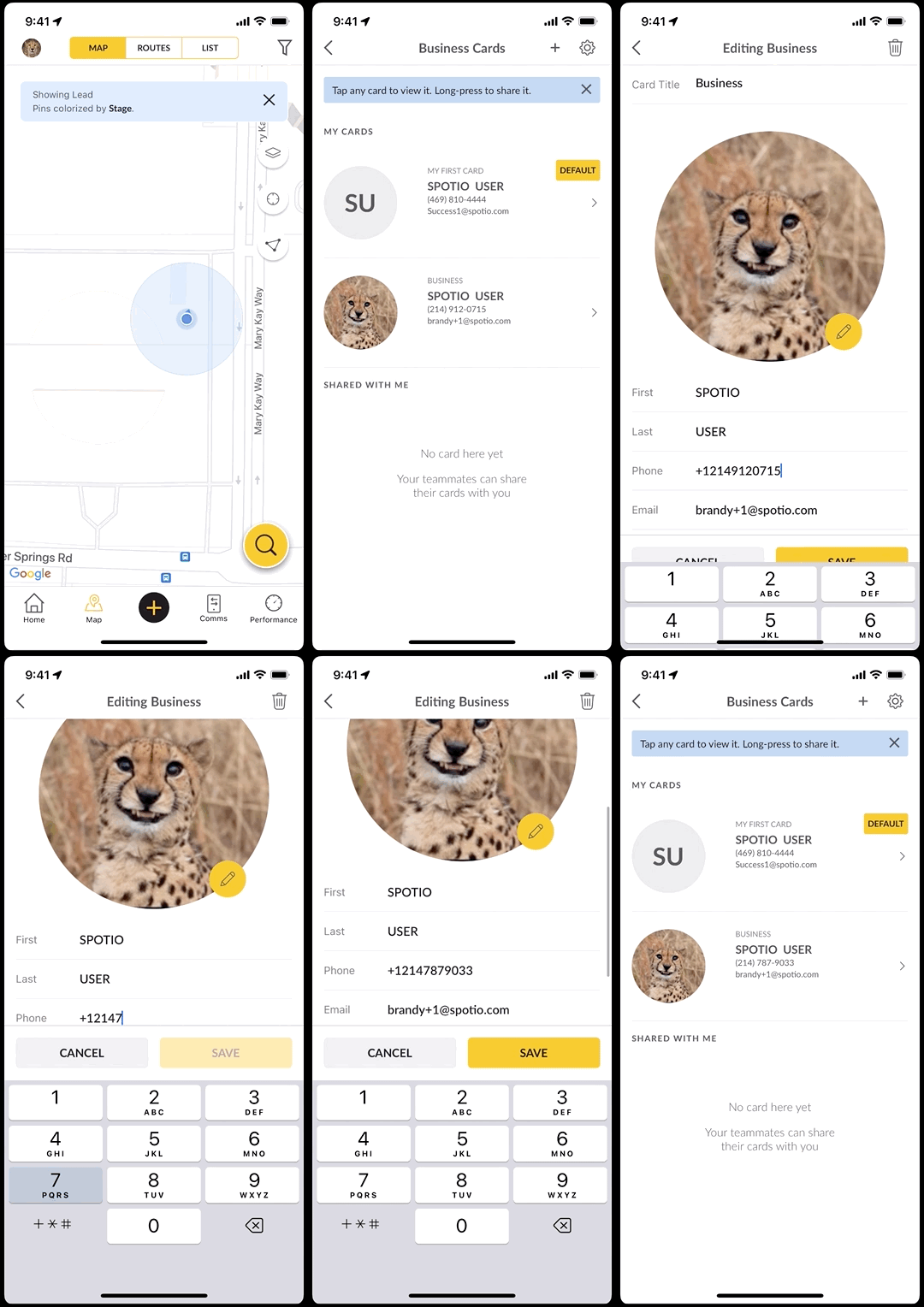
The edit icon is also where you can delete Digital Business Cards. Hit the trash can icon and confirm deletion but be aware that this action cannot be undone.
Once you have your Digital Business Cards created, you will want to share them. You can read more in SPOTIO's [Sharing Digital Business Cards](https://support.spotio.com/hc/en-us/articles/19258253893143-Sharing-Digital-Business-Cards?hsLang=en) knowledge base article.
FAQs
**Is there a way to include a link in a Digital Business Card?**
No. There is no hyperlinking ability in the Digital Business Card.
- [Getting started](https://support.spotio.com/getting-started?hsLang=en)
- [Troubleshooting](https://support.spotio.com/troubleshooting?hsLang=en)
- [Integrations](https://support.spotio.com/integrations?hsLang=en)
- [Knowledge Base](https://support.spotio.com/knowledge-base?hsLang=en#main-content)
- [Admin](https://support.spotio.com/knowledge-base?hsLang=en#admin)
- [Sales Rep](https://support.spotio.com/knowledge-base?hsLang=en#sales-rep)
- [Getting Started](https://support.spotio.com/knowledge-base?hsLang=en#getting-started)
- [FAQ](https://support.spotio.com/knowledge-base?hsLang=en#faq)
- [SPOTIO Español](https://support.spotio.com/knowledge-base?hsLang=en#spotio-espa%C3%B1ol)
- [SPOTIO: Troubleshooting](https://support.spotio.com/knowledge-base?hsLang=en#spotio-troubleshooting)
- [Manager](https://support.spotio.com/knowledge-base?hsLang=en#manager)
- [Getting Started: Manager](https://support.spotio.com/knowledge-base?hsLang=en#getting-started-manager)
- [Getting Started: Admin](https://support.spotio.com/knowledge-base?hsLang=en#getting-started-admin)
- [Getting Started: Sales Rep](https://support.spotio.com/knowledge-base?hsLang=en#getting-started-sales-rep)
- [Giving SPOTIO Reviews](https://support.spotio.com/knowledge-base?hsLang=en#giving-spotio-reviews)
- [Release Notes](https://support.spotio.com/release-notes?hsLang=en#main-content)
- [2025 Releases](https://support.spotio.com/release-notes?hsLang=en#2025-releases)
- [2026 Releases](https://support.spotio.com/release-notes?hsLang=en#2026-releases)
- [SPOTIO University](https://support.spotio.com/spotio-university?hsLang=en#main-content)
- [SPOTIO U: On Demand](https://support.spotio.com/spotio-university?hsLang=en#spotio-u-on-demand)
- [Live Training Sessions](https://support.spotio.com/spotio-university?hsLang=en#live-training-sessions)
- [Billing](https://support.spotio.com/billing?hsLang=en)
- [Webinars: On Demand](https://support.spotio.com/webinars-on-demand?hsLang=en#main-content)
- [Feature Spotlight](https://support.spotio.com/webinars-on-demand?hsLang=en#feature-spotlight)
- [Strategy & Best Practices](https://support.spotio.com/webinars-on-demand?hsLang=en#strategy-best-practices)
- [Quick Start Guides](https://support.spotio.com/quick-start-guides?hsLang=en#main-content)
- [Quick Start Videos: Web App Setup Guides](https://support.spotio.com/quick-start-guides?hsLang=en#quick-start-videos-web-app-setup-guides)
- [Quick Start Videos: Mobile App Navigation](https://support.spotio.com/quick-start-guides?hsLang=en#quick-start-videos-mobile-app-navigation)
- [Quick Start Videos: Web App Navigation](https://support.spotio.com/quick-start-guides?hsLang=en#quick-start-videos-web-app-navigation)
[mailto:support@spotio.com](mailto:support@spotio.com)
Copyright © 2026, SPOTIO