SPOTIO: Zapier Integrations
Through the 3rd party website Zapier, SPOTIO Admin's are able to set up an integration that can pass data seamlessly between SPOTIO and any other software. The purpose of this article is to walk you through the different options/methods for setting up a Zapier Integration.
Overview:
- Integrations save you time by seamlessly passing data and information between SPOTIO and other softwares, which minimizes the need for duplicate data entry.
- Keep everything up to date by setting up an integration that not only creates new leads, but also updates existing leads between SPOTIO and other softwares.
- Expand reporting and visibility into all of your leads and activities by having them mirrored in multiple systems.
Best Practices:
- Plan out your integration with as much detail as possible to ensure you are setting it up to pass the specific information you are needing between the 2 platforms.
- Mirror your SPOTIO account customizations to be similar to your other software account customizations so that it is easier to sync corresponding information between the two.
- Don't overthink your integration! SPOTIO and all of the other softwares available on Zapier can be very customizable. When creating your integration the best mindset to have is "What do I need to sync between the 2." and not "What can I sync between the 2."
Video Tutorial:
This article provides a step by step guide to setting up your Salesforce Integration, but a video tutorial is also available at the following link: https://spotio.wistia.com/medias/zvusp40frl
Preparing your SPOTIO Account for the Integration:
All SPOTIO plans are able to be integrated through Zapier. However, there are several important steps you will need to take on the SPOTIO side of things before moving into your Zapier account.
Step 1: Customizing your SPOTIO Account:
Before building your Zap you will need to make sure your SPOTIO account has been customized and set up to be compatible with the other software(s) that you will be integrating with. These customizations will primarily consist of Pipeline Stages, Visit Results, Activities, and Custom Fields.
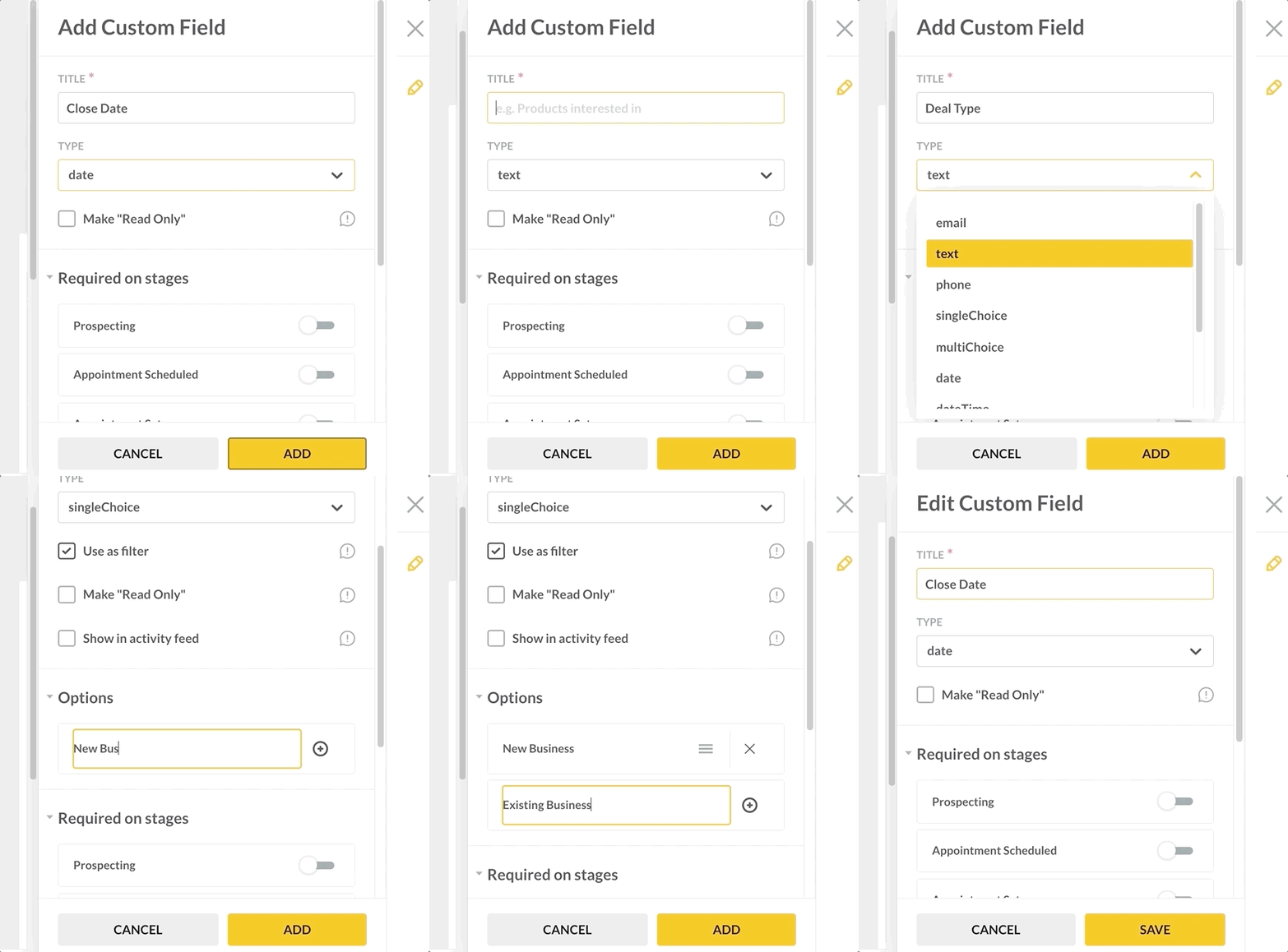
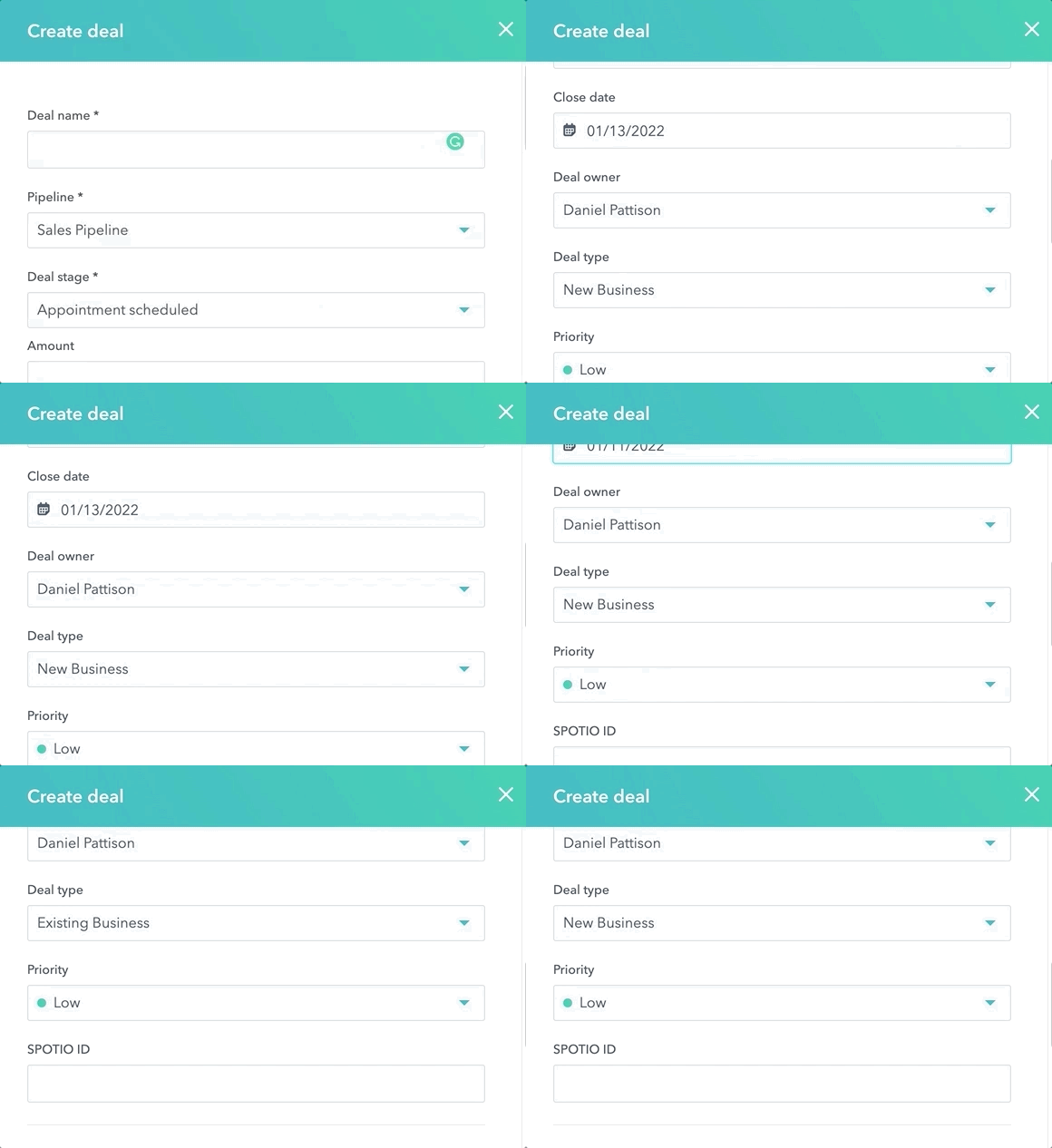
Below is an example of a few customizations being added to a SPOTIO account to reflect an account in HubSpot. Notice how for a "Deal" in HubSpot there are fields for "Close Date" and "Deal Type". Since SPOTIO doesn't have these fields by default these will need to be added as "Custom Fields" inside of the SPOTIO account we are syncing with HubSpot, so that the information can be saved in both systems.
In the GIFS below you will see both the Deal fields in the HubSpot account, as well as how you can add the fields into a SPOTIO account:
It is also important to mirror corresponding stages/statuses from other softwares prior to setting up your Zap.
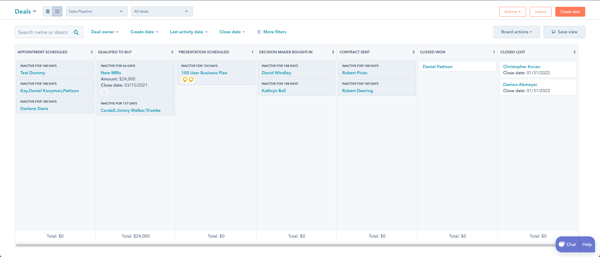
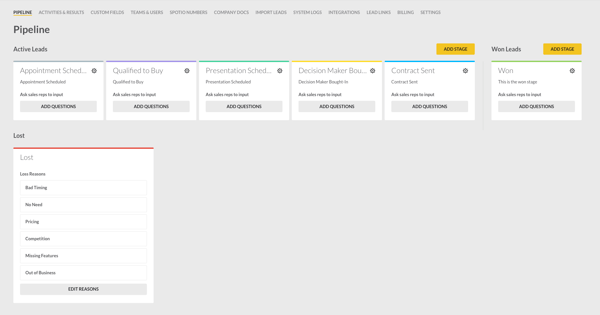
Replicating these statuses will allow for the Zapier integration to move leads into the appropriate stage/status during the integration. Replicating pipelines like this isn't required for the integration to work, but it will make it alot easier to keep things in sync when the terminology is the same between the 2 different softwares.
Instructions on how to setup/customize your SPOTIO Pipeline can be found here: https://support.spotio.com/hc/en-us/articles/360018829613
Step 2: Turning on Zapier Sync:
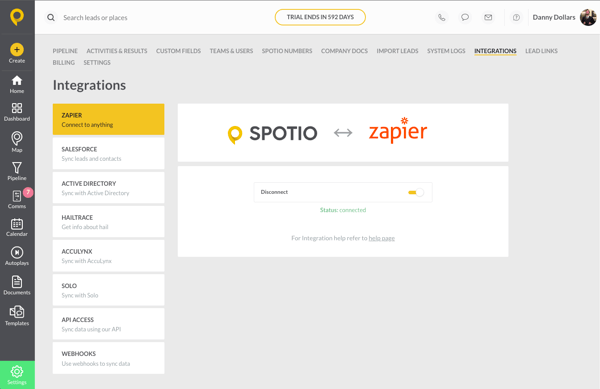
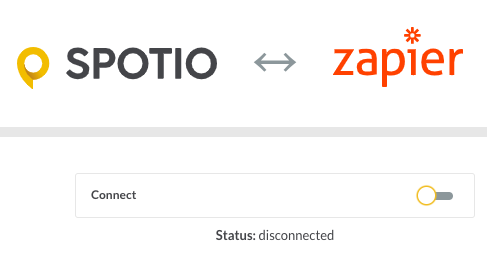
The final required step on the SPOTIO side before setting up your Zapier integration is to turn on your Zapier connection. This can be done by logging in on the Web version of SPOTIO and navigating to:
Settings > Integrations > Zapier
From this screen you will want to toggle on the "Connect" switch to ensure your SPOTIO account is set up to pass information into Zapier.
Setting Up your Zapier Integration:
What is Zapier?
Zapier is a 3rd party website that allows users to integrate multiple softwares together with little to no coding/programming experience. Zapier offers various plans that range in price depending on how many integrations you are setting up and how many "tasks" or runs your integration will have. It is recommended when setting up a new Zapier account that you start with a 14 day free trial to ensure that the integration is working as needed before switching to a paid plan long term.
Below are links to the Zapier account signup page, as well as SPOTIO's Zapier page:
What Can I Automate with SPOTIO?
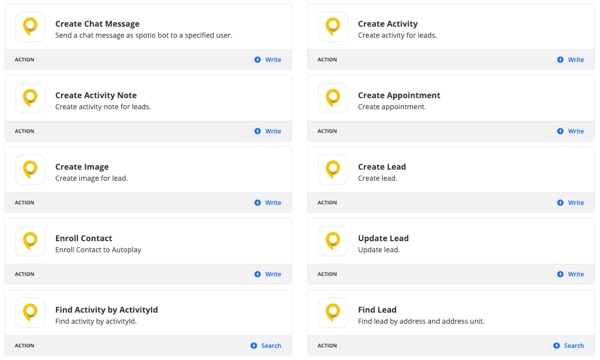
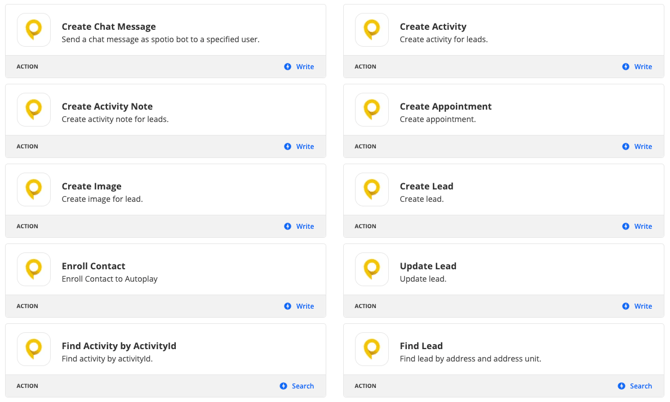
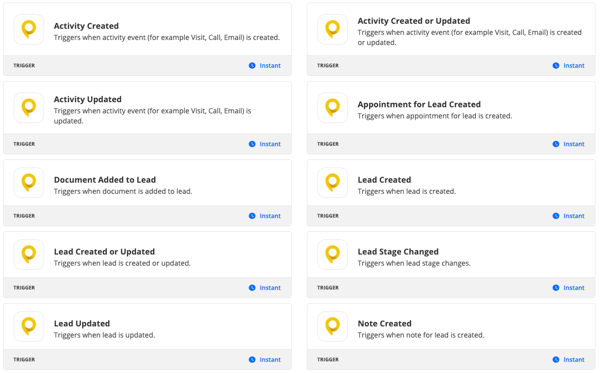
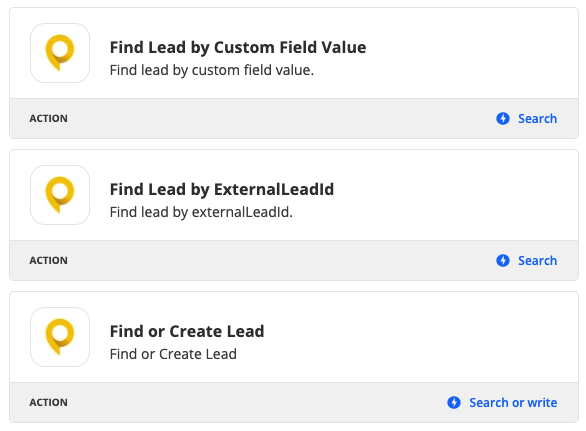
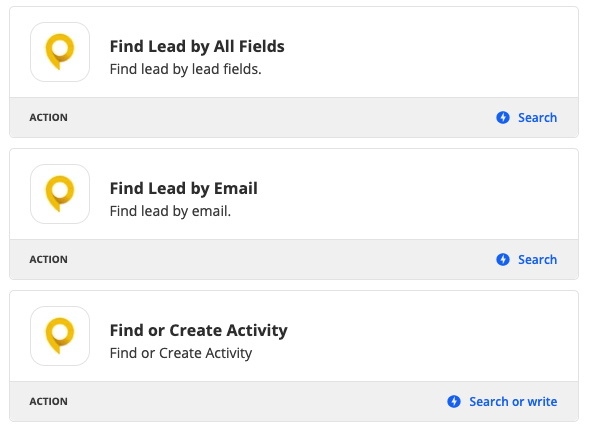
If you click on the link above and go to SPOTIO's Zapier page you will be able to see what Triggers and Actions SPOTIO offers. A trigger is the action in SPOTIO you can set to cause an integration to occur, whereas an action is what you can have occur in SPOTIO based on a trigger from another software.
Below are all of SPOTIO's Triggers and Actions that are available through Zapier:
Step 1: Selecting the SPOTIO Trigger
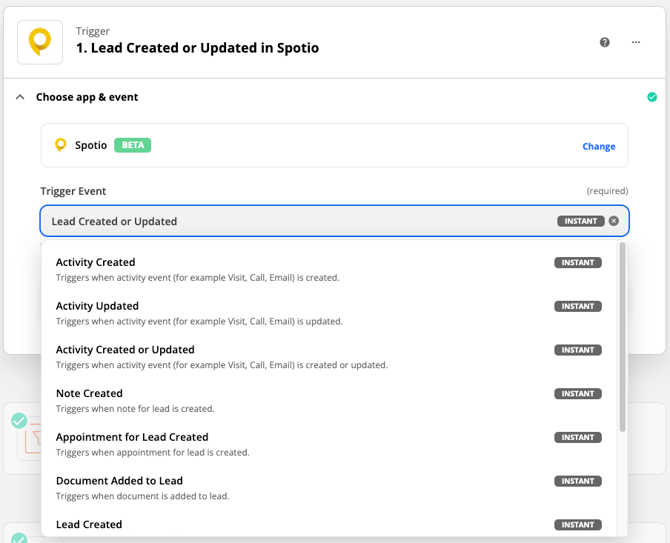
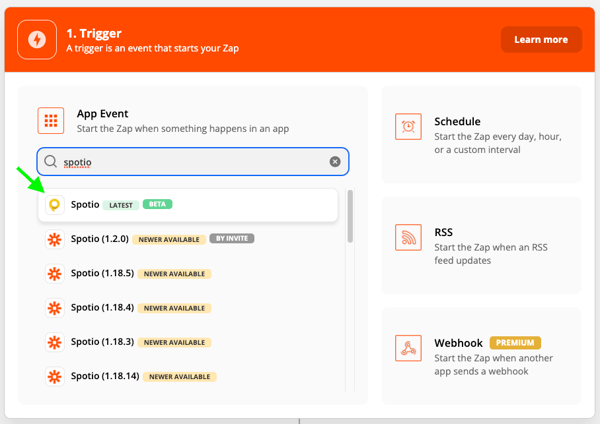
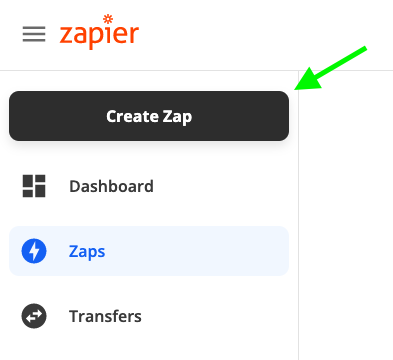
To get started building your Zap you will need to click on the "Create Zap" button in the top left corner of your account. This will then take you to the new Zap building tool where you can search for "SPOTIO" to find the SPOTIO Zap trigger options. Make sure you are selecting the "Beta" version of the SPOTIO Zap to ensure you are on the most up to date version.
Step 2: Setting up your Trigger
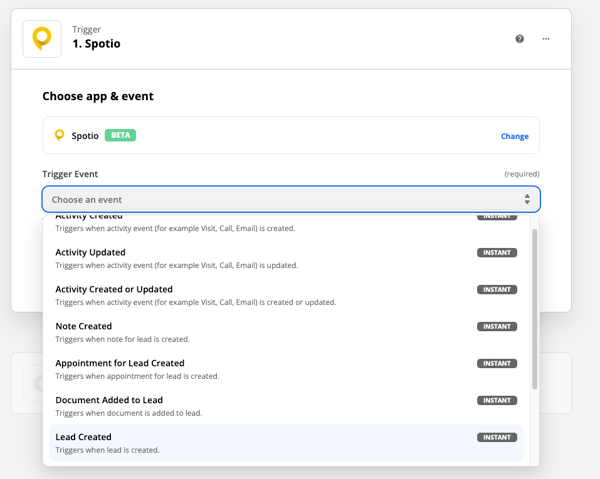
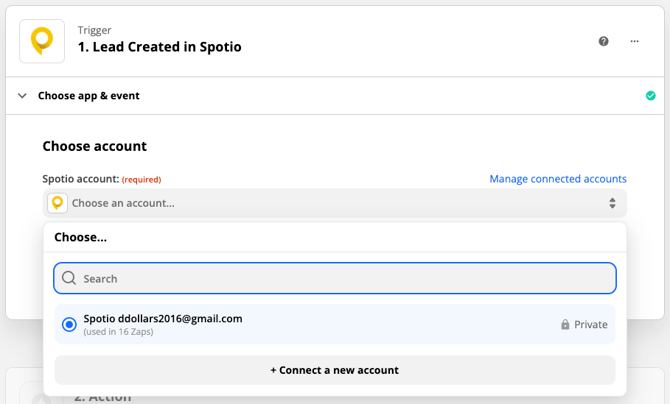
After selecting SPOTIO as your trigger step you will then need to select the "Trigger Event". Each of these Event options is listed above in this article. After you have selected a Trigger event you will then be prompted to select the SPOTIO account you want the integration to be linked with. It is important to link login credentials for an Account Admin in order for your integration to connect successfully.
Step 3: Testing your Trigger
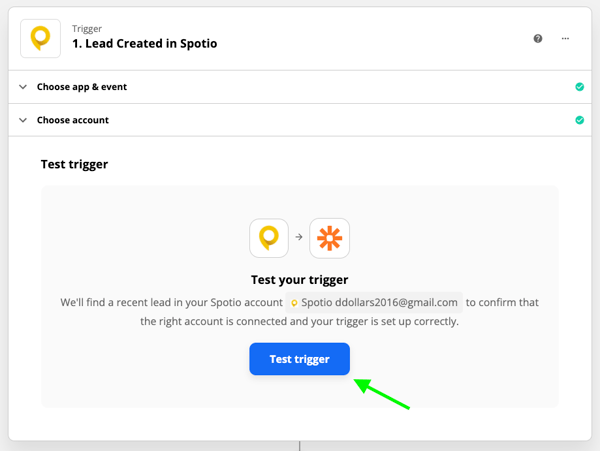
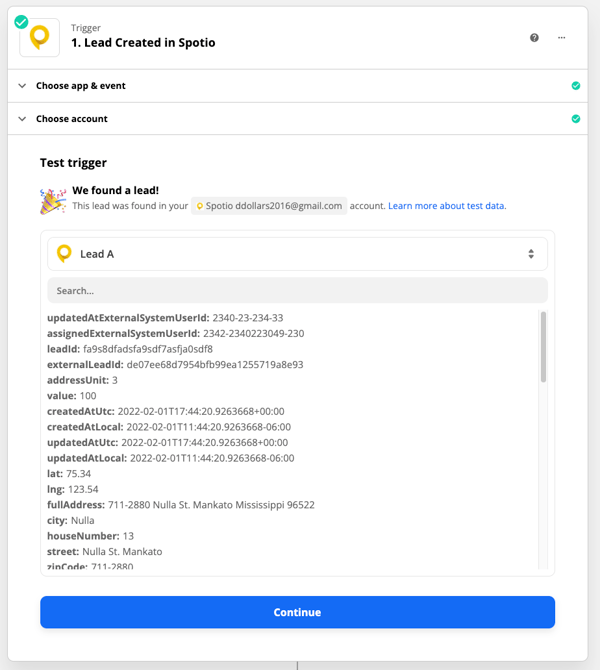
After you have selected your SPOTIO trigger and successfully connected your account Zapier will then prompt you to test the trigger. When you click the blue button to "Test Trigger" a randomly generated test lead will be sent from your SPOTIO account into Zapier. If the lead is successfully sent you will see the message "We found a lead!" appear.
If there are any errors or configuration issues with your SPOTIO account you should receive an error message during this step that indicates what needs to be fixed/reconfigured in order for the trigger portion of your Zap to work properly.
After running your test you can click on the blue "Continue" button to proceed to the action step of your Zap.
Step 4: Setting Up a Filter
The next step in setting up your Zap is to select the Action/Actions that you want to occur as a result of the trigger you setup. For the example in this article we will be creating a filter step to only pass leads into HubSpot that are in the Stage "Qualified to Buy".
To add a filter action you can either search for it, or select the filter icon in the action menu.
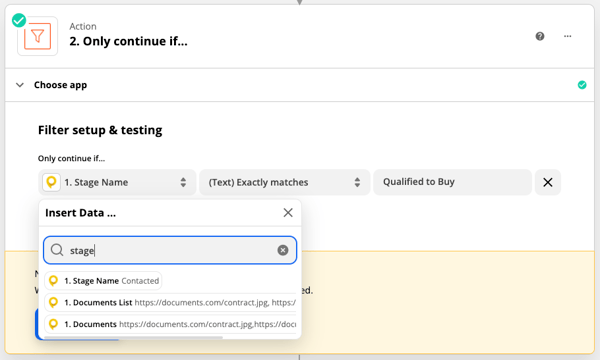
Once you select the filter option you then need to fill in the 3 different dropdowns with the following information:
- Left Dropdown: The information from SPOTIO that you want to filter by (in the example below it is Stage Name)
- Middle Dropdown: The logic that the filter will be based on. For this example it is set to be "Exactly Matches"
- Right Dropdown: The criteria that the data from the left dropdown will be compared against. For this example we have manually typed in "Qualified to Buy" which is a Pipeline Stage in our SPOTIO account.
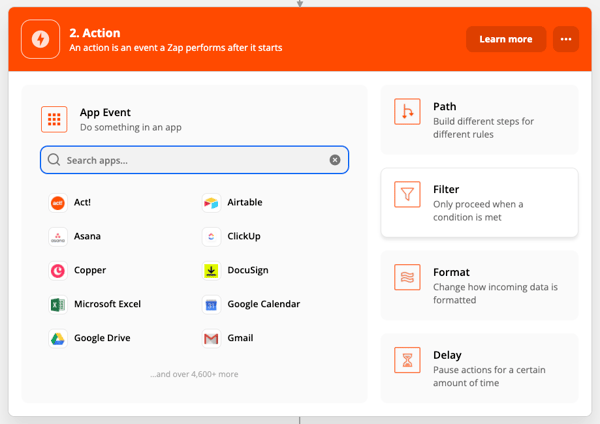
Step 5: Selecting your Action
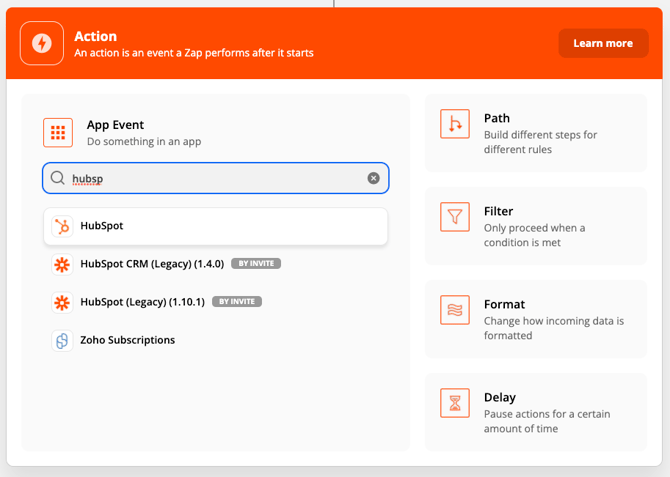
After adding in any intermediary steps such as filters and utilities the next step will be to setup the action in your Zap. You can select the software you are wanting to integrate with by searching for it under the App Event box.

Step 6: Connecting Action Account
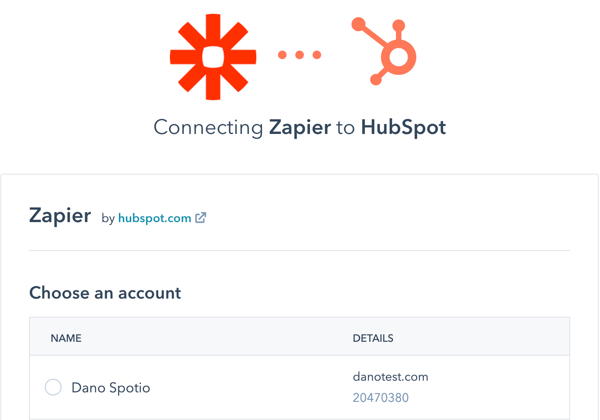
After selecting the App you want to use for your action step you will next need to link your account for that corresponding app with your Zapier account.
Step 7: Selecting Action Event
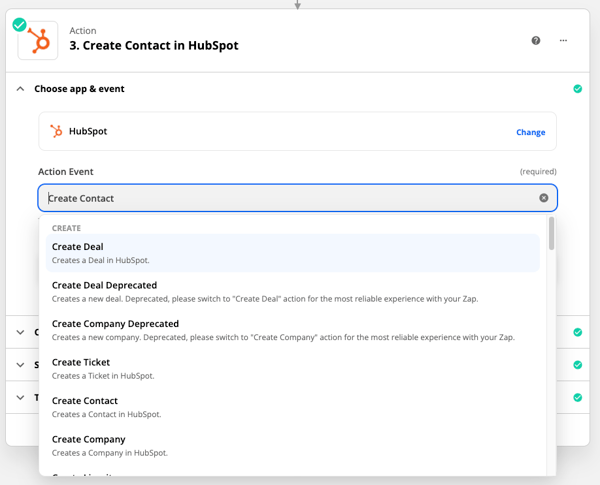
After linking to your account for the Action step of your Zap you will then need to select the "Action Event". This is the event you want to have take place in another software based on an action performed in SPOTIO. Based on the setup of our Zap so far, a new Deal will be created in HubSpot anytime a Lead is moved into the "Qualified to Buy" stage in SPOTIO.
Step 8: Mapping your Fields
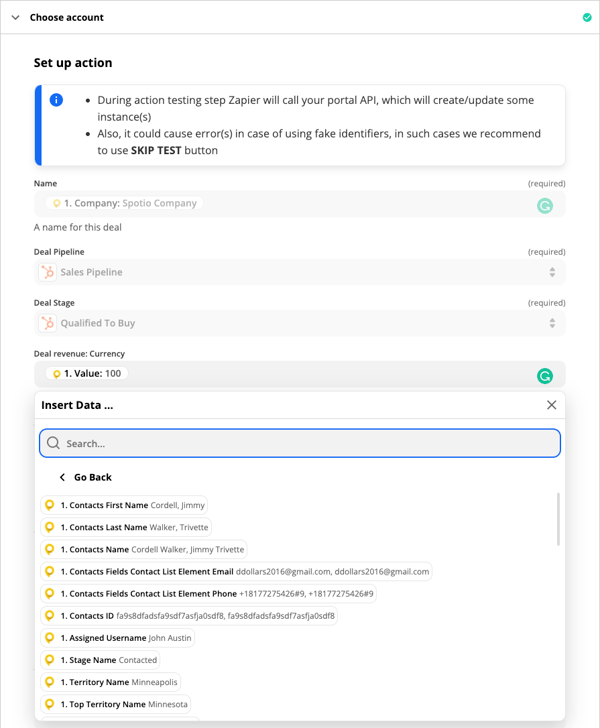
The final step in setting up your Zapier integration is to map out your fields of information from SPOTIO into your other software. You will see several blank text cells appear, each with a name above it that corresponds to a field of information from your other software. When you click into these cells you will then see all available information from SPOTIO that can be mapped to that cell.
It is important to note that some of these fields might have the word (required) written in the right corner above the cell, which indicates that information is required in the other system in order for the action to be completed.
After you have mapped all fields needed for the integration you should be able to click on the blue "Continue" button at the bottom of the screen to complete setup.
Testing your Zapier Integration:
After setting up your Zapier action and triggers it's important to test the integration to ensure data is passing correctly between the 2 systems.
Step 1: Turn your Zap On
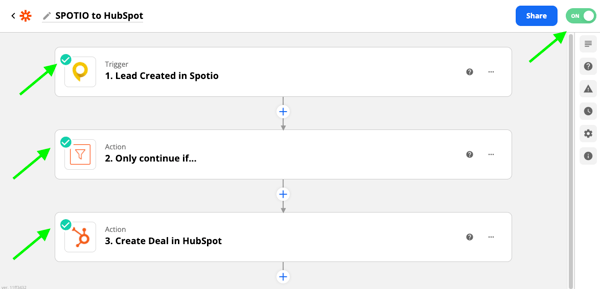
This might seem like a silly step, however it's important to remember that Zapier will automatically switch off your integration anytime you make changes/edits to it. Before running your tests ensure that all steps of your Zap are showing with Green checkmarks, and that the master toggle is turned on and also showing as green.
Step 2: Run a Test Action
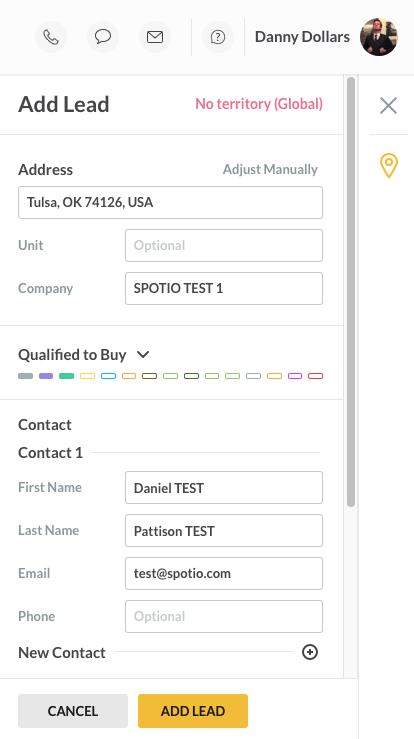
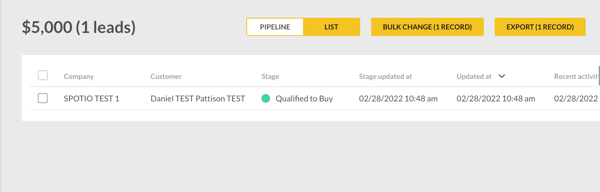
Based on how you have set up your Zap you will next want to run a test action that causes the Zap to trigger. Based on the Zap setup in this article, a new lead created in SPOTIO in the stage "Qualified to Buy" should successfully trigger the Zap and result in a new Deal being created in HubSpot.
It is important to note that when running manual tests you will want to put the word "Test" or "Tester" in the lead to ensure that it doesn't get confused for an actual lead/deal in your SPOTIO account or other systems.
Step 3: Review Zapier Log
Once you have sent a test lead to Zapier the next step will be to check your Zap's history log to see if the Zap was successful.
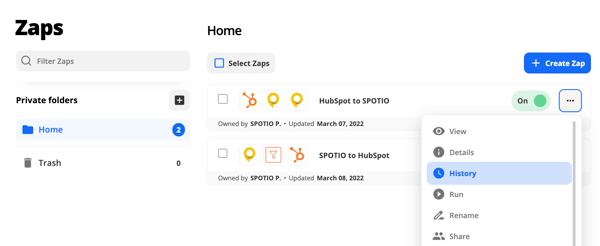
There are 3 possible outcomes you will typically see in this log:
- Success - The Zap was Successful
- Filtered - A filter within the Zap caused it to stop as expected
- Stopped "Errored" - Something went wrong with the Zap that caused it to not work as expected.
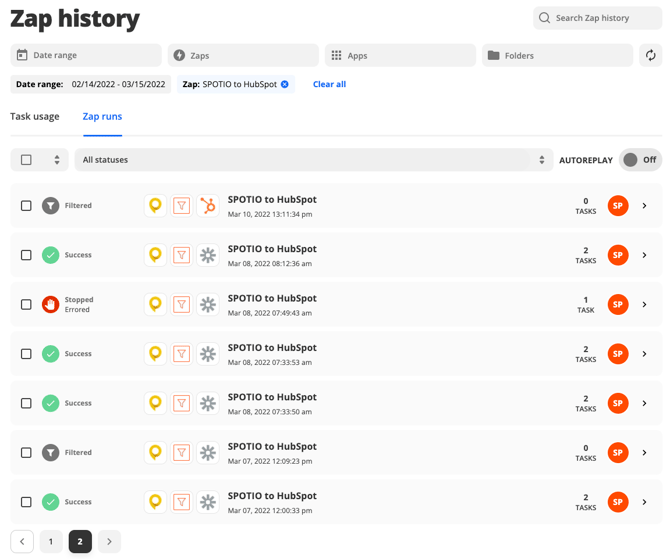
If adding your test lead successfully activated your Zapier trigger, then you will see an instance of the Zap firing for your test lead in this history log with 1 of the 3 statuses above. If your test instance shows as "Errored" you will need to click into the error message in order to see the details of what went wrong in the Zap. After you make adjustments to your Zap for any errors identified during testing, you can then run another test to confirm that the Zap is now firing successfully.
Common Questions/Errors
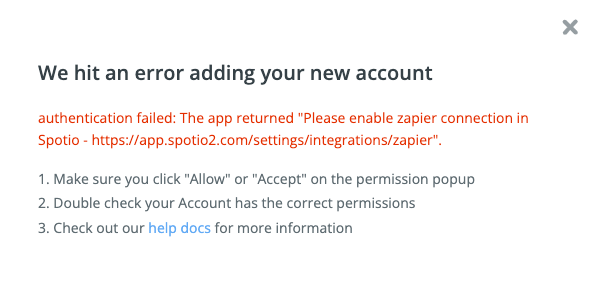
We hit an error adding your new account.
This error occurs when linking your SPOTIO account to Zapier and is caused by the Zapier switch not being turned on inside of your SPOTIO account. All you need to do to resolve this issue is navigate to settings > integrations > zapier inside of your account and toggle the switch to "On".
App Step hit an error.
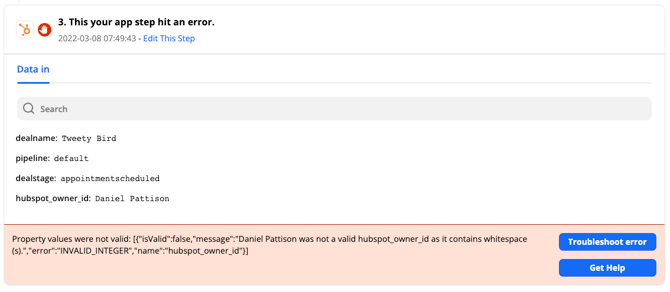
This error message will display if any app involved in your Zap hits an error that prevents it from properly executing. You can typically find a specific error message in the red section below the step of the Zap that has encountered the error.
In the example below you will see a red error message indicating that "Daniel Pattison" is not a valid HubSpot owner ID. This lets us know when the Zap tried to send that username into the Owner ID field HubSpot did not accept it and thus caused the error in this step of our integration.
An error like this can be resolved by clicking the "Edit This Step" link and then going to the field of information reported in the error message and changing it to the correct data format for the field in the other software.
Duplicate Leads Being Created.
A common issue reported in Zapier integrations involving SPOTIO triggers is the creation of duplicate leads in other softwares. You can detect if this is occurring by 1) seeing duplicate leads in your other software and 2) by seeing the Zap fire multiple times in a very short amount of time.
Typically this issue is caused by the trigger being set to "Lead Created or Updated" or some other trigger option that might occur multiple times in SPOTIO at once, thus causing the Zap to fire multiple times at once.
In the example below you can see 2 successful firings of the "SPOTIO to HubSpot" Zap that happened within 3 seconds of each other. This resulted in 2 of the same lead being created inside of HubSpot, and was a direct result of the trigger being set to "Lead Created or Updated".
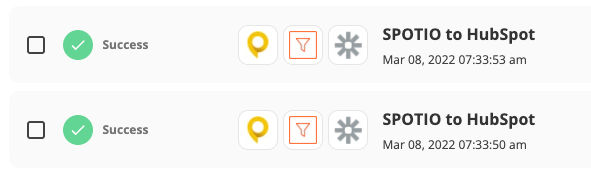
All you need to do to resolve this issue is adjust your SPOTIO trigger to fire on an event that occurs in your users workflow only once at a time. This can be something like just triggering for "Lead Created" or "Lead Updated" separately.