---
title: Email and Calendar Integration
description: Connect your email and calendar to SPOTIO for two-way sync on Web and Mobile — setup steps for Google, Microsoft, and other providers, plus how to disable.
---
[Skip to content](https://support.spotio.com/hc/en-us/articles/8108577621911-email-and-calendar-integration#main-content)
English
Show submenu for translations
[](https://support.spotio.com?hsLang=en)
Open main navigation
Close main navigation
- English
Show submenu for translations
How can we help you?
- There are no suggestions because the search field is empty.
1. [SPOTIO Knowledge Base](https://support.spotio.com/?hsLang=en)
2. [Knowledge Base](https://support.spotio.com/knowledge-base?hsLang=en)
3. [Getting Started: Sales Rep](https://support.spotio.com/knowledge-base?hsLang=en#getting-started-sales-rep)
September 11, 2026
# Email and Calendar Integration
Each individual user within SPOTIO can link their external email address. When doing this, you will also have the option to link the calendar account associated with the same email, allowing for a seamless synchronization and added visibility for both.
### Two Way Integration
In order for there to be two way calendar integration, from SPOTIO to your calendar and from your calendar to SPOTIO, you must integrate both calendar and email.
This can be done on either the Web or the Mobile, but integrating on one will result in email and calendar being integrated on both SPOTIO Web and SPOTIO Mobile.
### Setting Up the Integration - Web
You can set up your calendar and email integration on the web app under your **Profile Settings**. Click your **profile icon** in the top right corner to access Profile Settings and **select "Integrations"** from the list of options that appear.
#### Integrate your Calendar and Email from Web:
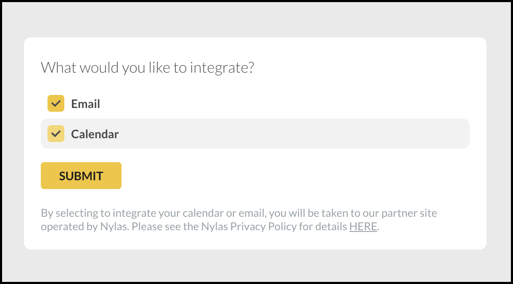
1\. Check the boxes for ***Email***and ***Calendar***.
2\. Click **Submit**
****
3\. Enter your email address in the ***Email to Integrate*** box.
4\. Your provider will be automatically populated, you can adjust this in the **dropdown**.
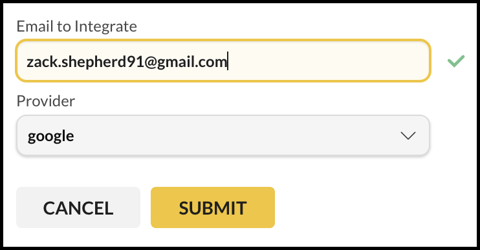
5\. Click **Submit.**
6\. **Log in** with your credentials for your email account.
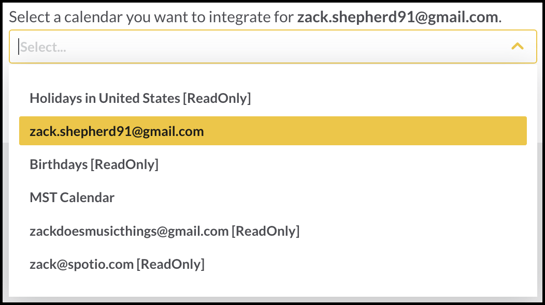
Depending on which provider you use, you may be prompted to give permissions to access your account and certain events. Make your selections and continue. You may be prompted to choose the calendar you want depending on what is available.
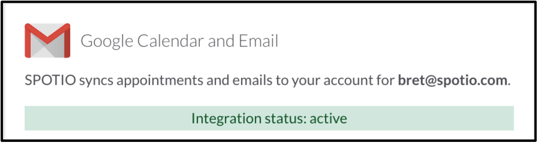
Once successfully integrated, you will see a green bar with the message *SPOTIO syncs appointments and emails to your account.*
**
### Setting Up the Integration - Mobile
You can set up your calendar and email integration on the mobile app under your **Profile Settings**. Click your **profile icon** in the top left corner to access Profile Settings and **select "Calendar and Email Integration"** from the list of options that appear.
#### Integrate your Calendar and Email from Mobile:
1\. Check the boxes for ***Calendar*** and ***Email**.*
*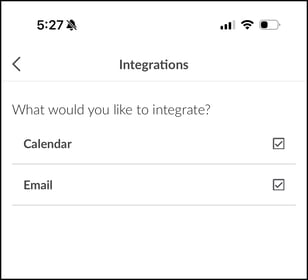*
2\. Click **Submit**. (You will be redirected to email provider screen.)
3\. Choose to **Continue with Google**, **Continue with Microsoft**, or **View all providers**.
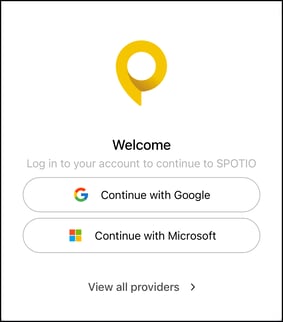
4\. **Log in** with your credentials for your email account.
Depending on which email provider you use, you may be prompted to give permissions to access your account and certain events. Make your selections and continue. You may be prompted to choose the calendar you want depending on what is available.
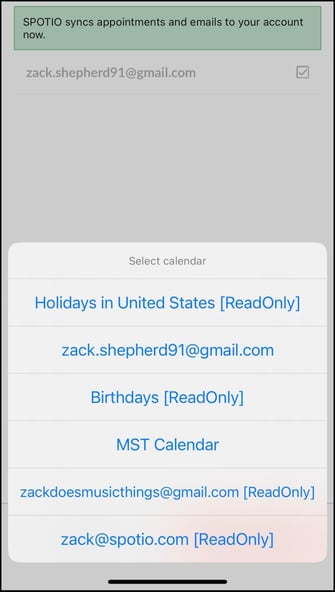
Once successfully integrated, you will see a green bar with the message ***SPOTIO syncs appointments and emails to your account now.***
*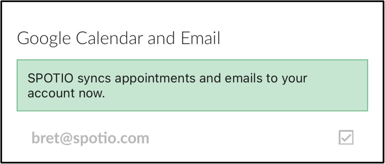*
***Tip:*** We recommend checking all boxes for calendar events, allowing for better visibility.
### Disabling the Integration
If at any time you choose to disconnect your integrated calendar and/or email within SPOTIO, you are able to do so.
### On the SPOTIO web app:
1. Click on your profile icon in the top right corner.
2. Select **Profile Settings**.
3. Select **Integrations.**
4. Click **Remove Integration**.
### On the SPOTIO mobile app:
1. Click on your profile icon in the top left corner.
2. Select **Calendar and Email Integration**.
3. Hit **Disable**.
- [Getting started](https://support.spotio.com/getting-started?hsLang=en)
- [Troubleshooting](https://support.spotio.com/troubleshooting?hsLang=en)
- [Integrations](https://support.spotio.com/integrations?hsLang=en)
- [Knowledge Base](https://support.spotio.com/knowledge-base?hsLang=en#main-content)
- [Admin](https://support.spotio.com/knowledge-base?hsLang=en#admin)
- [Sales Rep](https://support.spotio.com/knowledge-base?hsLang=en#sales-rep)
- [Getting Started](https://support.spotio.com/knowledge-base?hsLang=en#getting-started)
- [FAQ](https://support.spotio.com/knowledge-base?hsLang=en#faq)
- [SPOTIO Español](https://support.spotio.com/knowledge-base?hsLang=en#spotio-espa%C3%B1ol)
- [SPOTIO: Troubleshooting](https://support.spotio.com/knowledge-base?hsLang=en#spotio-troubleshooting)
- [Manager](https://support.spotio.com/knowledge-base?hsLang=en#manager)
- [Getting Started: Manager](https://support.spotio.com/knowledge-base?hsLang=en#getting-started-manager)
- [Getting Started: Admin](https://support.spotio.com/knowledge-base?hsLang=en#getting-started-admin)
- [Getting Started: Sales Rep](https://support.spotio.com/knowledge-base?hsLang=en#getting-started-sales-rep)
- [Giving SPOTIO Reviews](https://support.spotio.com/knowledge-base?hsLang=en#giving-spotio-reviews)
- [Release Notes](https://support.spotio.com/release-notes?hsLang=en#main-content)
- [2025 Releases](https://support.spotio.com/release-notes?hsLang=en#2025-releases)
- [2026 Releases](https://support.spotio.com/release-notes?hsLang=en#2026-releases)
- [SPOTIO University](https://support.spotio.com/spotio-university?hsLang=en#main-content)
- [SPOTIO U: On Demand](https://support.spotio.com/spotio-university?hsLang=en#spotio-u-on-demand)
- [Live Training Sessions](https://support.spotio.com/spotio-university?hsLang=en#live-training-sessions)
- [Billing](https://support.spotio.com/billing?hsLang=en)
- [Webinars: On Demand](https://support.spotio.com/webinars-on-demand?hsLang=en#main-content)
- [Feature Spotlight](https://support.spotio.com/webinars-on-demand?hsLang=en#feature-spotlight)
- [Strategy & Best Practices](https://support.spotio.com/webinars-on-demand?hsLang=en#strategy-best-practices)
- [Quick Start Guides](https://support.spotio.com/quick-start-guides?hsLang=en#main-content)
- [Quick Start Videos: Web App Setup Guides](https://support.spotio.com/quick-start-guides?hsLang=en#quick-start-videos-web-app-setup-guides)
- [Quick Start Videos: Mobile App Navigation](https://support.spotio.com/quick-start-guides?hsLang=en#quick-start-videos-mobile-app-navigation)
- [Quick Start Videos: Web App Navigation](https://support.spotio.com/quick-start-guides?hsLang=en#quick-start-videos-web-app-navigation)
[mailto:support@spotio.com](mailto:support@spotio.com)
Copyright © 2026, SPOTIO