---
title: "Mobile App: How to Check Your App Version and Update to the Latest Release"
description: Your SPOTIO version number appears in the Settings header of the mobile app. Here is how to read it, how to update, and what to do when your app store keeps installing the older release.
---
[Skip to content](https://support.spotio.com/mobile-app-how-to-check-your-app-version#main-content)
English
Show submenu for translations
[](https://support.spotio.com?hsLang=en)
Open main navigation
Close main navigation
- English
Show submenu for translations
How can we help you?
- There are no suggestions because the search field is empty.
1. [SPOTIO Knowledge Base](https://support.spotio.com/?hsLang=en)
2. [Troubleshooting](https://support.spotio.com/troubleshooting?hsLang=en)
September 16, 2026
# Mobile App: How to Check Your App Version and Update to the Latest Release
## Find the version installed on your device, and what to do when the store keeps serving an older one.
*For: Sales Reps, Managers, Admins · Where: Mobile app (iPhone and Android); Web app for the team view · Plan: All plans*
---
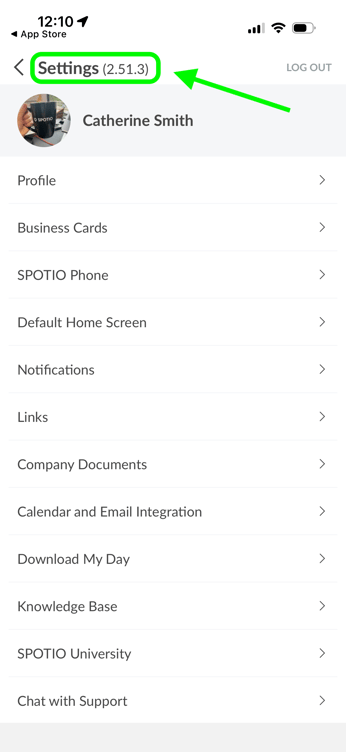
Your SPOTIO version number is shown in the header of the **Settings** screen in the mobile app, in parentheses next to the word Settings. To move to the newest release, open the SPOTIO listing in your device’s app store: if it offers **Update**, install it; if it only offers **Open**, your device already has the newest release your store is serving.
### **Check the version you have**
1. Open the SPOTIO mobile app.
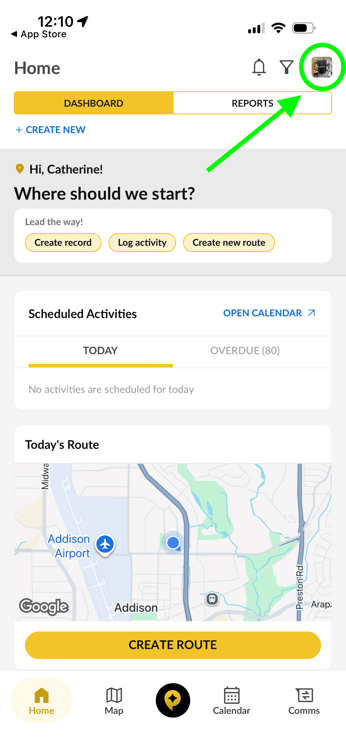
2. Go to **Settings,** top right of mobile app
3. Read the number in parentheses next to the Settings heading. That is the version installed on this device.
This is the number Support will ask for. A screenshot of that header is the fastest way to answer “which version are you on?”
####  
### **Check whether a newer release exists**
1. Open the SPOTIO listing in your store: [SPOTIO for Android](https://play.google.com/store/apps/details?id=com.spotio.app) or [SPOTIO for iPhone](https://apps.apple.com/us/app/spotio-1-field-sales-app/id1321365455).
2. If the button reads **Update**, tap it and wait for the install to finish.
3. Reopen SPOTIO and check the Settings header again. The number should have changed.
### **If the store will not offer you the update**
Reinstalling does not force a newer release. Deleting the app and downloading it again installs whatever version your store is currently serving that device, which can be the same one you just removed. Work through these instead:
1. **Close and reopen the store app itself**, then look at the SPOTIO listing again. Store listings are cached and can show a stale button.
2. **Check your device’s operating system version.** SPOTIO is built for the current versions of iOS and Android; a device on an older OS may be held on an older release of the app.
3. **Check whether your device is managed by your company.** On phones and tablets distributed by an employer, app updates are often controlled centrally and installed on a schedule rather than on demand. Your IT contact can push the update.
4. **Confirm which store account is signed in.** An update purchased or installed under a different account will not appear.
5. If none of that changes the version number, contact Support (support@spotio.com) with a screenshot of the Settings header and your device model.
---
### **Troubleshooting**
**The store shows Open, not Update.** Your device already has the newest release the store is serving it. If you are expecting a specific fix and still do not have it, note your version number from the Settings header and contact Support rather than reinstalling.
**You installed an update but the version number did not change.** Fully close SPOTIO and reopen it, then check the Settings header again.
**You reinstalled and got the same version back.** That is expected. Reinstalling pulls the same release the store was already offering; it does not reach forward to a newer one.
**You cannot find Settings, or there is no version in the header.** Send Support (support@spotio.com) a screenshot of what you do see, along with your device model.
- [Getting started](https://support.spotio.com/getting-started?hsLang=en)
- [Troubleshooting](https://support.spotio.com/troubleshooting?hsLang=en)
- [Integrations](https://support.spotio.com/integrations?hsLang=en)
- [Knowledge Base](https://support.spotio.com/knowledge-base?hsLang=en#main-content)
- [Admin](https://support.spotio.com/knowledge-base?hsLang=en#admin)
- [Sales Rep](https://support.spotio.com/knowledge-base?hsLang=en#sales-rep)
- [Getting Started](https://support.spotio.com/knowledge-base?hsLang=en#getting-started)
- [FAQ](https://support.spotio.com/knowledge-base?hsLang=en#faq)
- [SPOTIO Español](https://support.spotio.com/knowledge-base?hsLang=en#spotio-espa%C3%B1ol)
- [SPOTIO: Troubleshooting](https://support.spotio.com/knowledge-base?hsLang=en#spotio-troubleshooting)
- [Manager](https://support.spotio.com/knowledge-base?hsLang=en#manager)
- [Getting Started: Manager](https://support.spotio.com/knowledge-base?hsLang=en#getting-started-manager)
- [Getting Started: Admin](https://support.spotio.com/knowledge-base?hsLang=en#getting-started-admin)
- [Getting Started: Sales Rep](https://support.spotio.com/knowledge-base?hsLang=en#getting-started-sales-rep)
- [Giving SPOTIO Reviews](https://support.spotio.com/knowledge-base?hsLang=en#giving-spotio-reviews)
- [Release Notes](https://support.spotio.com/release-notes?hsLang=en#main-content)
- [2025 Releases](https://support.spotio.com/release-notes?hsLang=en#2025-releases)
- [2026 Releases](https://support.spotio.com/release-notes?hsLang=en#2026-releases)
- [SPOTIO University](https://support.spotio.com/spotio-university?hsLang=en#main-content)
- [SPOTIO U: On Demand](https://support.spotio.com/spotio-university?hsLang=en#spotio-u-on-demand)
- [Live Training Sessions](https://support.spotio.com/spotio-university?hsLang=en#live-training-sessions)
- [Billing](https://support.spotio.com/billing?hsLang=en)
- [Webinars: On Demand](https://support.spotio.com/webinars-on-demand?hsLang=en#main-content)
- [Feature Spotlight](https://support.spotio.com/webinars-on-demand?hsLang=en#feature-spotlight)
- [Strategy & Best Practices](https://support.spotio.com/webinars-on-demand?hsLang=en#strategy-best-practices)
- [Quick Start Guides](https://support.spotio.com/quick-start-guides?hsLang=en#main-content)
- [Quick Start Videos: Web App Setup Guides](https://support.spotio.com/quick-start-guides?hsLang=en#quick-start-videos-web-app-setup-guides)
- [Quick Start Videos: Mobile App Navigation](https://support.spotio.com/quick-start-guides?hsLang=en#quick-start-videos-mobile-app-navigation)
- [Quick Start Videos: Web App Navigation](https://support.spotio.com/quick-start-guides?hsLang=en#quick-start-videos-web-app-navigation)
[mailto:support@spotio.com](mailto:support@spotio.com)
Copyright © 2026, SPOTIO