---
title: Setting Your Time Zone and Language in SPOTIO
description: Learn how to set your language, time zone, date format, and time format in SPOTIO under Profile Settings → Localization, and how this affects your account.
---
[Skip to content](https://support.spotio.com/setting-your-time-zone-language-and-date-format-in-spotio#main-content)
English
Show submenu for translations
[](https://support.spotio.com?hsLang=en)
Open main navigation
Close main navigation
- English
Show submenu for translations
How can we help you?
- There are no suggestions because the search field is empty.
1. [SPOTIO Knowledge Base](https://support.spotio.com/?hsLang=en)
2. [Getting started](https://support.spotio.com/getting-started?hsLang=en)
September 22, 2026
# Setting Your Time Zone and Language in SPOTIO
## For: all users (Sales Reps, Managers, Admins) Where: Web app; Mobile app · Plan: All Plans
Your language, and time zone, by each user under **Profile Settings** on the web and mobile app. Changing your time zone here changes how every time, and appointment displays for you across your account - on the map, in the pipeline, in reports, and on record activity.
#### Before you start
This is a per-user setting. Admin are not able to set or override it on another user's behalf, the timezone for all users defaults to the whole account timezone during initial setup.
#### How to update your Localization settings (Web)
1. Click your name in the top-right corner of the screen.
2. Select **Profile Settings**.
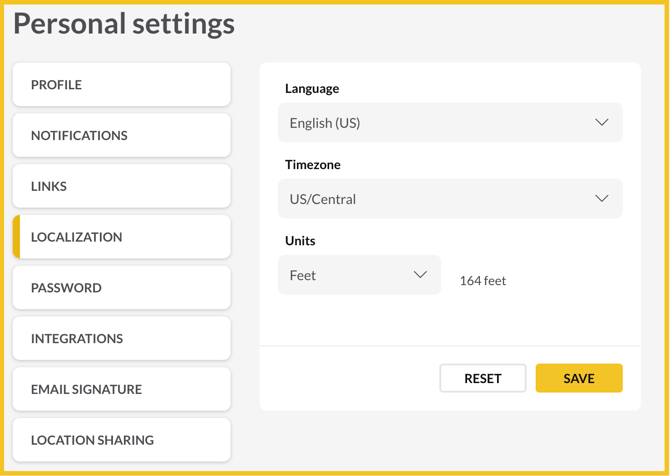
3. Click the **Localization** tab.
4. Update any of the following:
- **Language** - the language SPOTIO displays in
- **Timezone** - the time zone used to display dates and times across your account
- **Units** - the unit of measurement used in your account
5. Click **Save**.
Changing your time zone immediately updates how existing dates, times, and appointments are displayed — it doesn't change when anything actually happened, only how it's shown to you.
#### On mobile
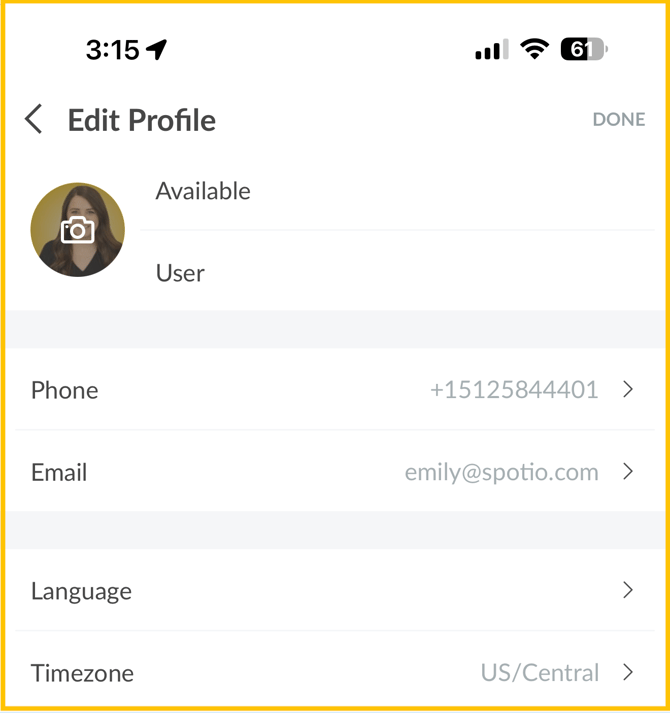
Timezone can also be set from **Profile Icon → Settings → Profile** in the mobile app. DASH and your Localization settings
#### How to update your Localization settings (Mobile)
1. Click your name in the top-right corner of the screen.
2. Select **Profile Settings**.
3. Click the **Localization** tab.
4. Update any of the following:
- **Language** - the language SPOTIO displays in
- **Timezone** - the time zone used to display dates and times across your account
5. Click **Done**
### FAQ
**Times still look off after this is set correctly?**
The usual next cause is a mismatch between this setting and your device's own clock/timezone — especially around a Daylight Saving change.
**Exported reports** are always generated in UTC, regardless of your Localization timezone setting.
- [Getting started](https://support.spotio.com/getting-started?hsLang=en)
- [Troubleshooting](https://support.spotio.com/troubleshooting?hsLang=en)
- [Integrations](https://support.spotio.com/integrations?hsLang=en)
- [Knowledge Base](https://support.spotio.com/knowledge-base?hsLang=en#main-content)
- [Admin](https://support.spotio.com/knowledge-base?hsLang=en#admin)
- [Sales Rep](https://support.spotio.com/knowledge-base?hsLang=en#sales-rep)
- [Getting Started](https://support.spotio.com/knowledge-base?hsLang=en#getting-started)
- [FAQ](https://support.spotio.com/knowledge-base?hsLang=en#faq)
- [SPOTIO Español](https://support.spotio.com/knowledge-base?hsLang=en#spotio-espa%C3%B1ol)
- [SPOTIO: Troubleshooting](https://support.spotio.com/knowledge-base?hsLang=en#spotio-troubleshooting)
- [Manager](https://support.spotio.com/knowledge-base?hsLang=en#manager)
- [Getting Started: Manager](https://support.spotio.com/knowledge-base?hsLang=en#getting-started-manager)
- [Getting Started: Admin](https://support.spotio.com/knowledge-base?hsLang=en#getting-started-admin)
- [Getting Started: Sales Rep](https://support.spotio.com/knowledge-base?hsLang=en#getting-started-sales-rep)
- [Giving SPOTIO Reviews](https://support.spotio.com/knowledge-base?hsLang=en#giving-spotio-reviews)
- [Release Notes](https://support.spotio.com/release-notes?hsLang=en#main-content)
- [2025 Releases](https://support.spotio.com/release-notes?hsLang=en#2025-releases)
- [2026 Releases](https://support.spotio.com/release-notes?hsLang=en#2026-releases)
- [SPOTIO University](https://support.spotio.com/spotio-university?hsLang=en#main-content)
- [SPOTIO U: On Demand](https://support.spotio.com/spotio-university?hsLang=en#spotio-u-on-demand)
- [Live Training Sessions](https://support.spotio.com/spotio-university?hsLang=en#live-training-sessions)
- [Billing](https://support.spotio.com/billing?hsLang=en)
- [DASH](https://support.spotio.com/dash?hsLang=en)
- [Webinars: On Demand](https://support.spotio.com/webinars-on-demand?hsLang=en#main-content)
- [Feature Spotlight](https://support.spotio.com/webinars-on-demand?hsLang=en#feature-spotlight)
- [Strategy & Best Practices](https://support.spotio.com/webinars-on-demand?hsLang=en#strategy-best-practices)
- [Quick Start Guides](https://support.spotio.com/quick-start-guides?hsLang=en#main-content)
- [Quick Start Videos: Web App Setup Guides](https://support.spotio.com/quick-start-guides?hsLang=en#quick-start-videos-web-app-setup-guides)
- [Quick Start Videos: Mobile App Navigation](https://support.spotio.com/quick-start-guides?hsLang=en#quick-start-videos-mobile-app-navigation)
- [Quick Start Videos: Web App Navigation](https://support.spotio.com/quick-start-guides?hsLang=en#quick-start-videos-web-app-navigation)
[mailto:support@spotio.com](mailto:support@spotio.com)
Copyright © 2026, SPOTIO